

Appearance
KOMBIT Context Handler
This guide walks you through logging in through Den Fælleskommunale Infrastruktur (the KOMBIT Broker) using your existing Microsoft multi-factor authentication (MFA) method — in this example a device-bound passkey in Microsoft Authenticator. The KOMBIT Broker is used for municipal solutions — in this example sapaoverblik.dk.
The first time a sign-in method is used, it must be approved with a one-time verification: you confirm your identity with your personal MitID, accept the terms and conditions, and confirm possession and sole control of the authentication device. On subsequent logins, you simply sign in with your Microsoft MFA method.
1. Go to the service
Go to the service you want to log in to — in this example sapaoverblik.dk. You are automatically redirected to the KOMBIT Broker login page.
2. Select your organisation
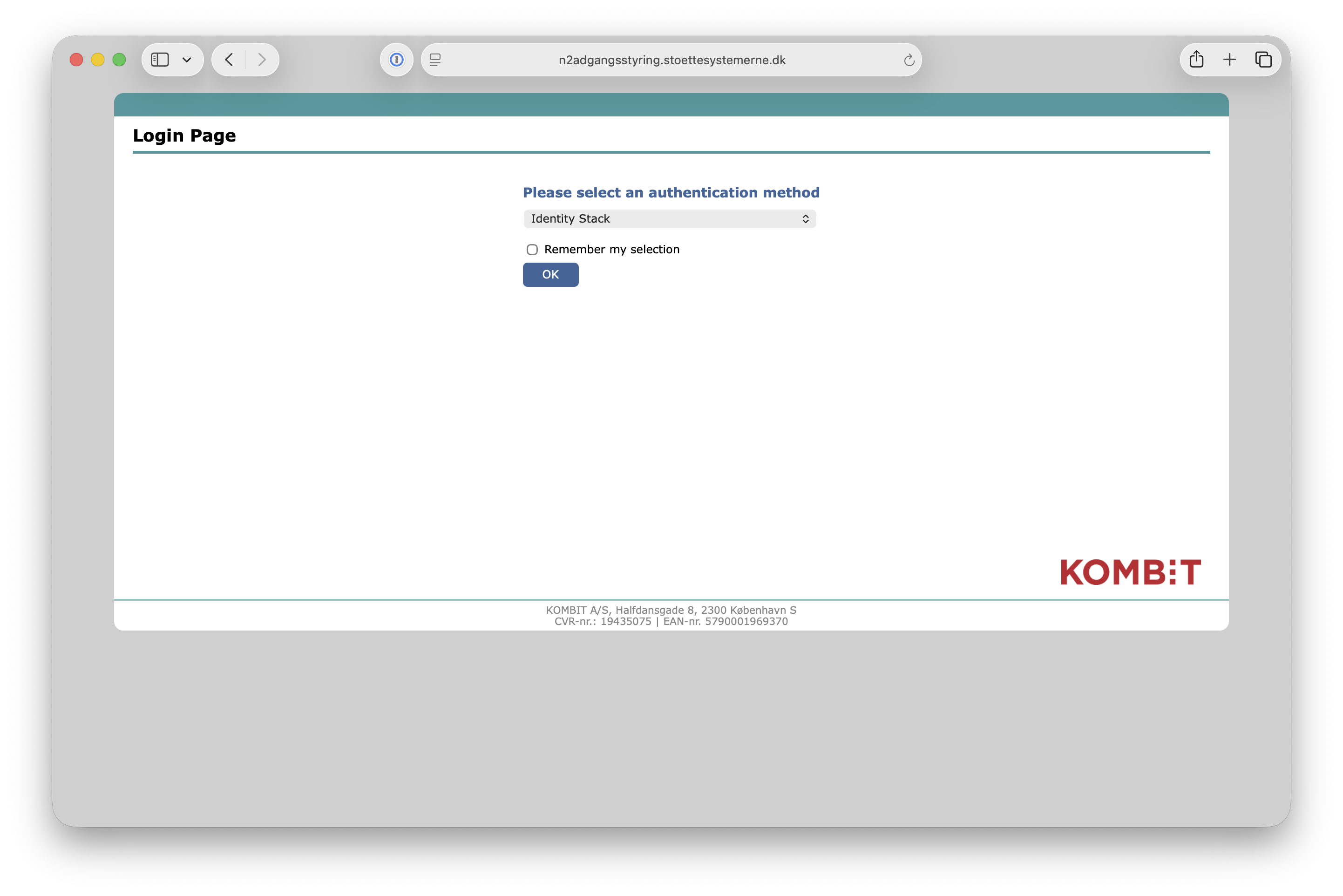
Select your organisation (municipality) as the authentication method. Check Remember my selection to skip this step next time, and click OK.
3. Sign in with your Microsoft account
You are redirected to Microsoft. Sign in with your work account using your usual MFA method — in this example a passkey (face, fingerprint, PIN, or security key).
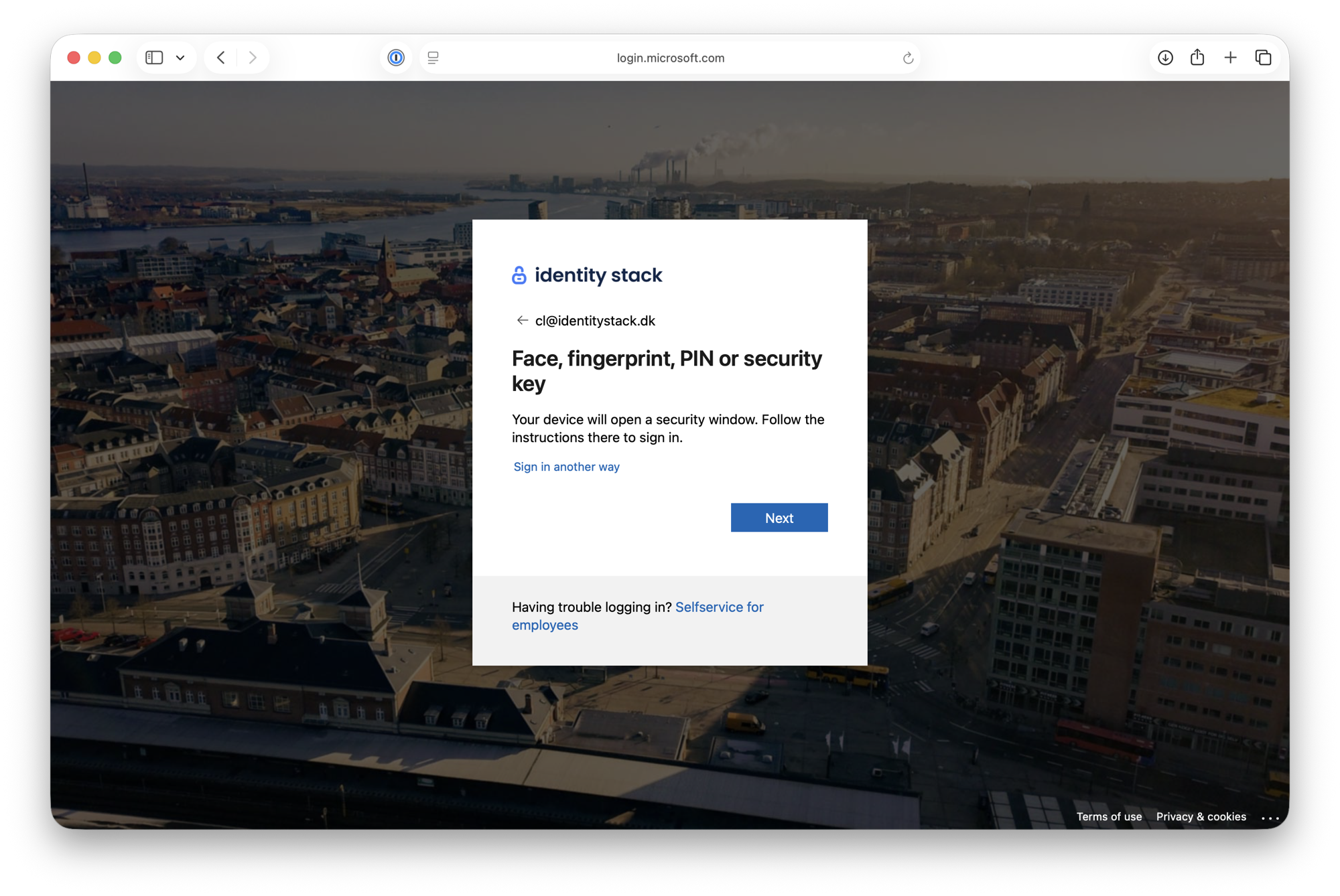
If this sign-in method has already been approved, you are redirected straight back to the service and are logged in — you are done. The first time you use a new sign-in method, the one-time approval below starts.
4. Confirm your identity with MitID
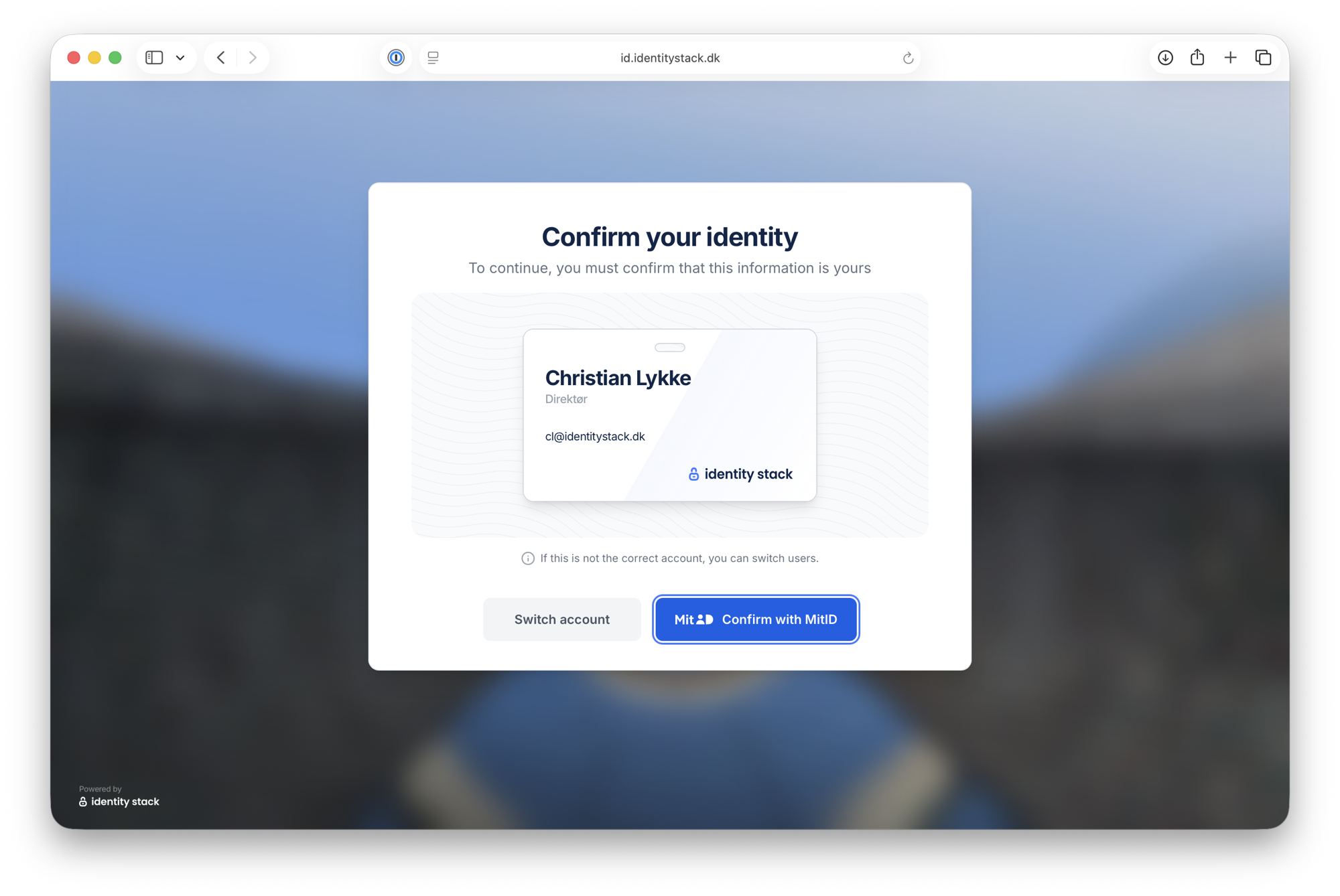
Verify that the information shown is yours and click Confirm with MitID.
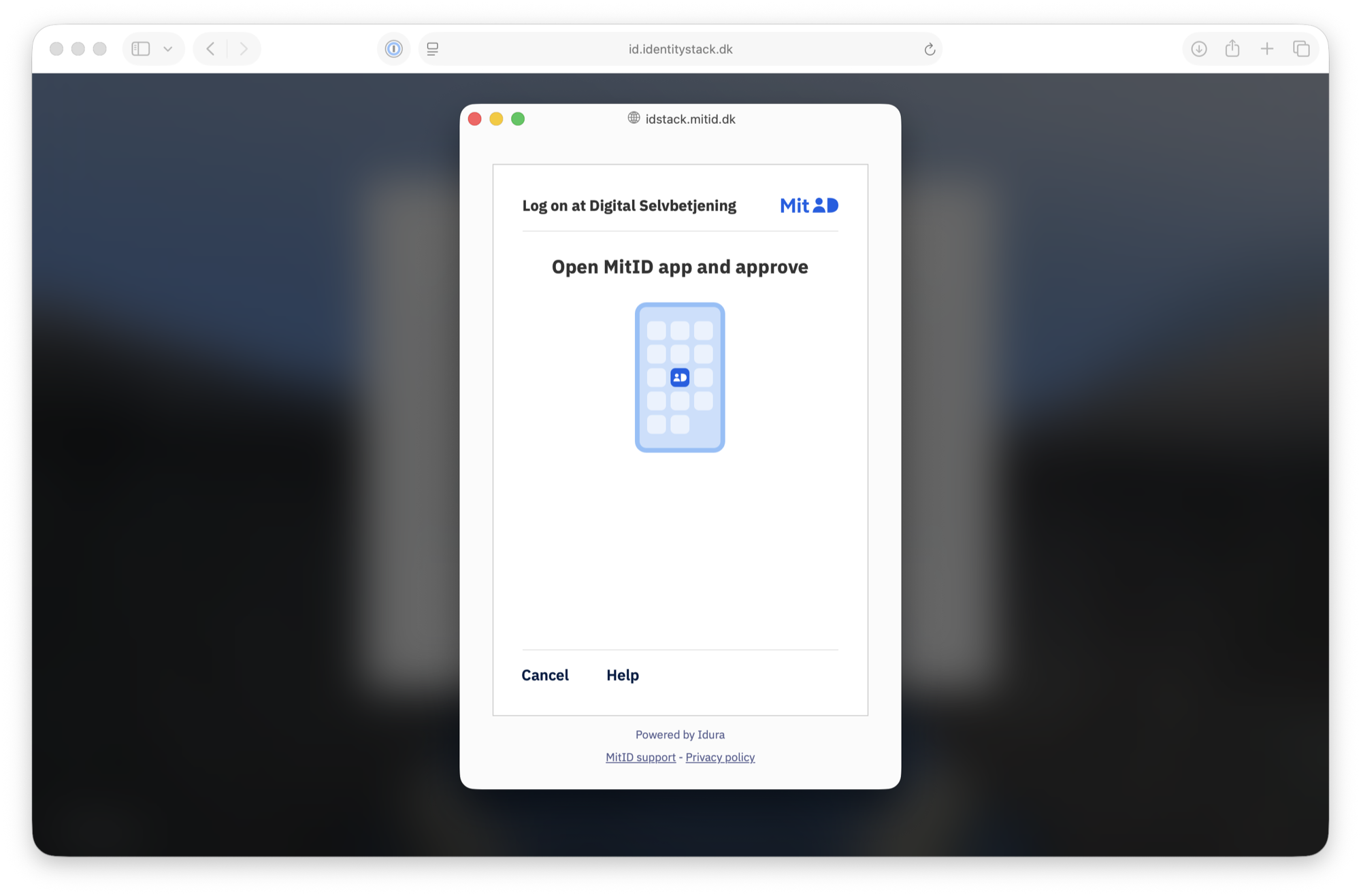
Approve the request in your personal MitID app.
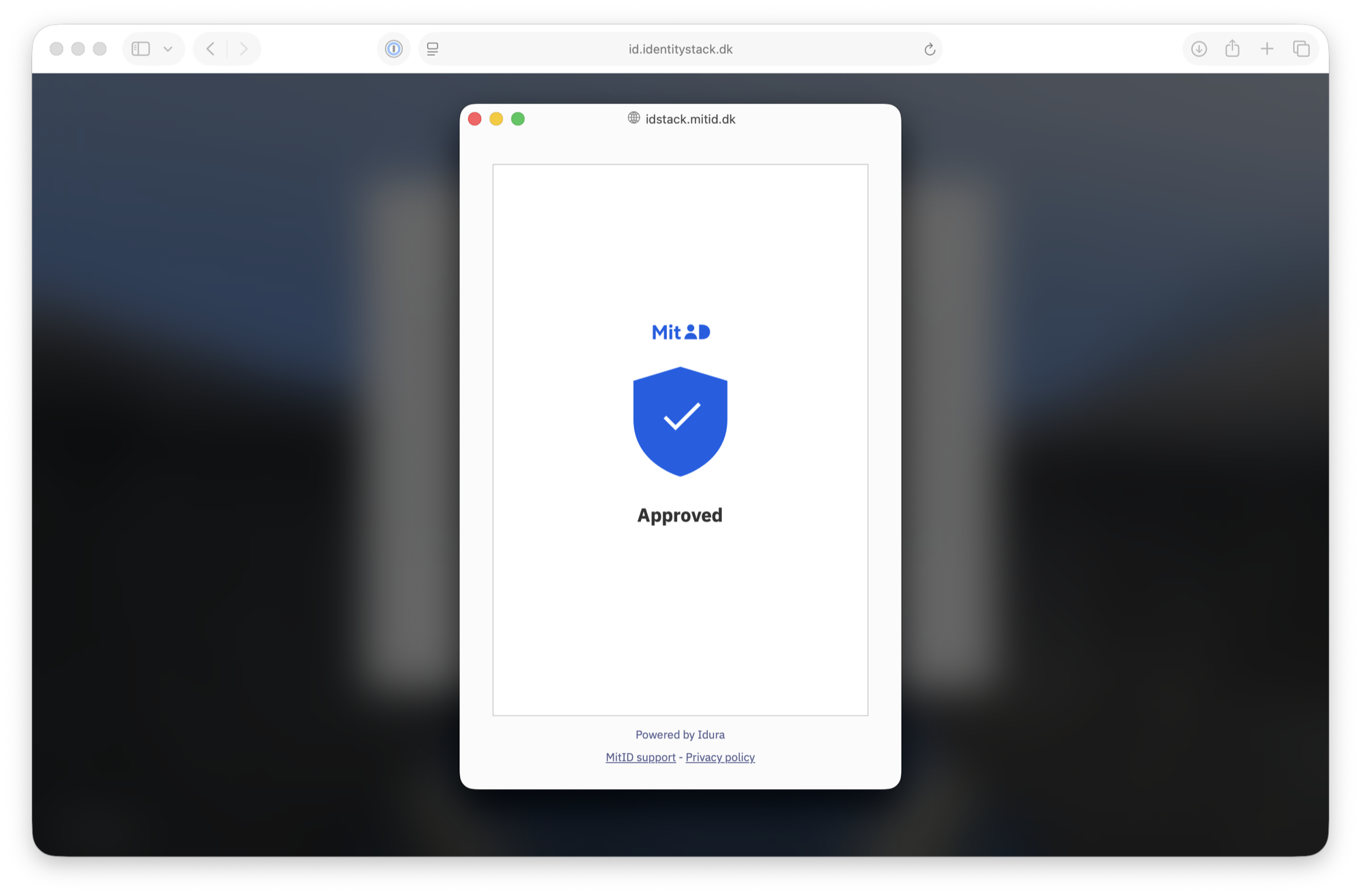
5. Accept the terms and conditions
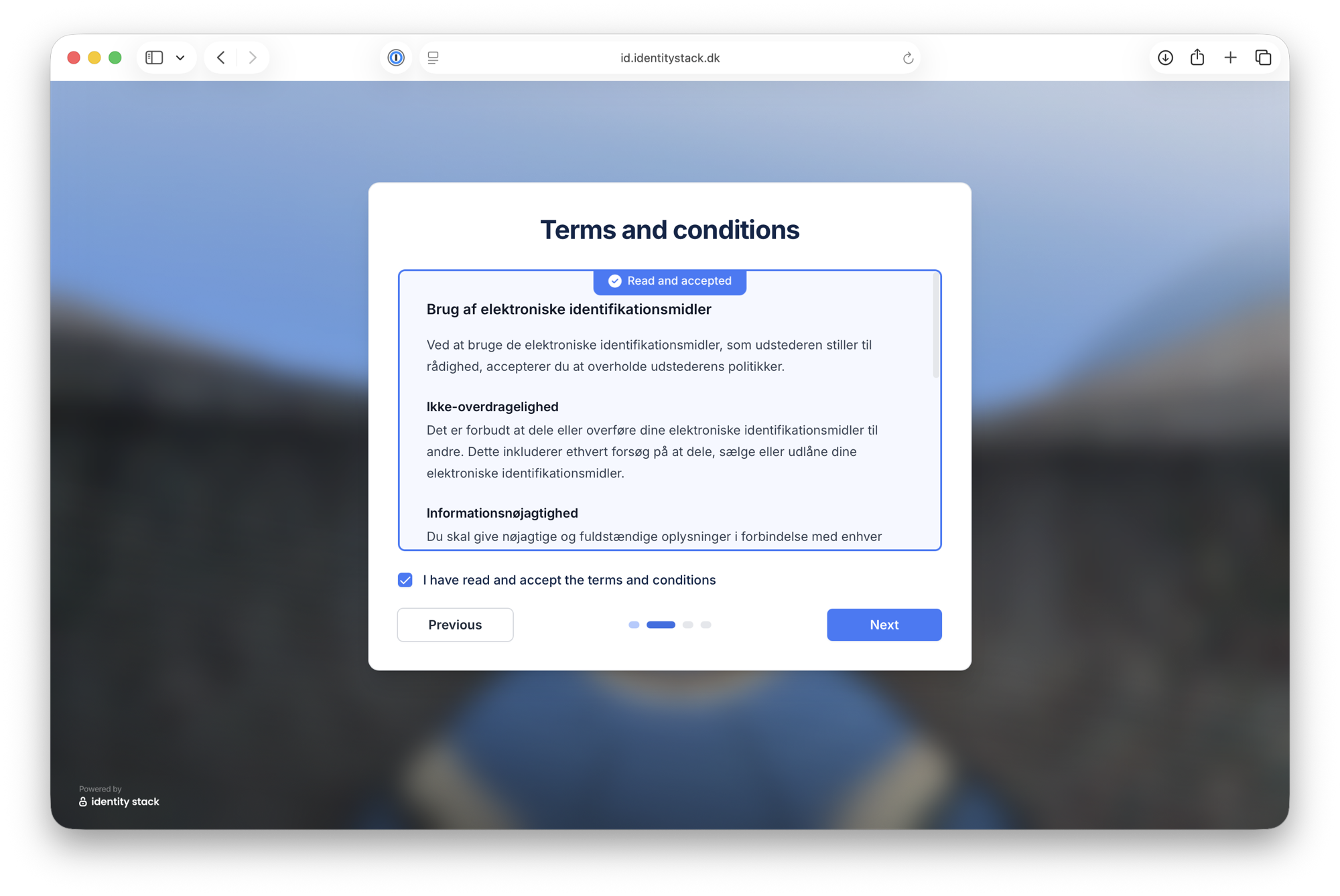
Read the terms and conditions. Scroll to the bottom of the text — the checkbox is enabled once the terms are marked Read and accepted.
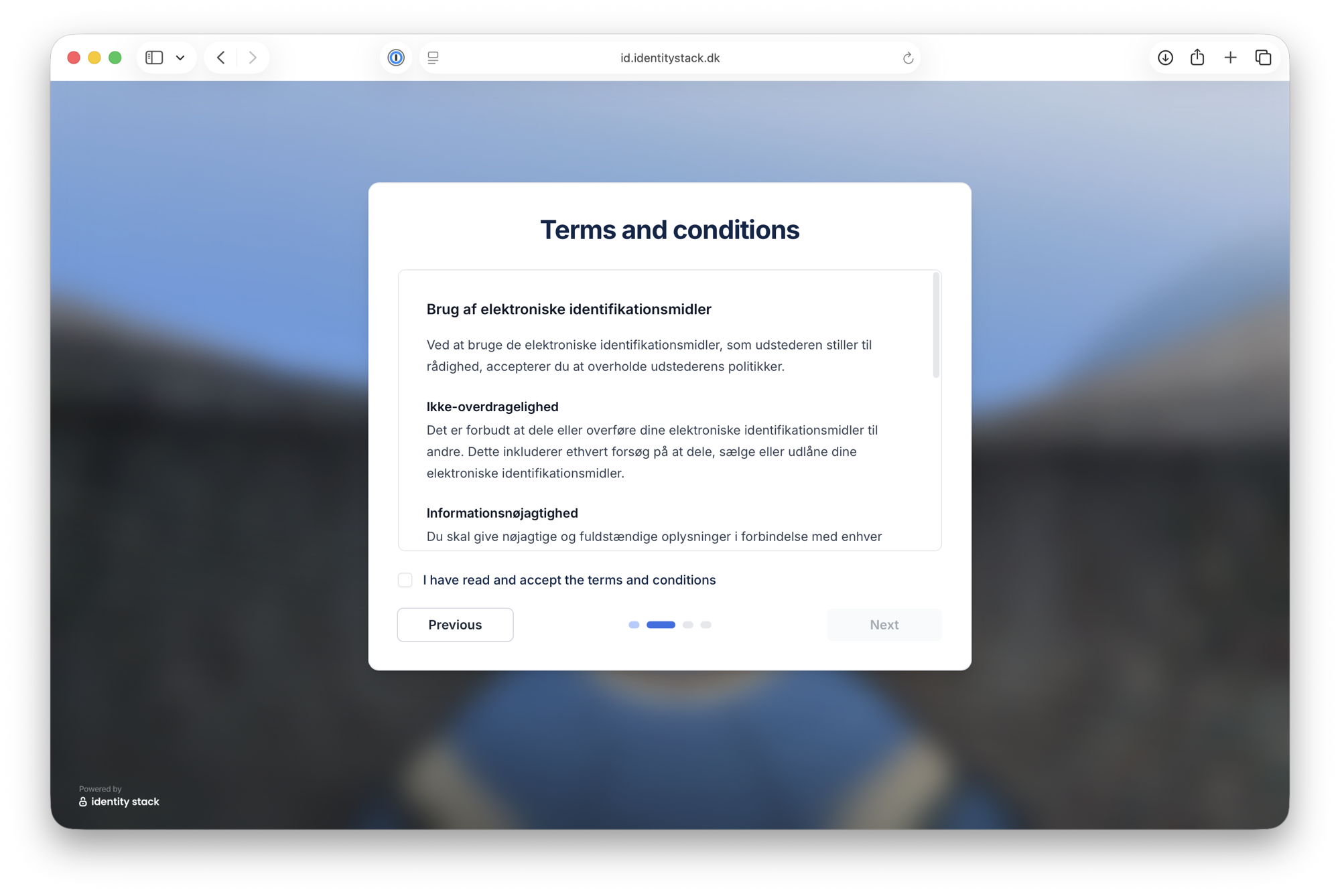
Check I have read and accept the terms and conditions and click Next.
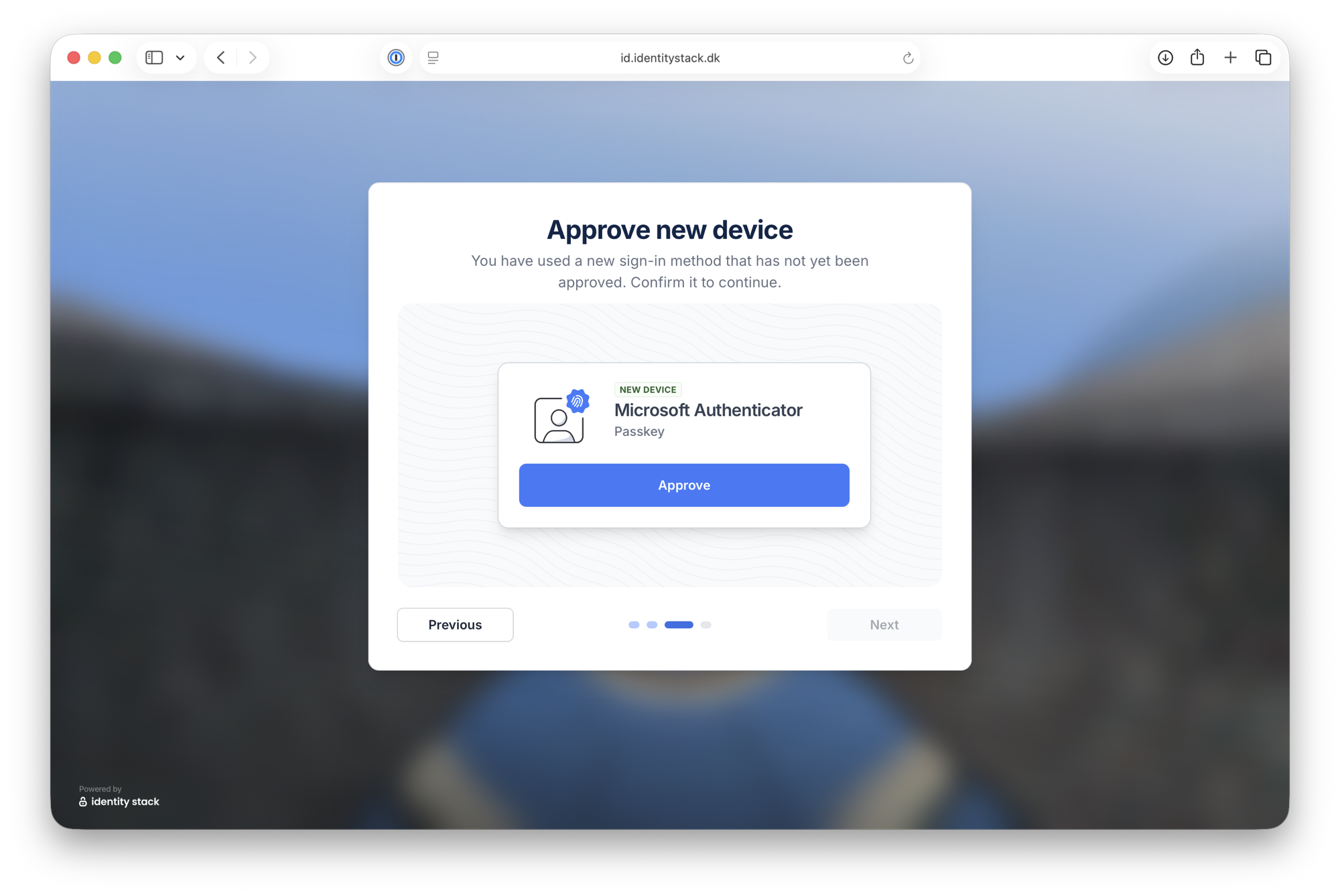
6. Approve your new device
Confirm that you possess and have sole control of the authentication device by clicking Approve.
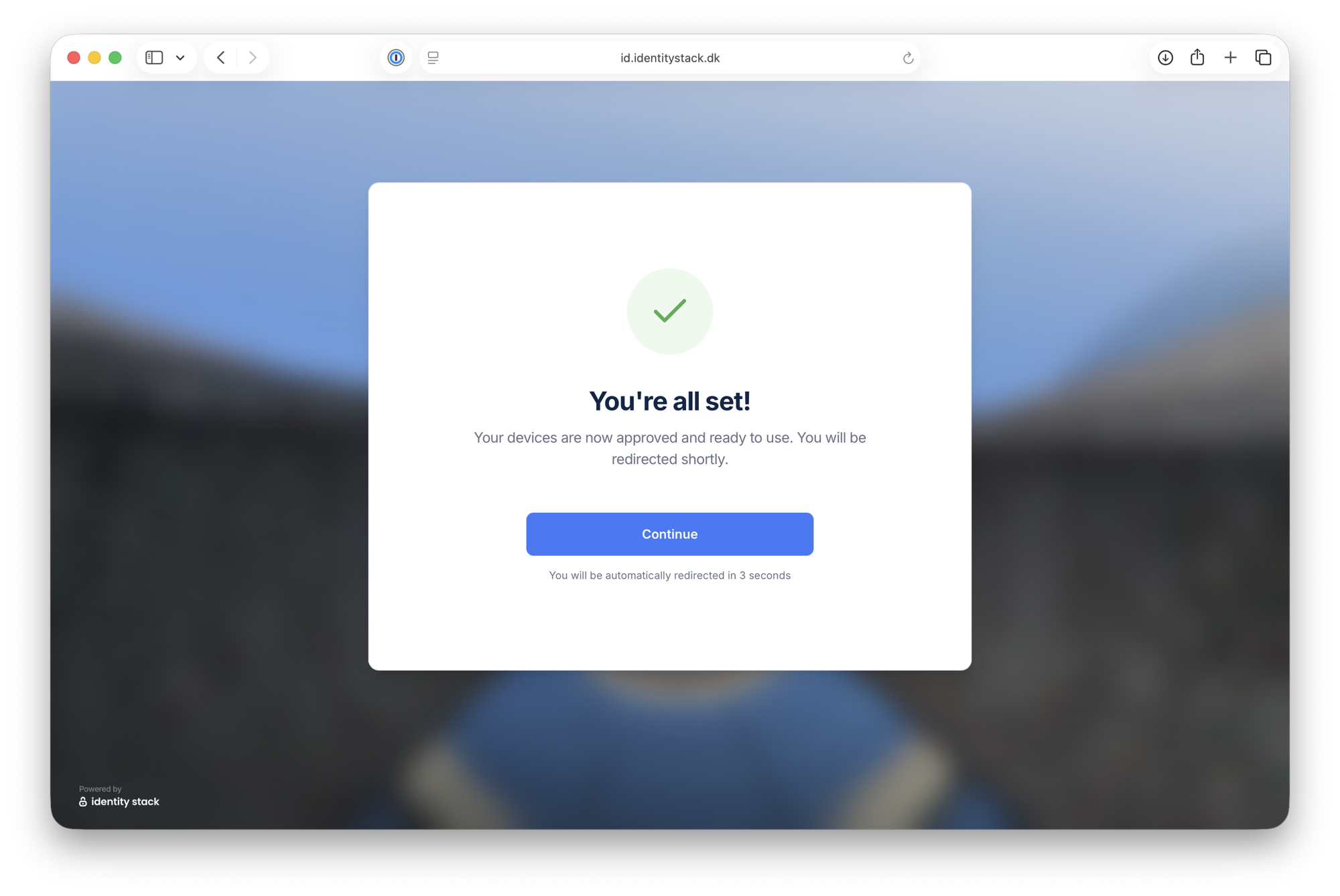
7. You're all set
Your device is approved and ready to use. You are automatically redirected back to the service, logged in.
The next time you log in with the same sign-in method, steps 4–7 are skipped — you simply sign in with your Microsoft MFA method.