Appearance
Set up the BusinessID app
In this tutorial, you set up the BusinessID app. At the end, the app shows the BusinessID that your organization gives you.
You need:
- An iPhone with a passcode and Face ID or Touch ID.
- Your MitID or passport.
- An Android phone with a screen lock and a fingerprint.
- Your MitID or passport.
1. Install the app
- Open the App Store.
- Search for BusinessID Authenticator.
- Tap Get.
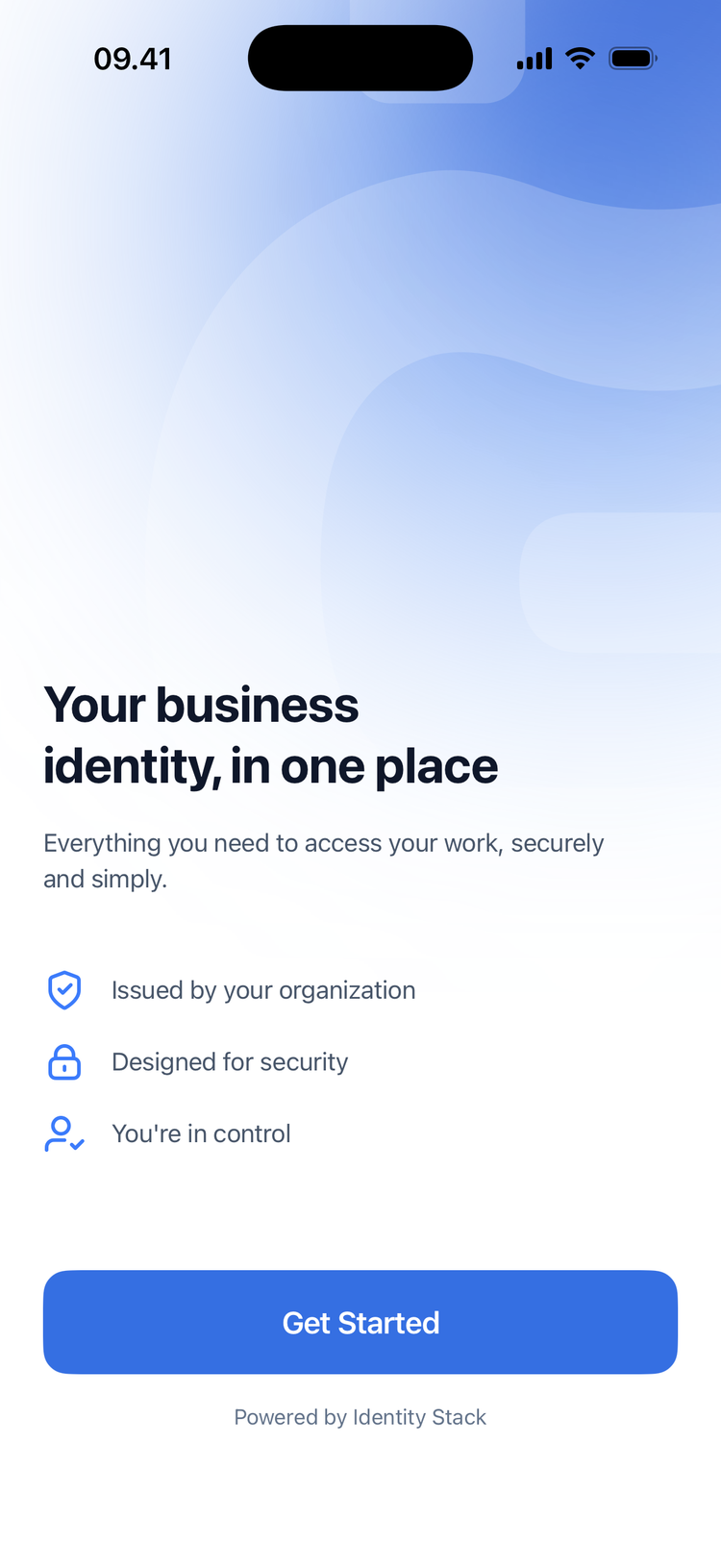
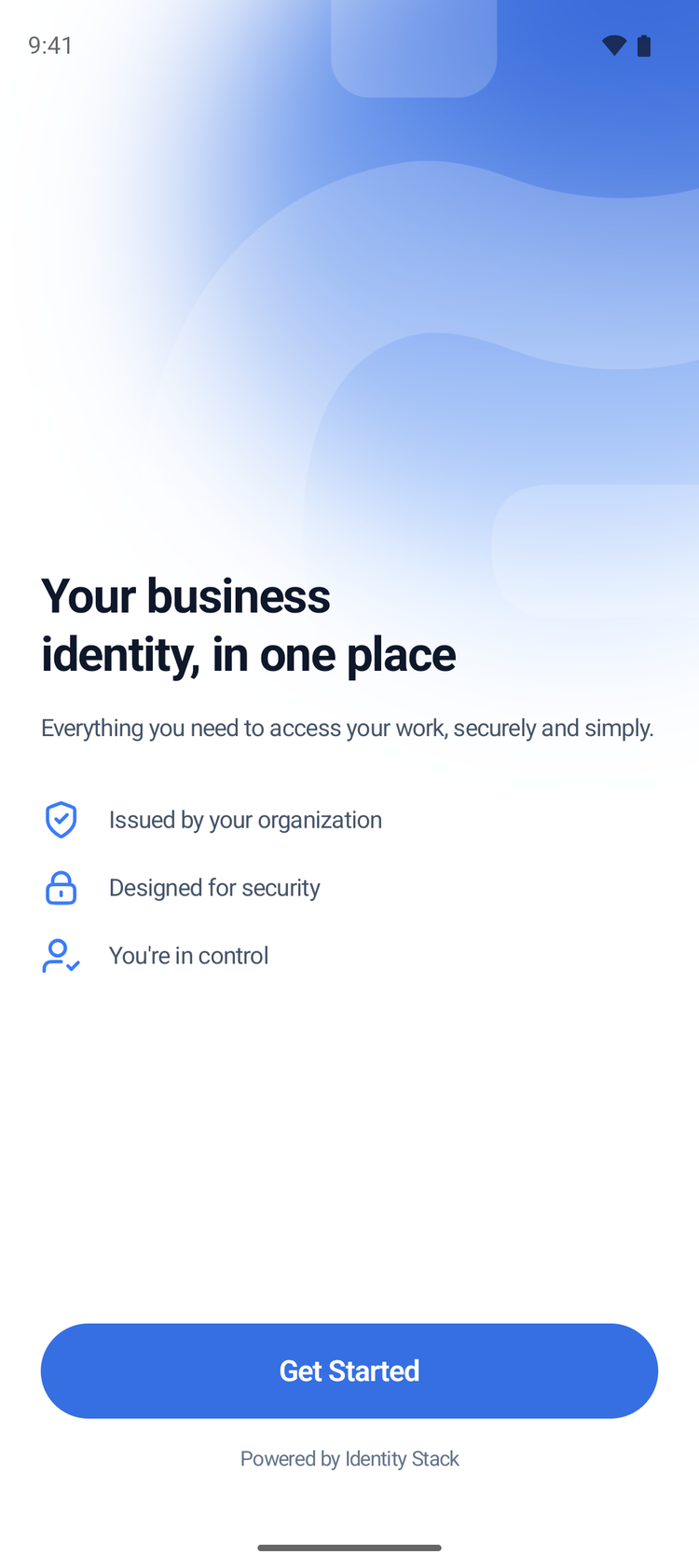
- Open the app. The app shows Get Started.
- Open Google Play.
- Search for BusinessID.
- Tap Install.
- Open the app. The app shows Get Started.
2. Prove who you are
- Tap Get Started.
If the app shows Set up fingerprint or face unlock
The app needs a fingerprint, or a face unlock that apps can use.
- Tap Open settings.
- Add a fingerprint.
- Go back to the BusinessID app.
- Tap Check again.
Prove who you are with MitID or with your passport. Use the one that your organization has on file.
- Tap MitID.
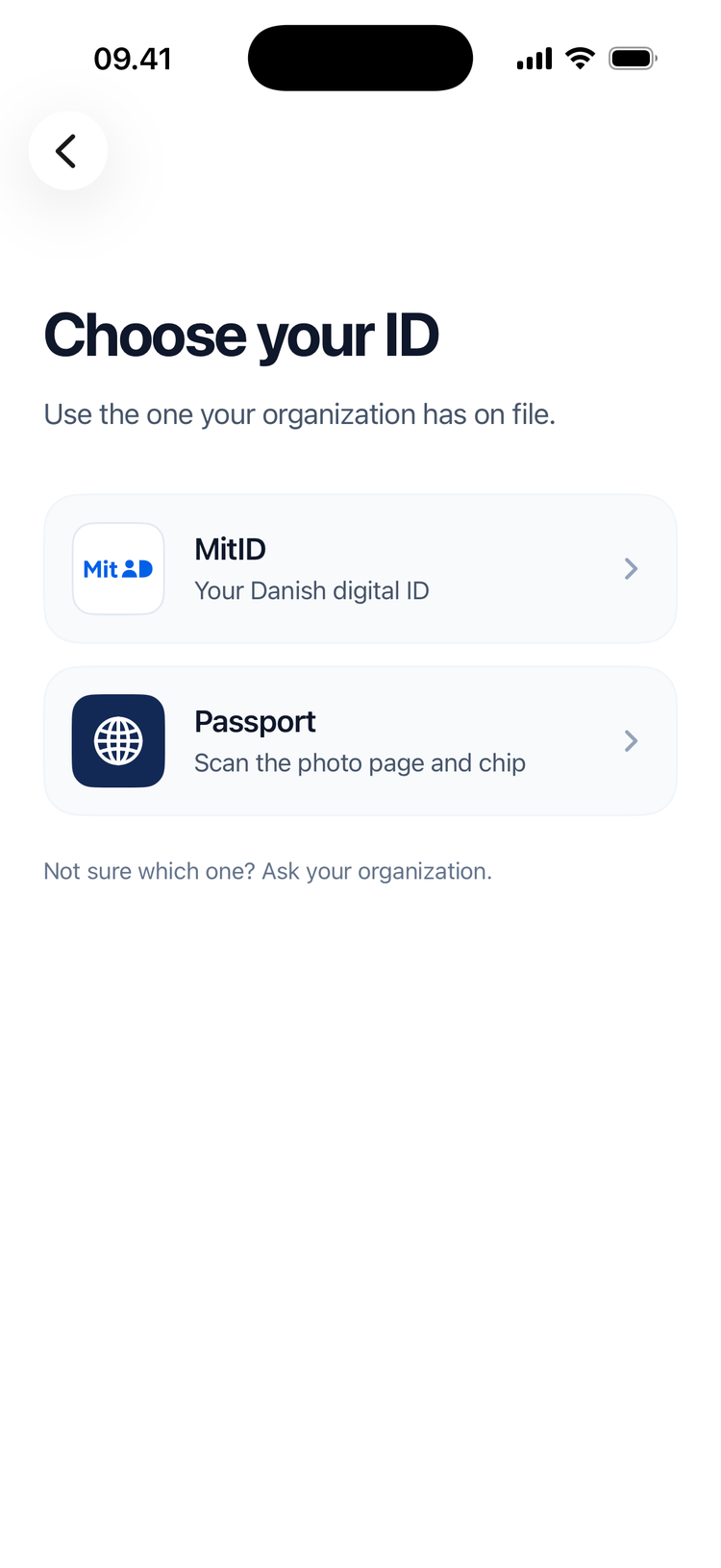
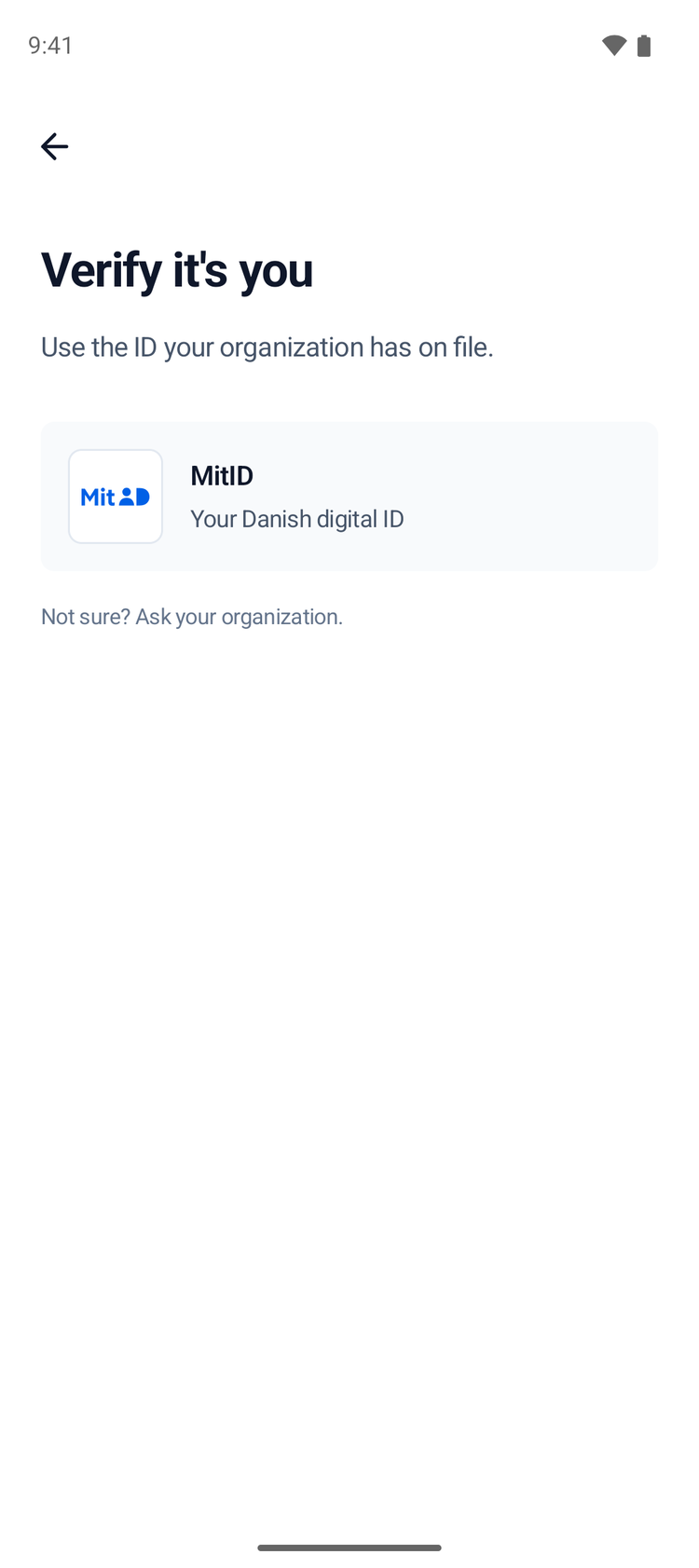
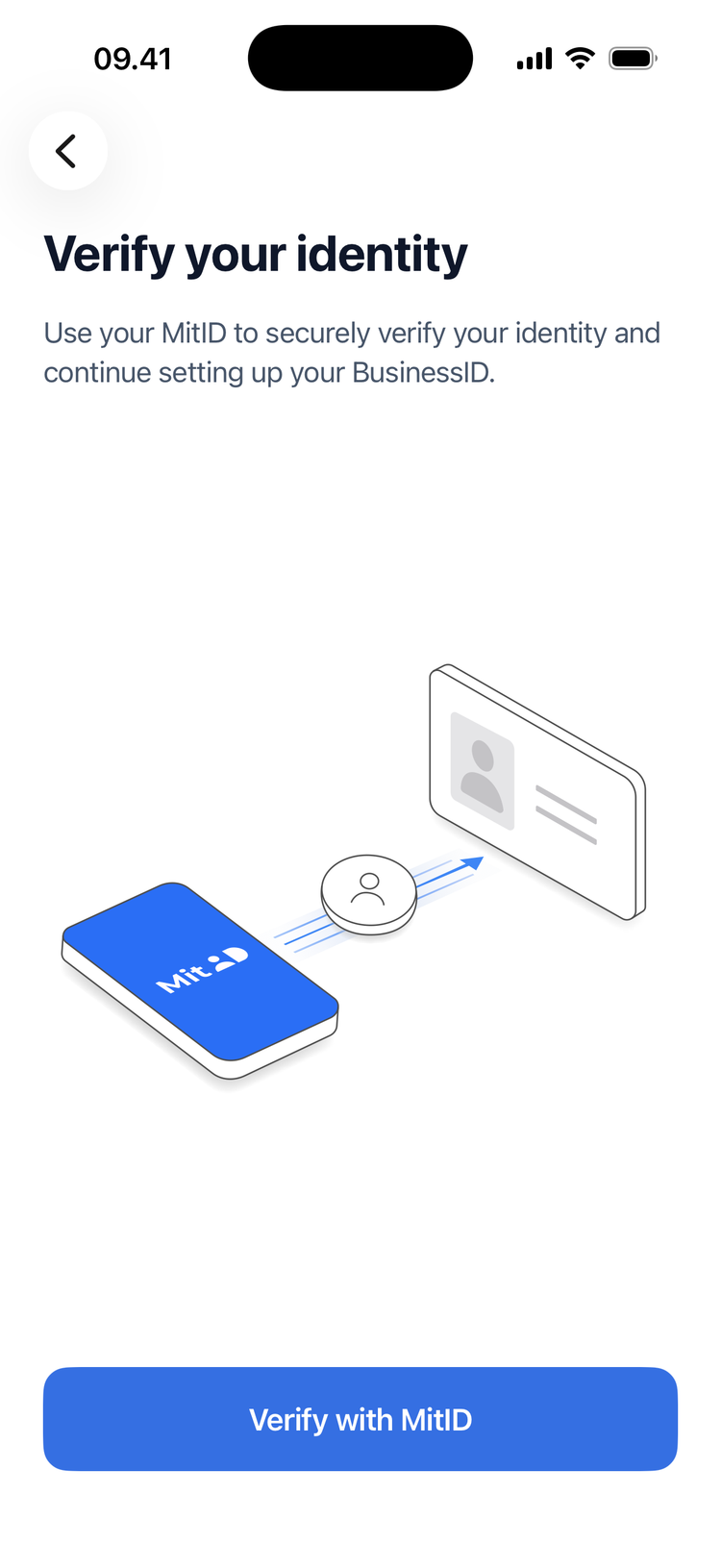
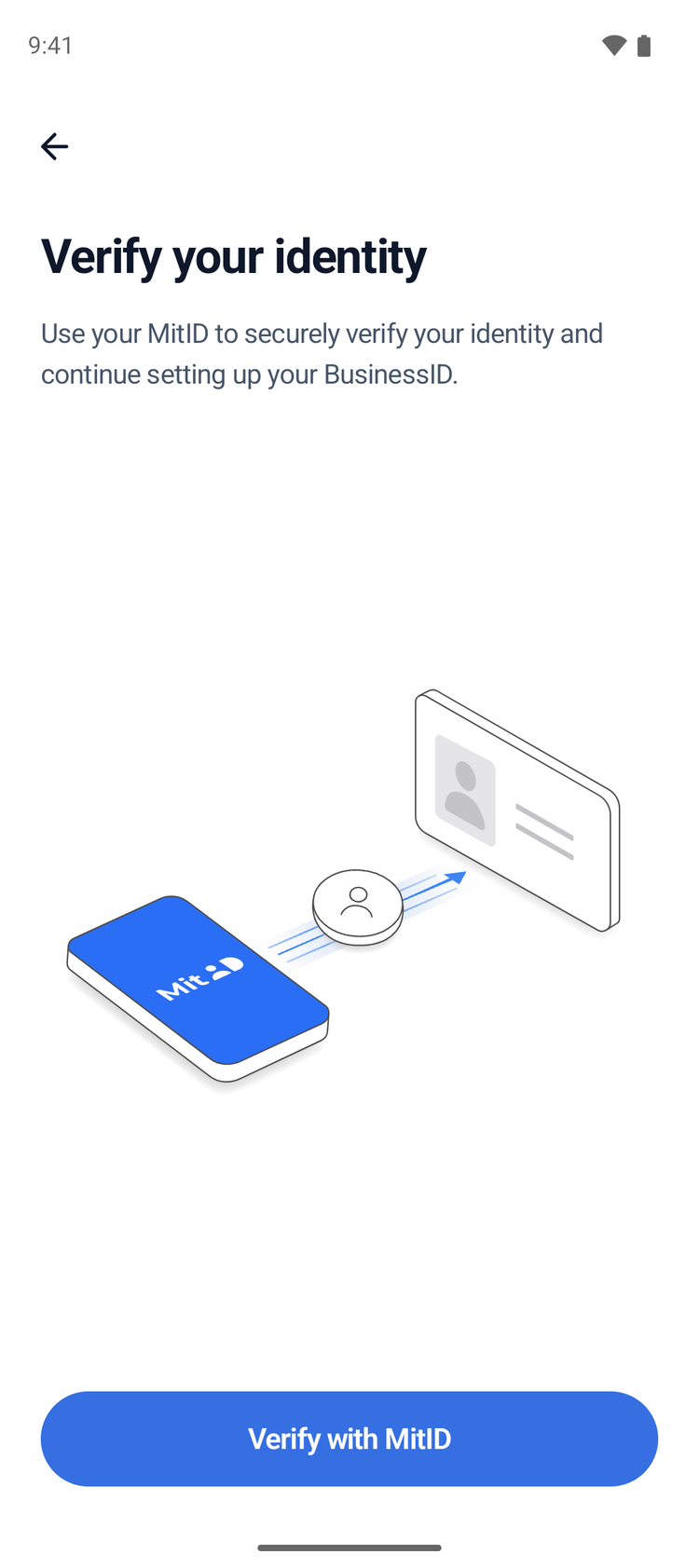
- Tap Verify with MitID. MitID opens.
- Approve the request in the MitID app. The BusinessID app opens again.
- Tap Passport.
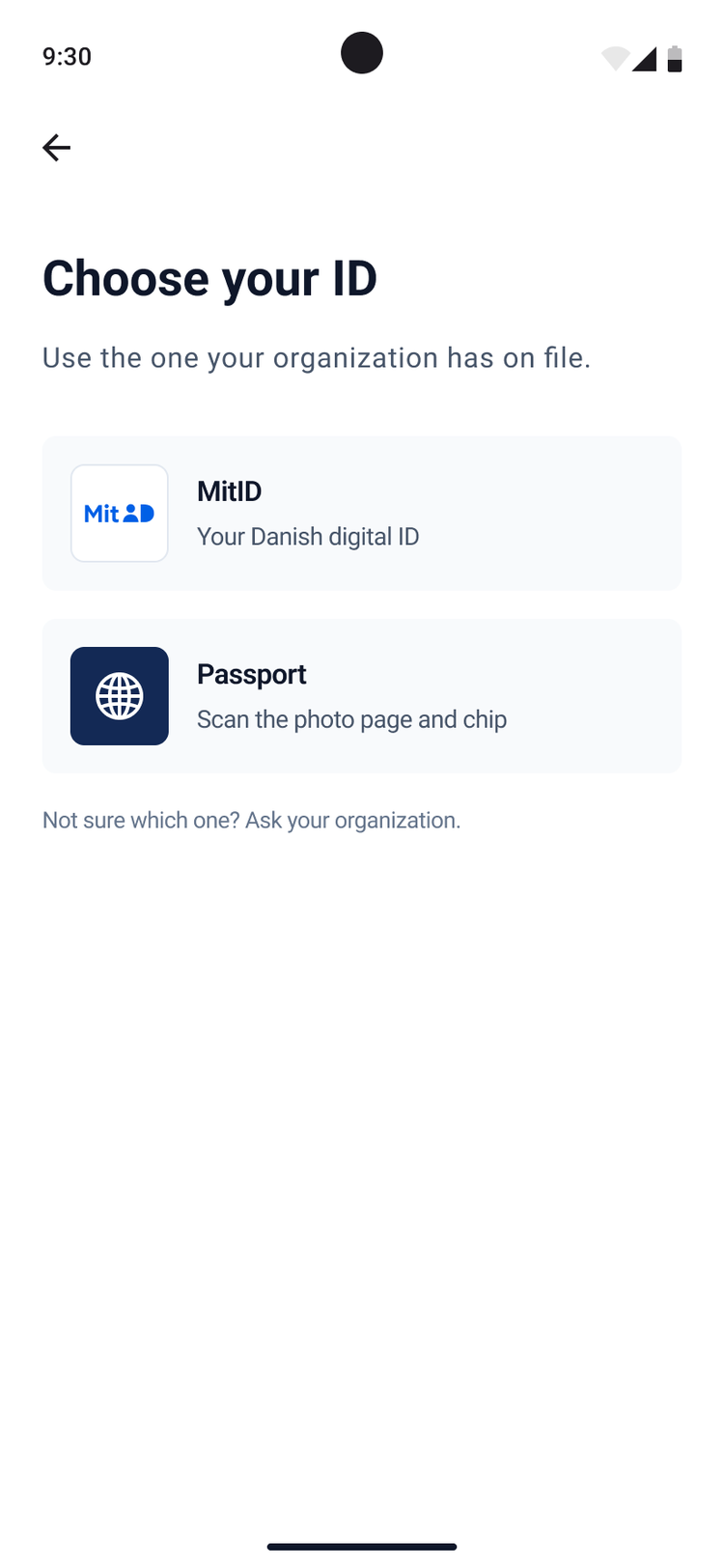
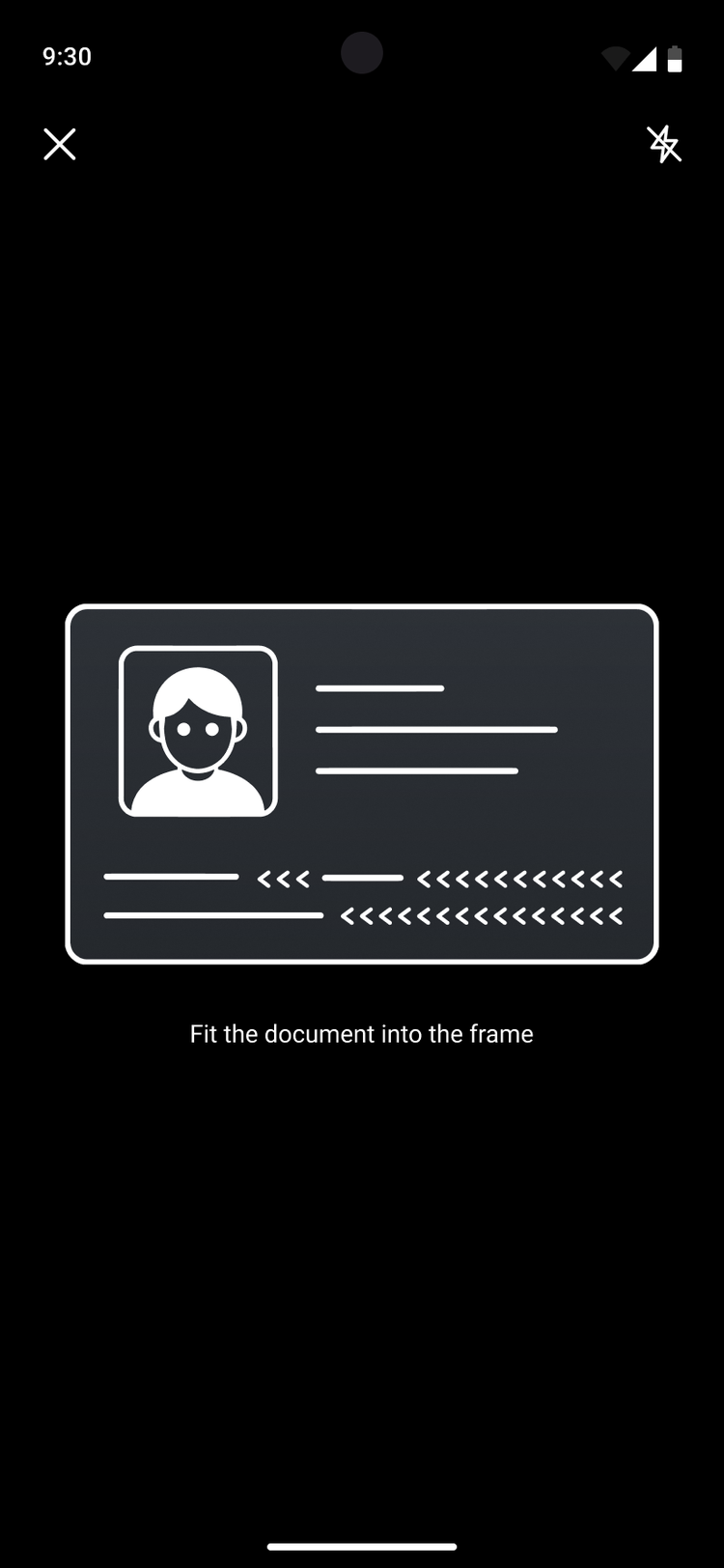
- Tap Scan passport. The camera opens.
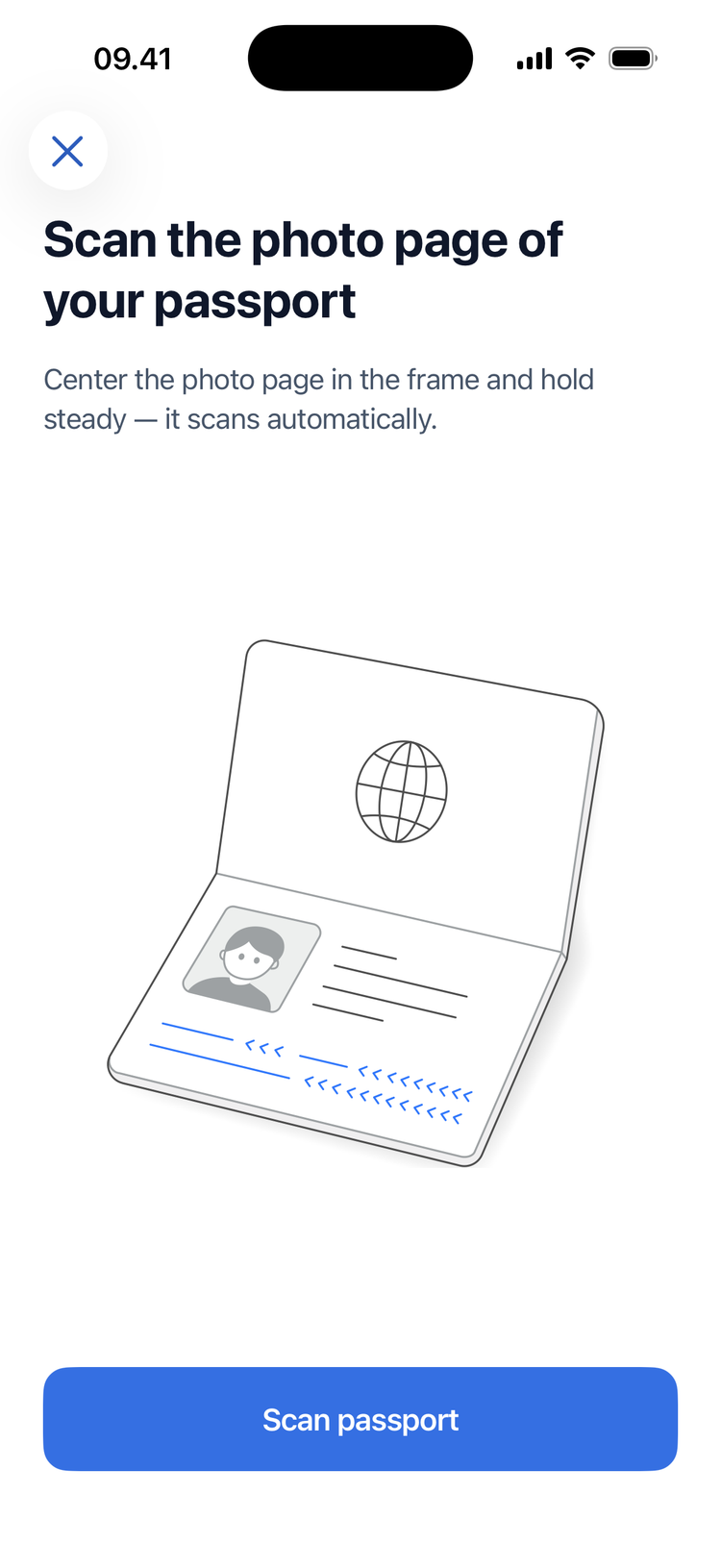
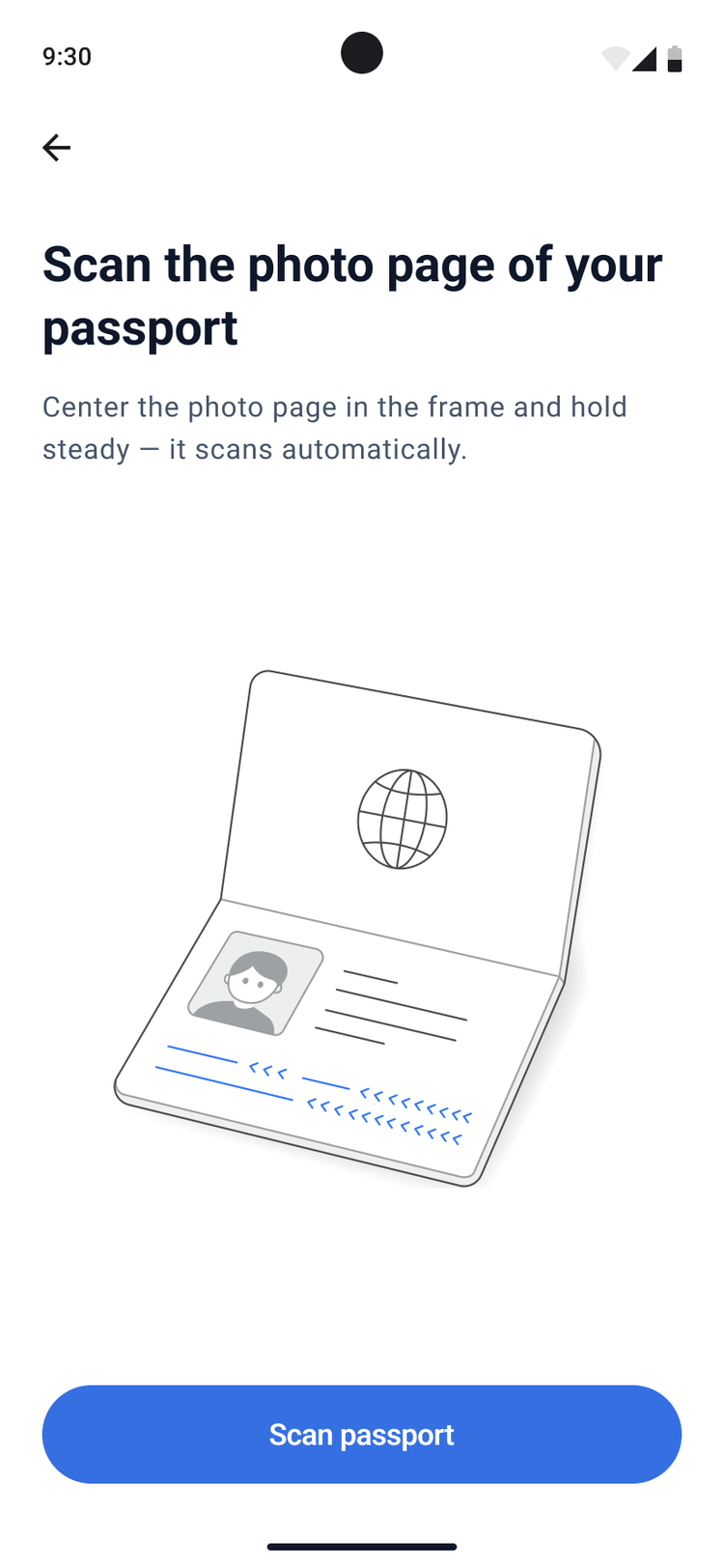
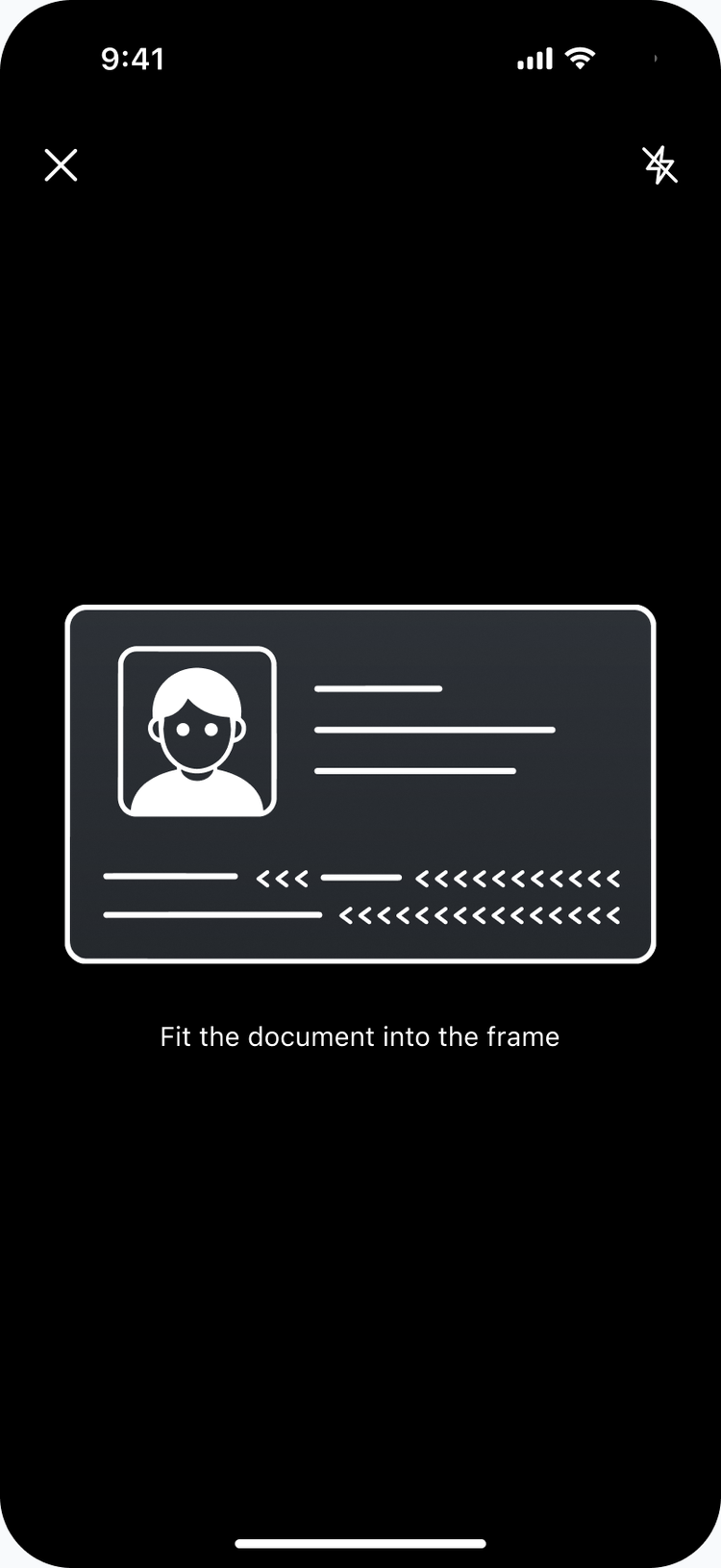
- Hold the photo page of your passport in the frame. The app scans it by itself.
- Tap Scan passport.
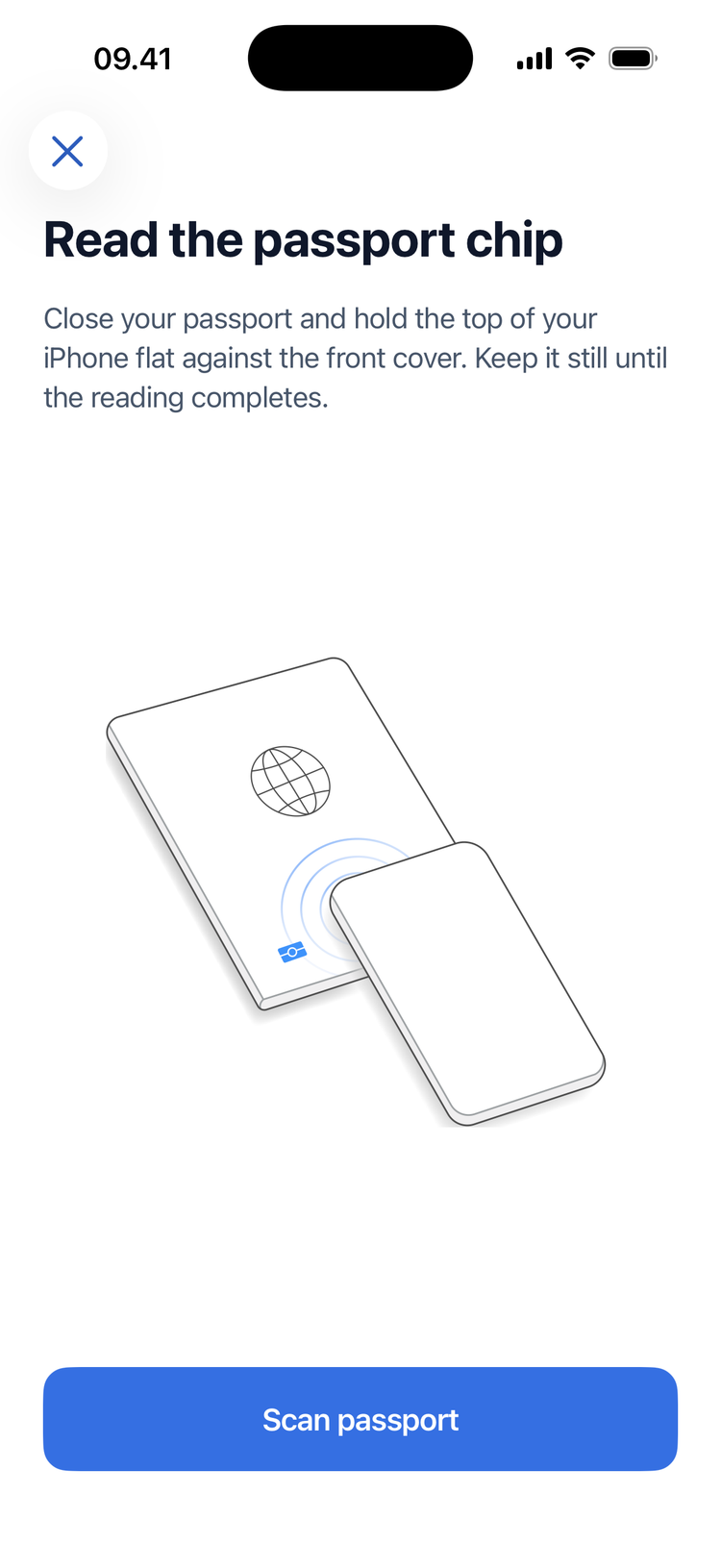
- Close your passport.
- Hold the top of your iPhone flat against the front cover. Keep it still until the reading is complete.
- Tap Scan passport.
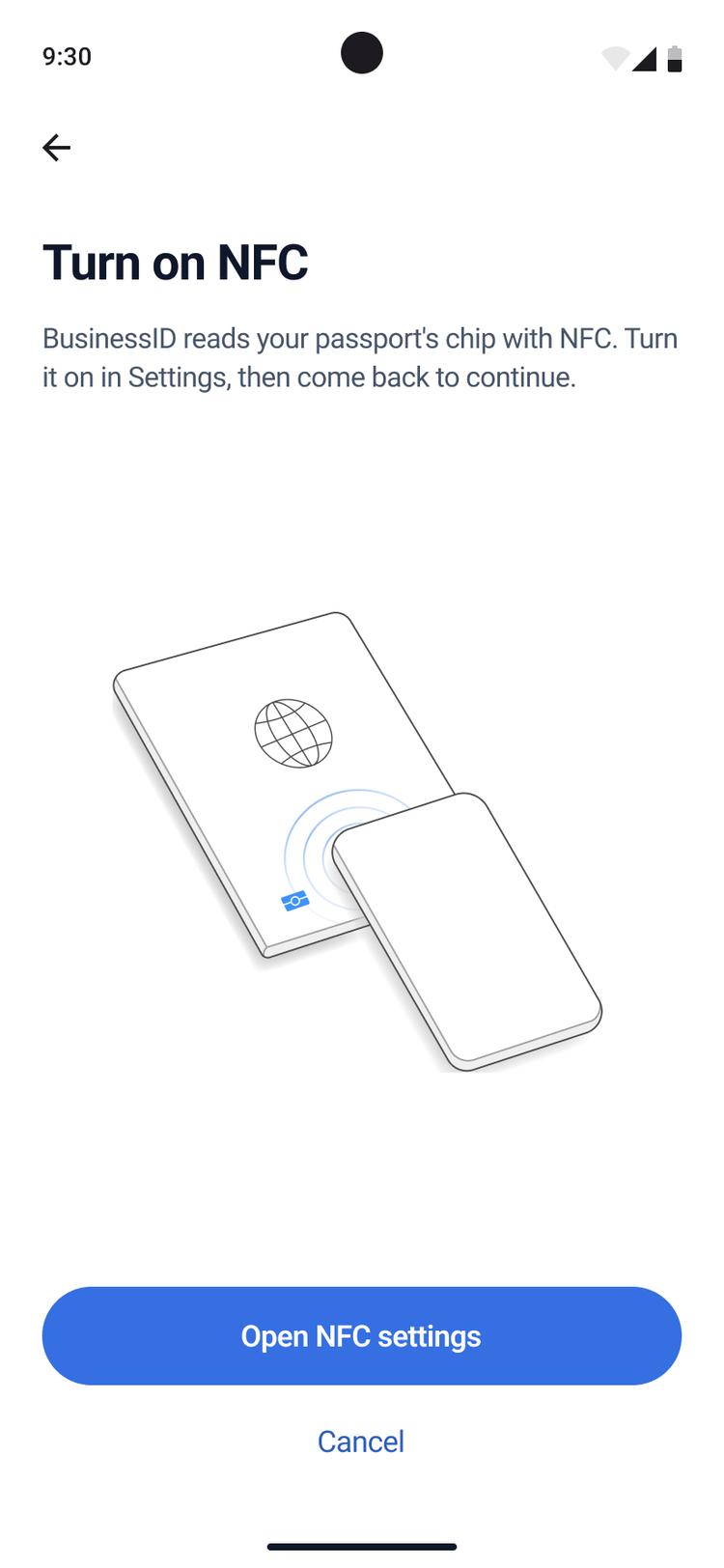
- If the app shows Turn on NFC:
- Tap Open NFC settings.
- Turn on NFC.
- Go back to the BusinessID app.
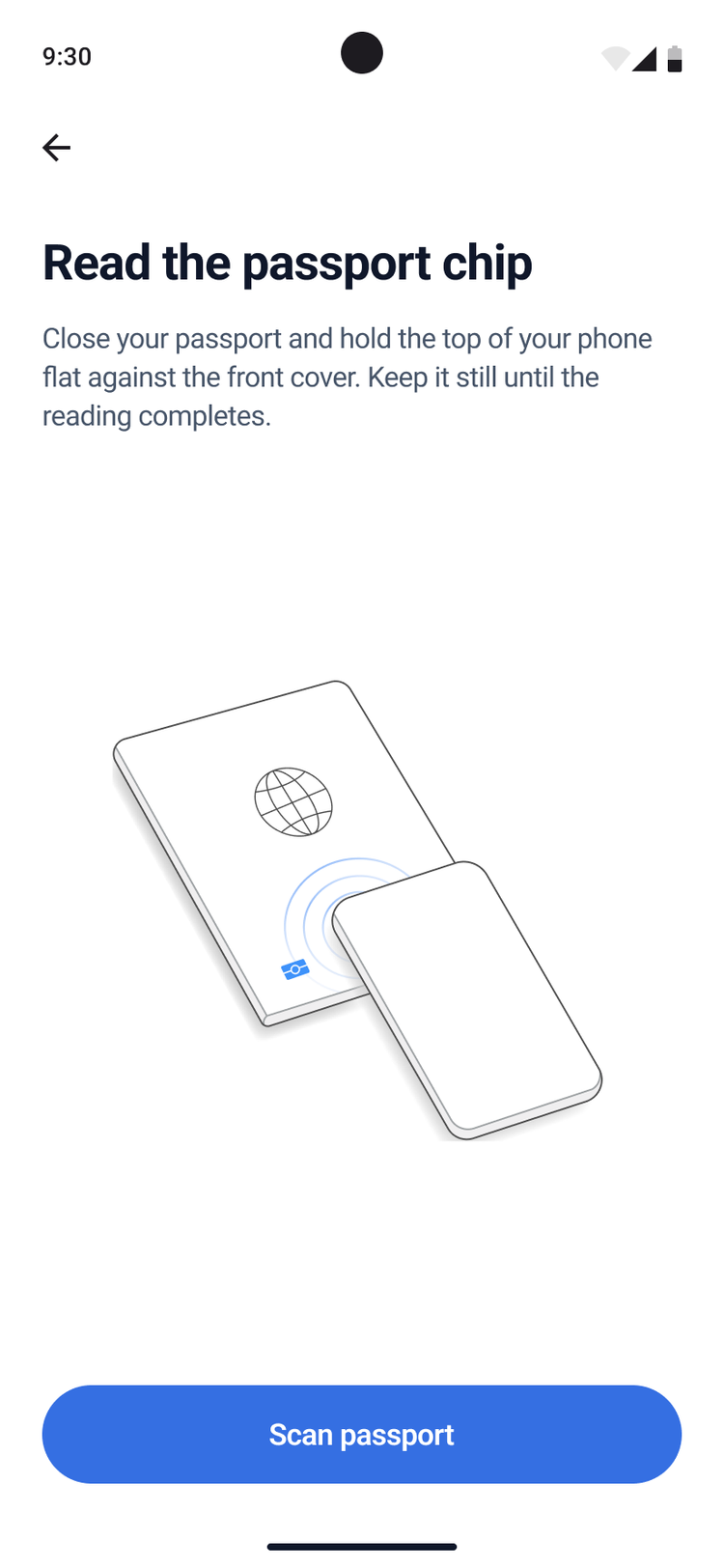
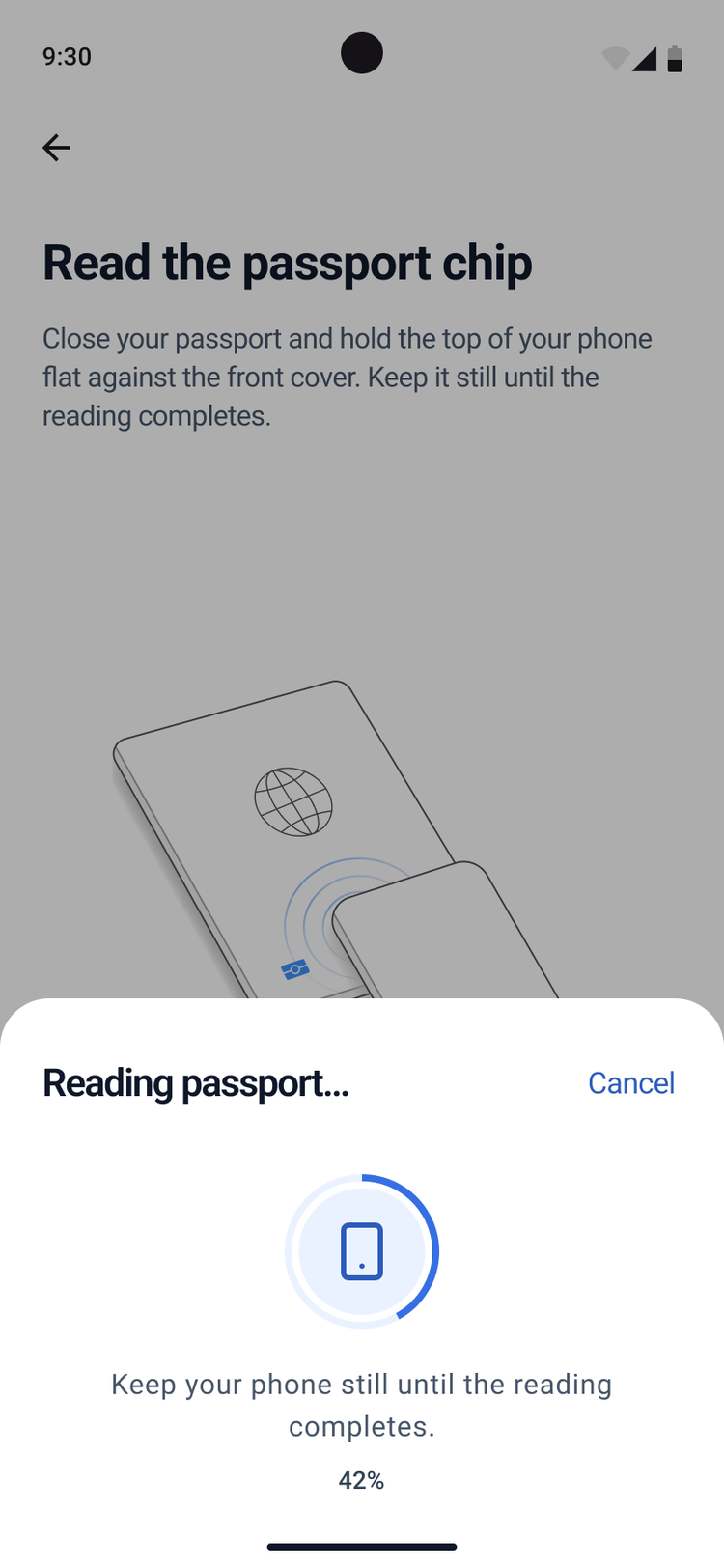
- Close your passport.
- Hold the middle of the back of your phone against the front cover. The reading starts when the phone finds the chip.
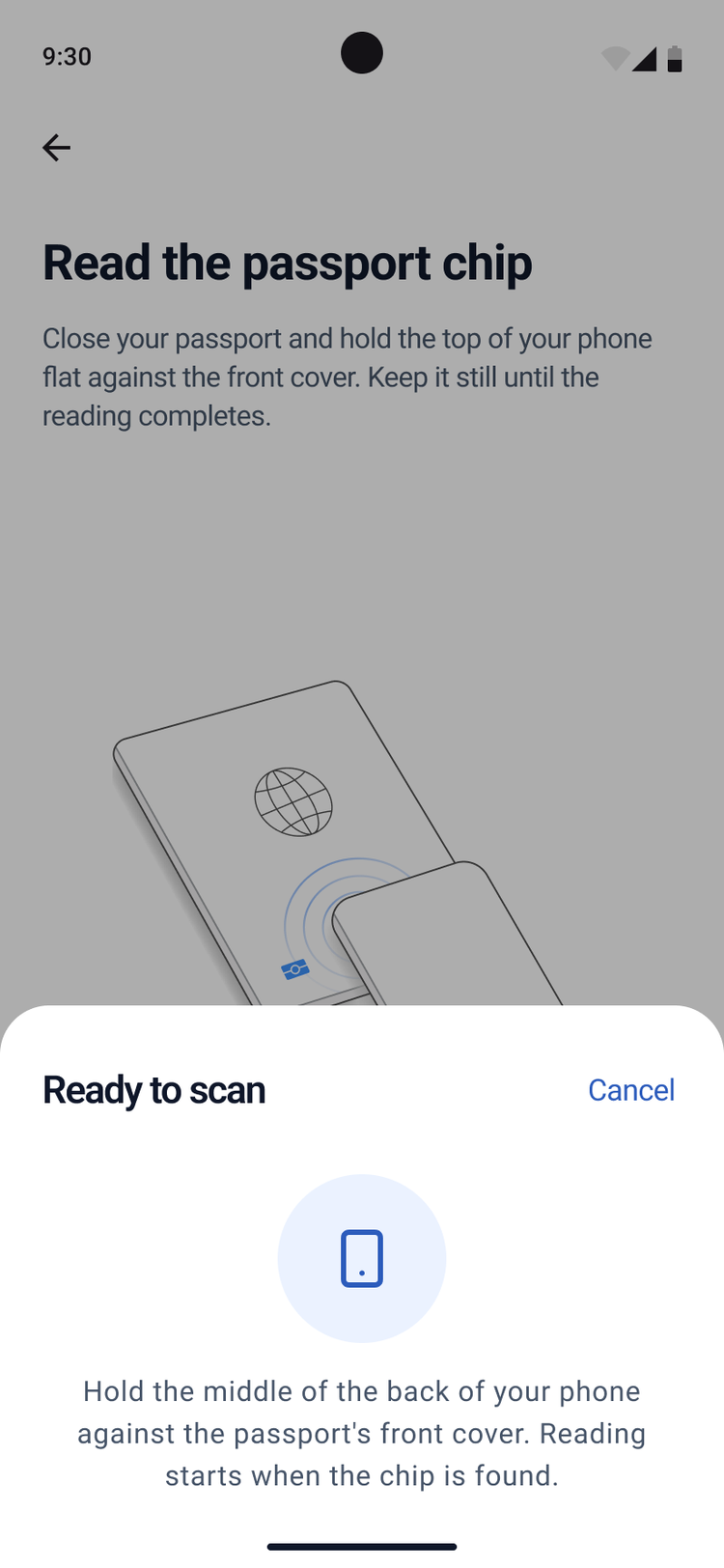
The app shows Reading passport… and how much it has read. Keep your phone still until the reading is complete.
- Tap Scan face. The camera opens.
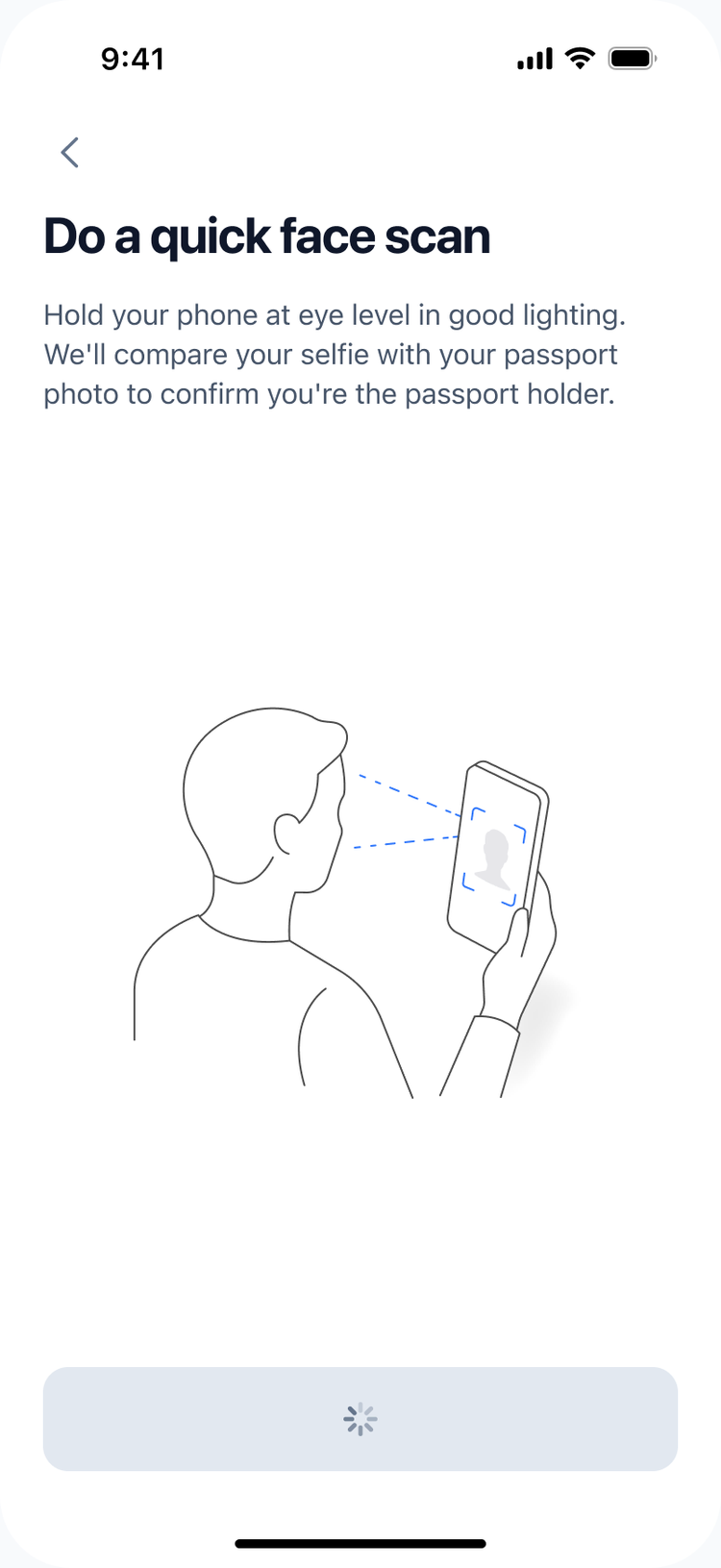
- Hold your iPhone at eye level in good light. Follow the instructions on the screen. [CHECK]
- Tap Scan face. The camera opens.
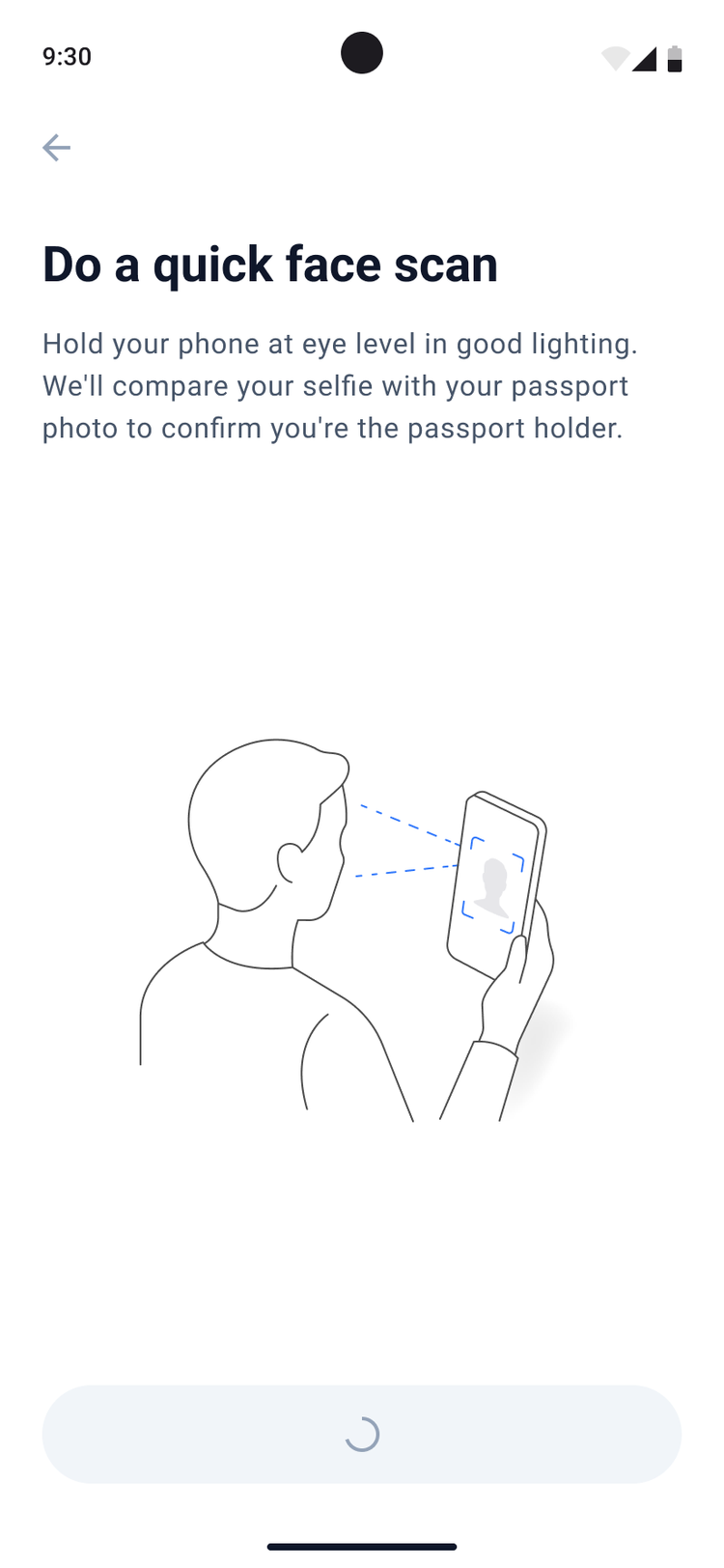
- Hold your phone at eye level in good light. Follow the instructions on the screen. [CHECK]
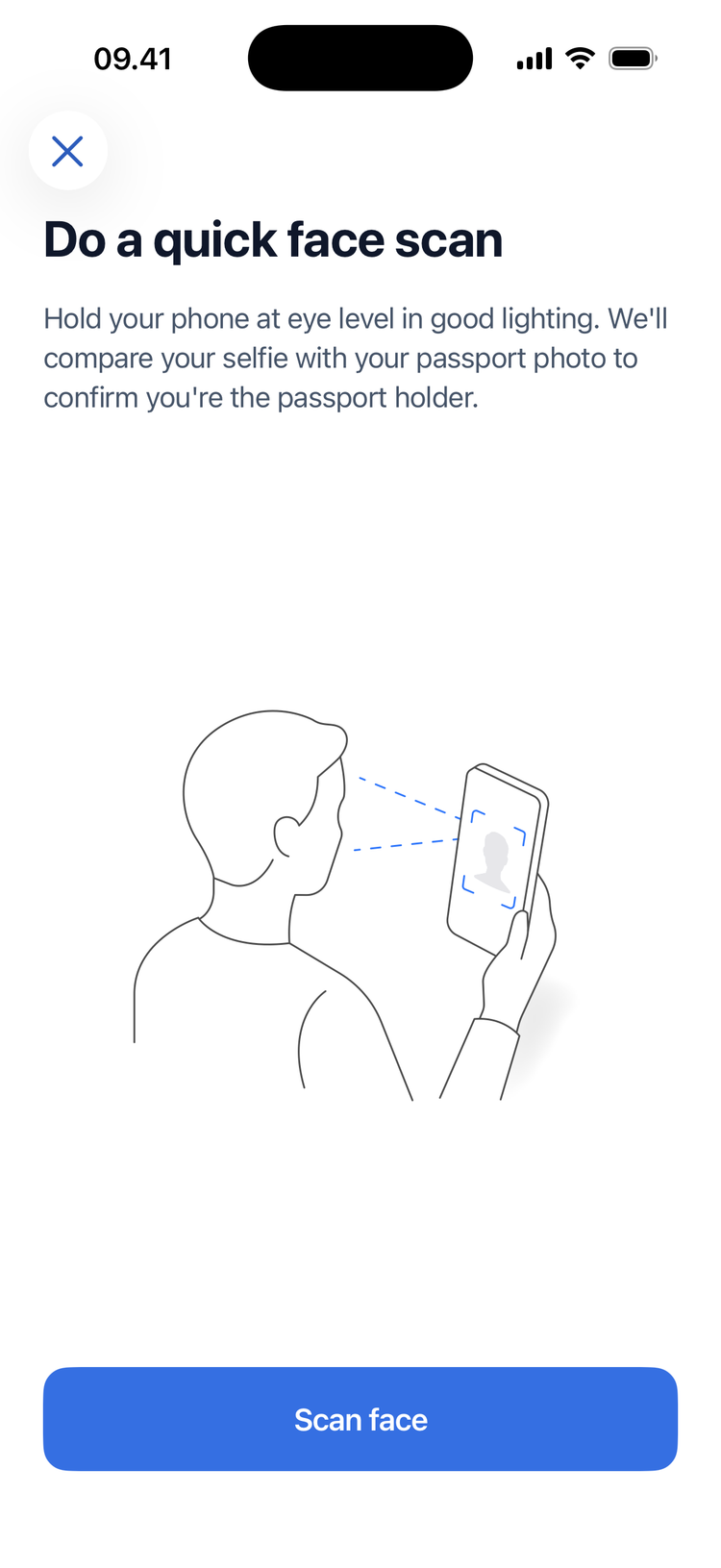
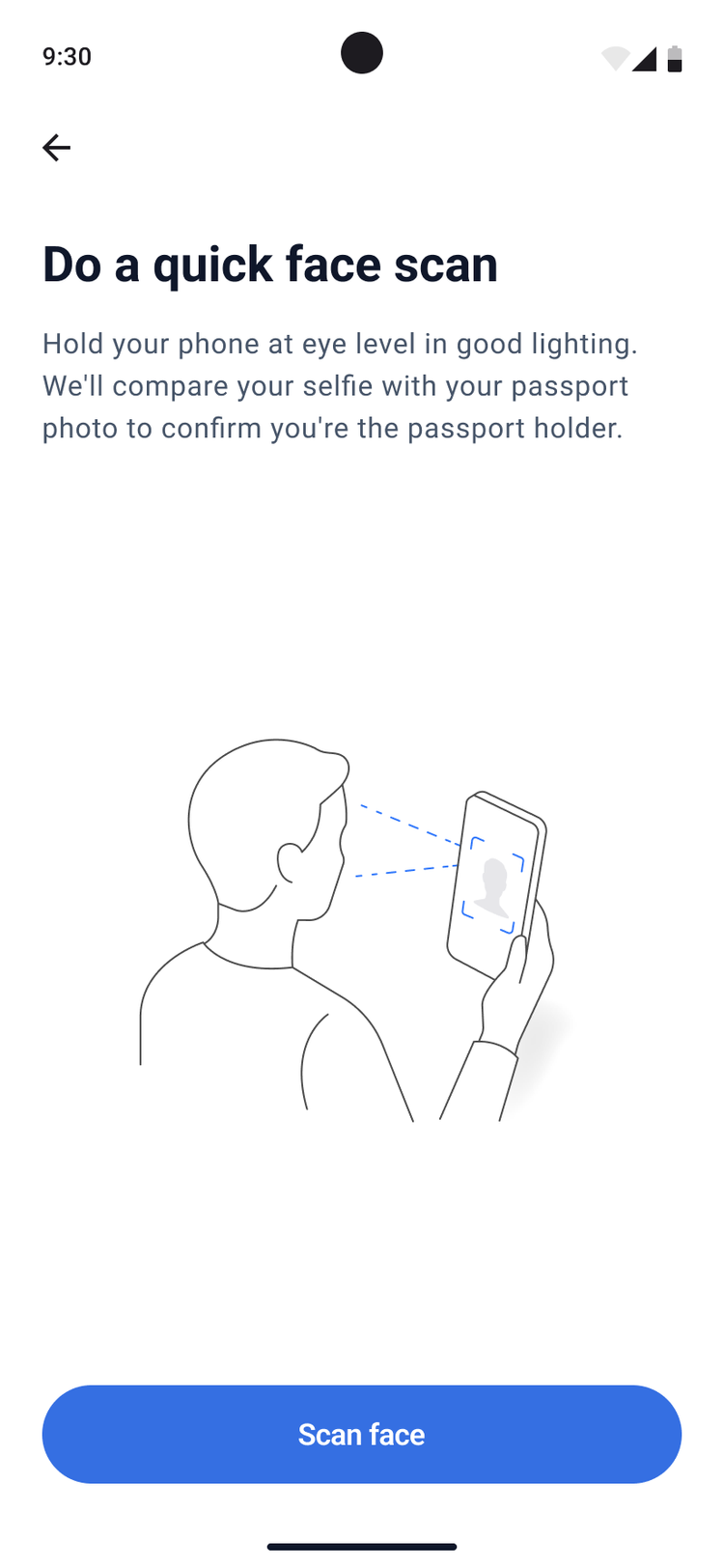
The app compares your face with the photo in your passport. You do not have to do anything. The next screen opens by itself.
Then accept the terms
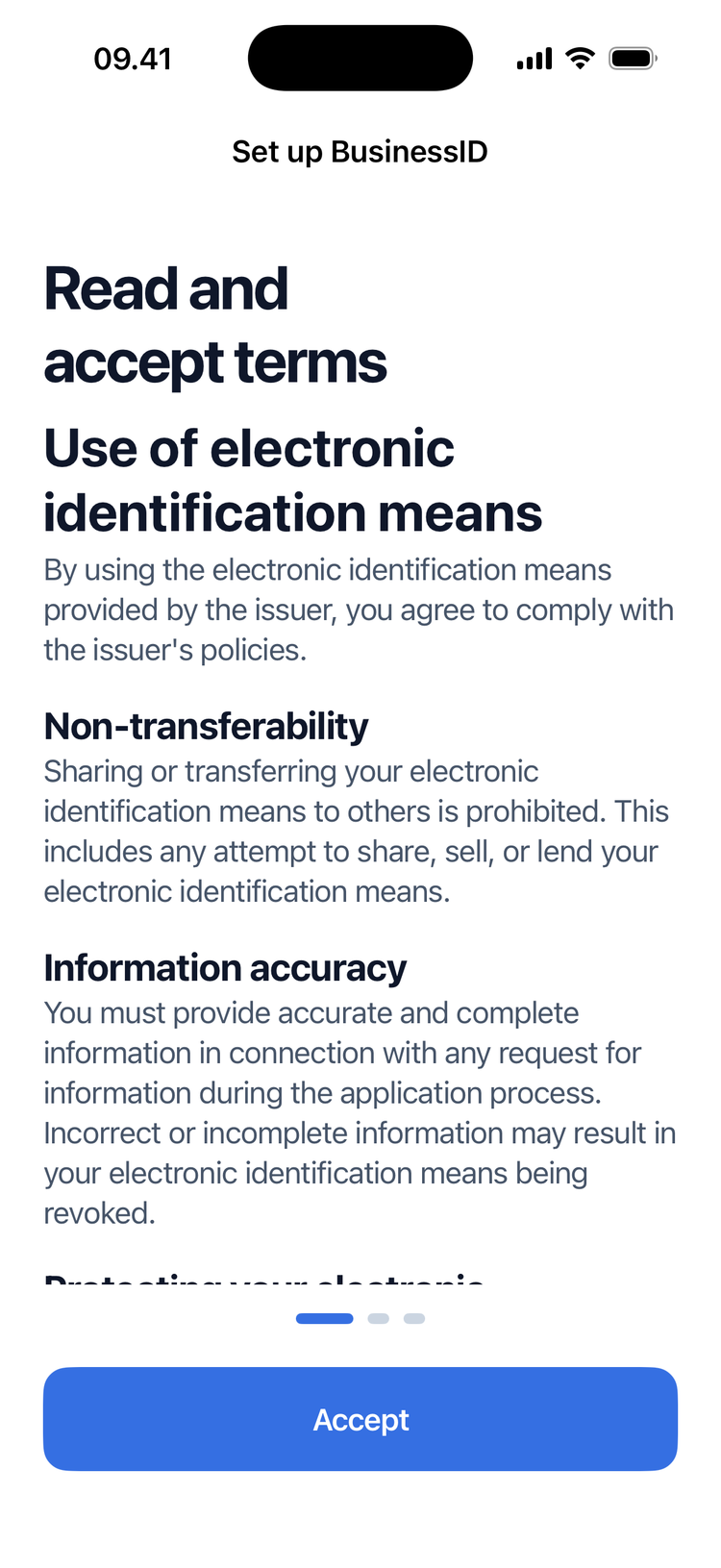
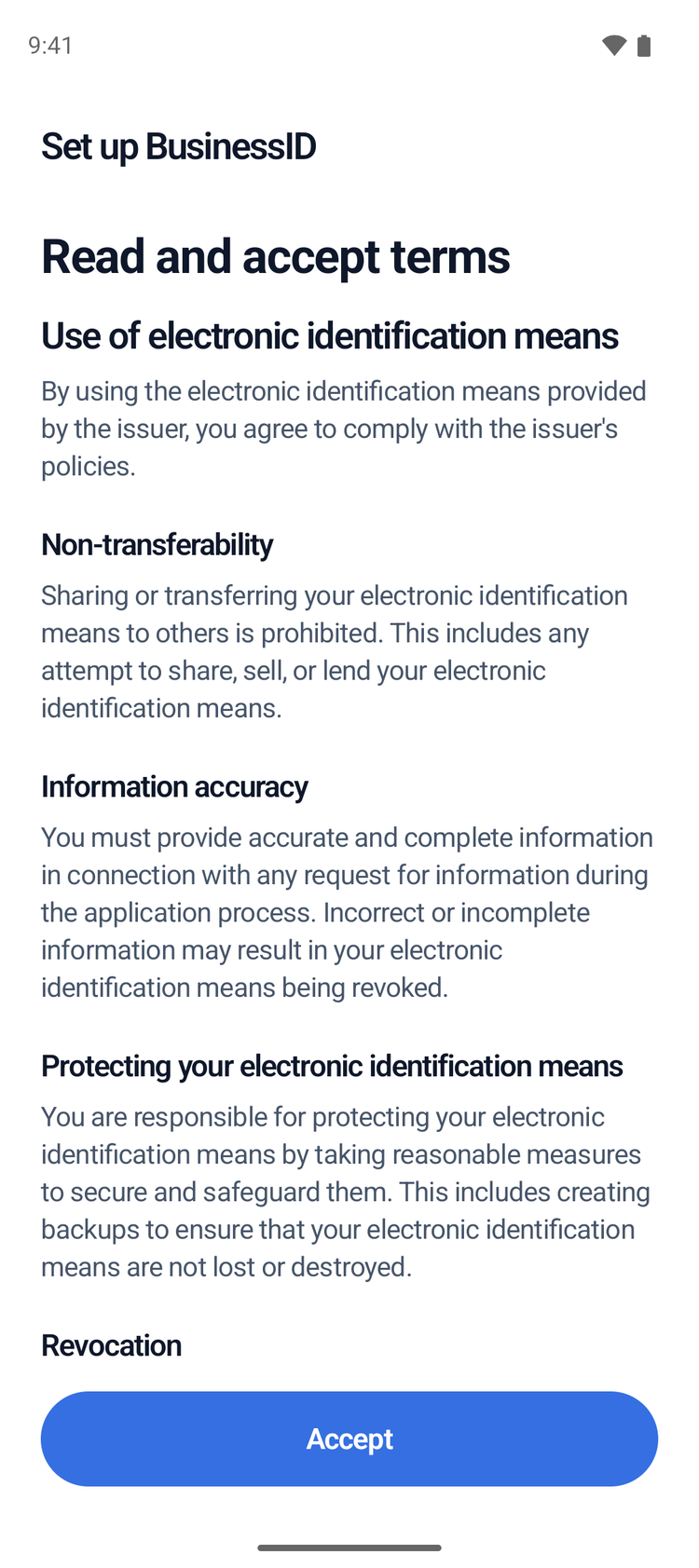
- If the app shows Read and accept terms:
- Read the terms.
- Tap Accept.
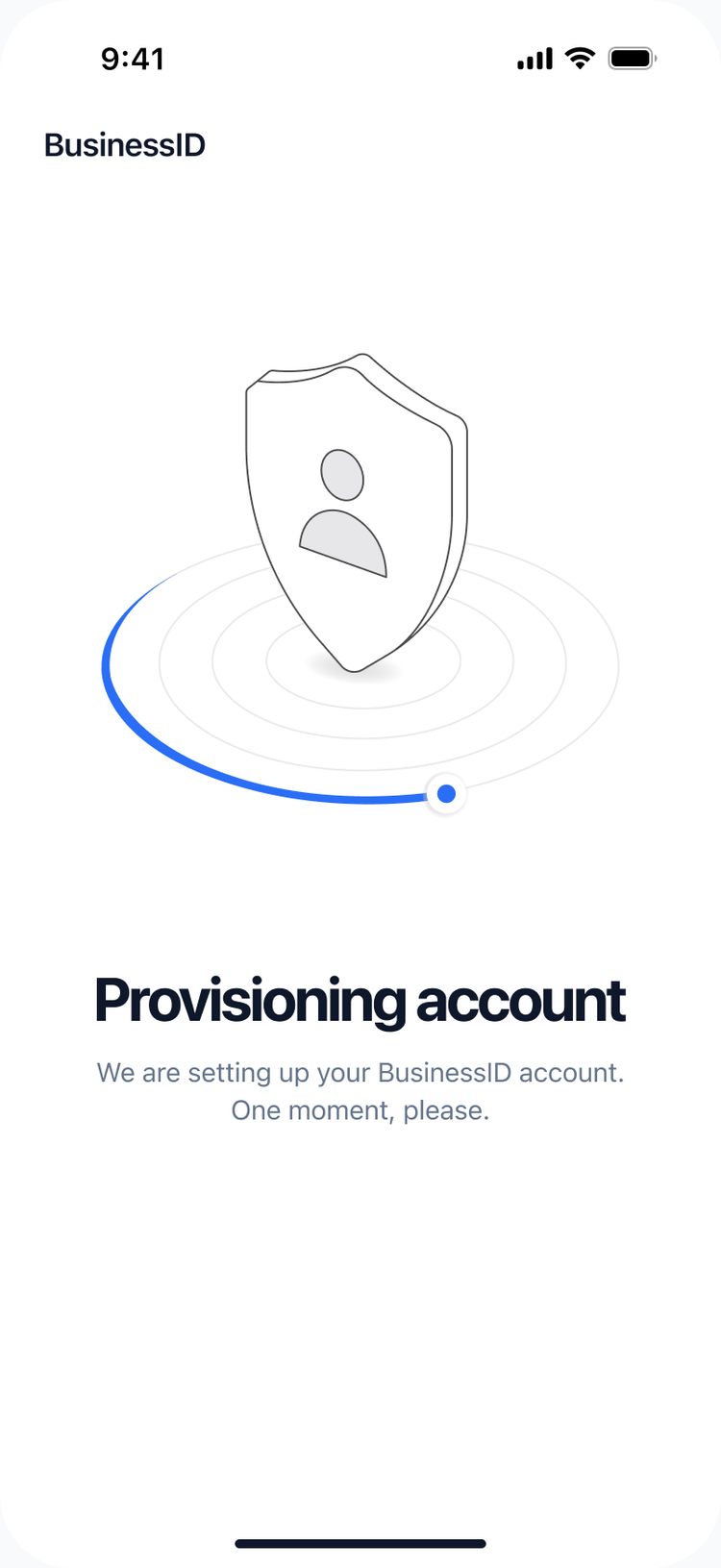
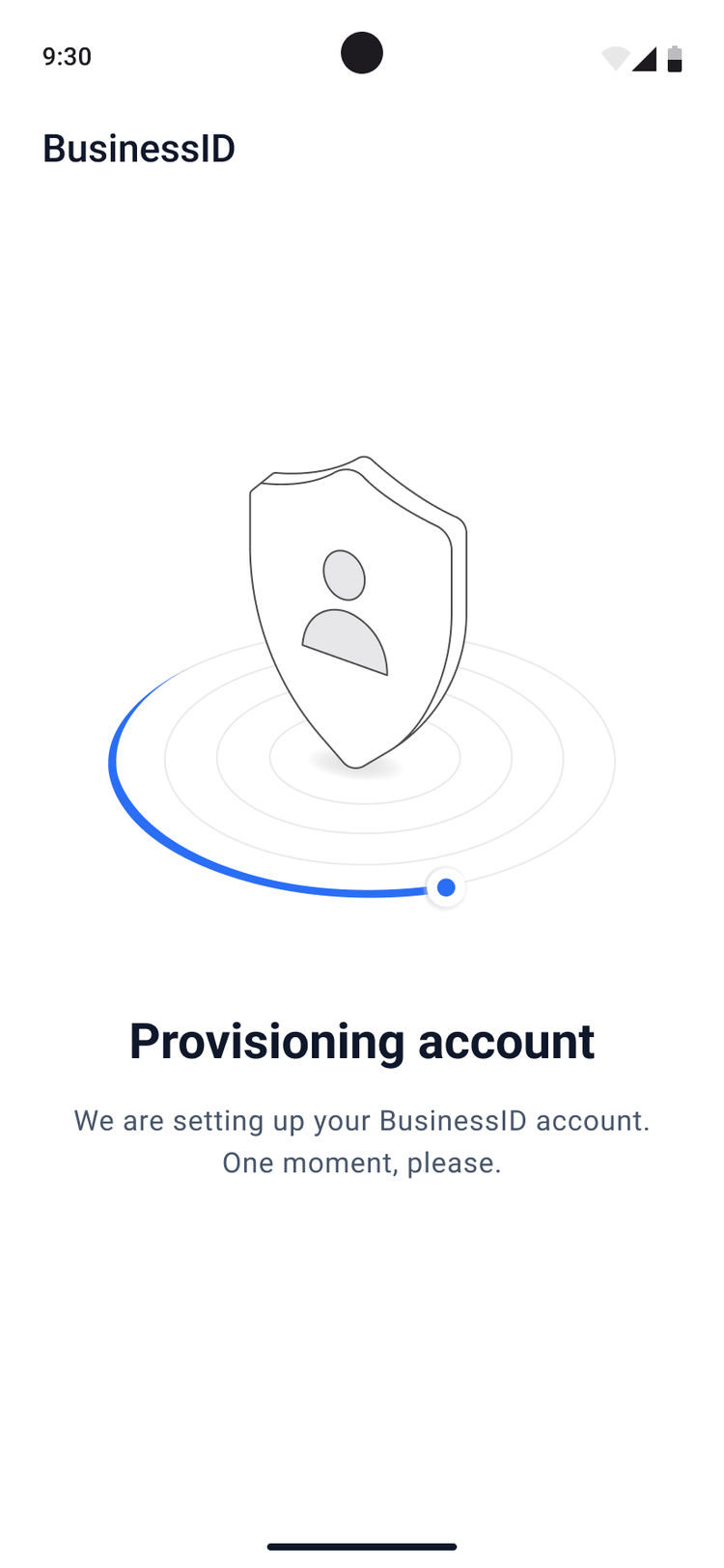
The app shows Provisioning account while it sets up your account. You do not have to do anything. The next screen opens by itself.
3. Let the app sign you in
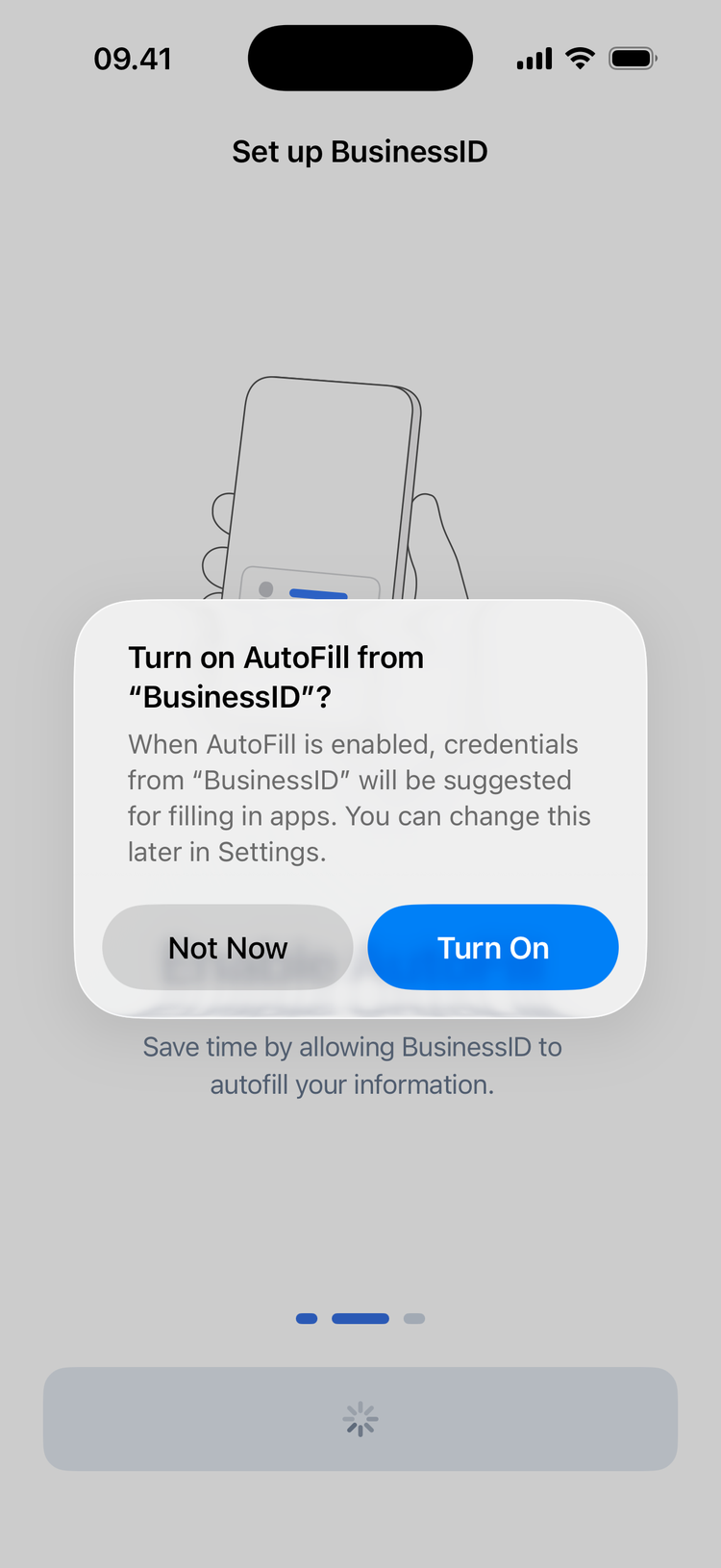
The app now asks for three settings, one after the other. The first setting lets the app sign you in to websites. The app cannot see your other saved passwords.
- Tap Enable AutoFill.
- Tap Turn On.
If the app shows BusinessID is still off
Only 3 apps can use AutoFill at the same time.
- Tap Open Settings.
- Turn off one of the other apps. You do not lose its data.
- Turn on BusinessID.
- Go back to the BusinessID app.
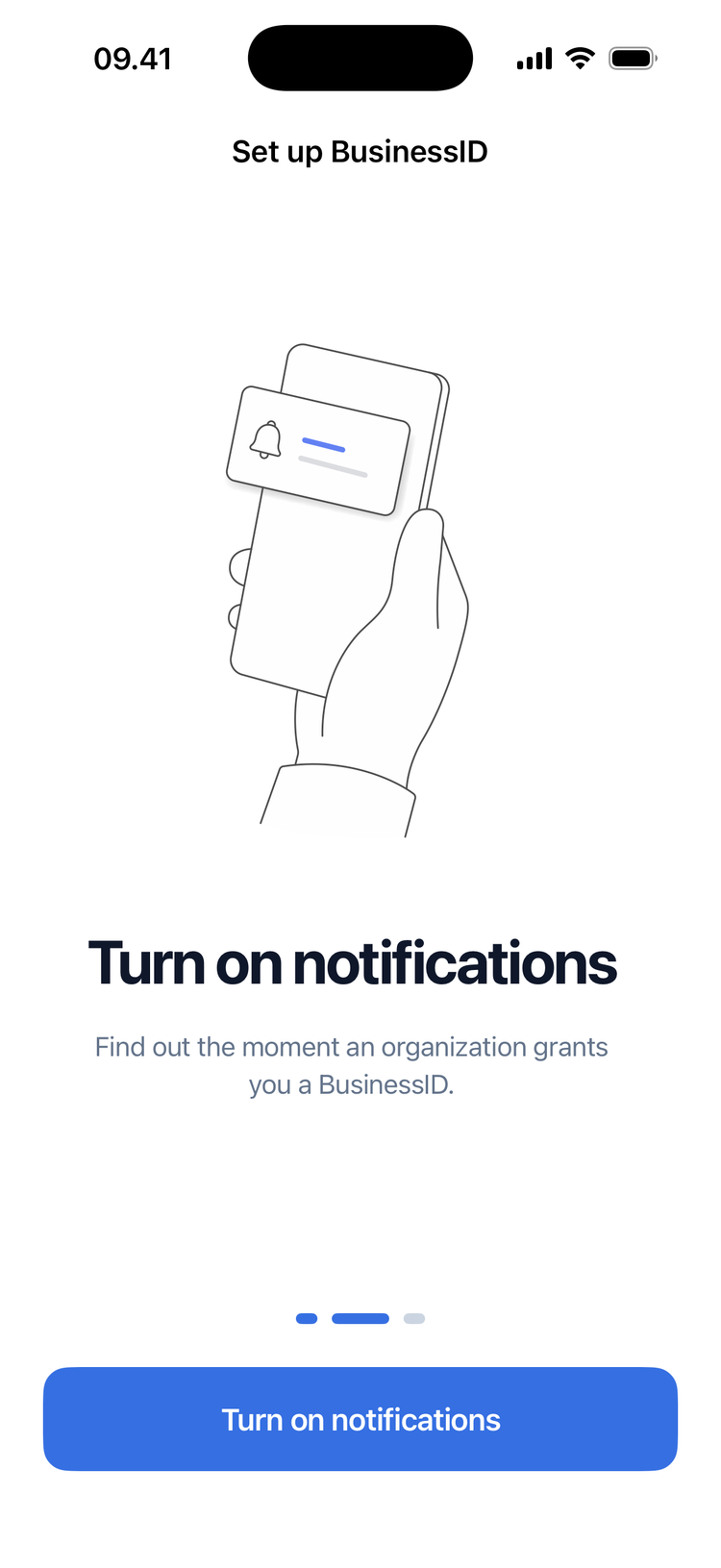
- If the app shows Turn on notifications:
- Tap Turn on notifications.
- Tap Allow.
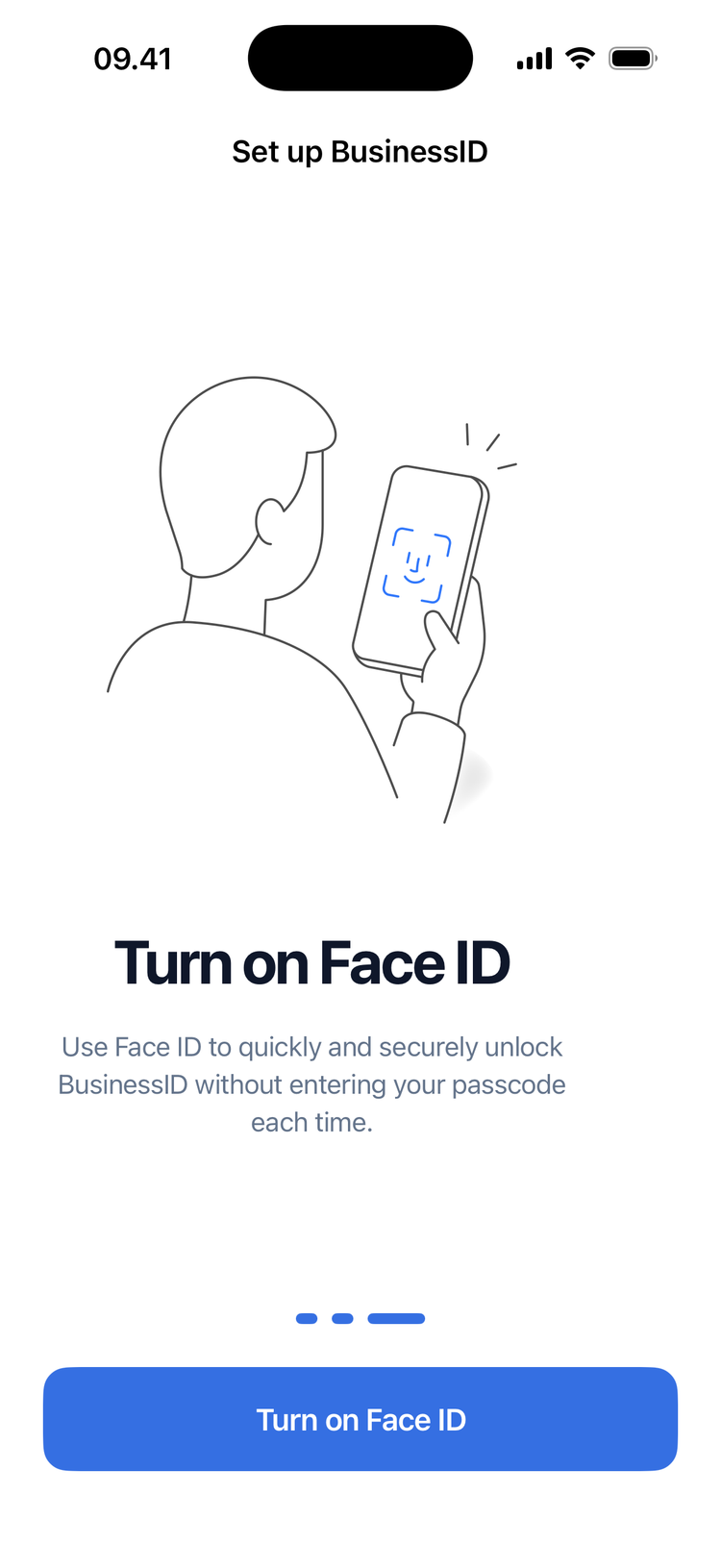
- Tap Turn on Face ID. On an iPhone with a Home button, tap Turn on Touch ID.
- Look at your iPhone, or touch the Home button. The app shows your name and Waiting for your first BusinessID.
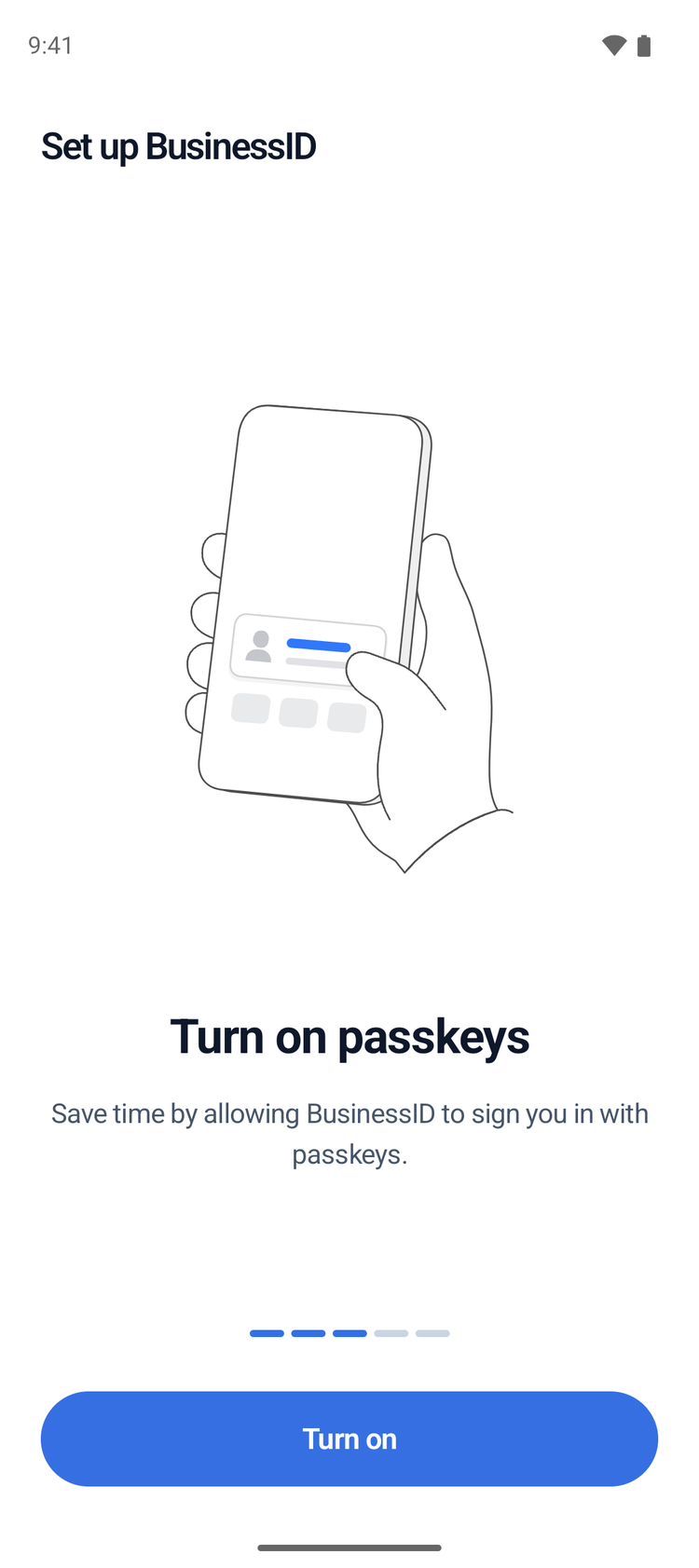
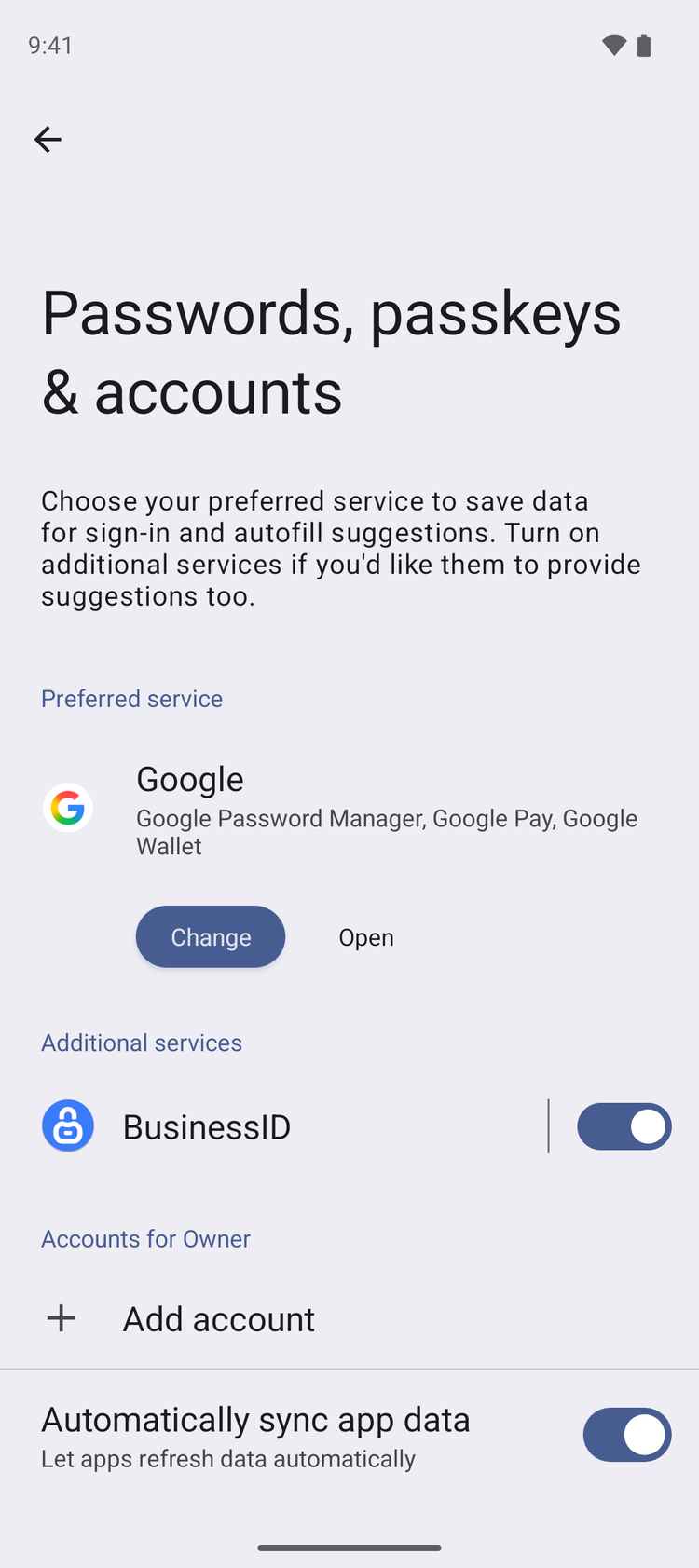
- Tap Turn on. Android opens Passwords, passkeys & accounts.
- Under Additional services, turn on BusinessID.
- Go back to the BusinessID app.
If the app shows BusinessID is still off
Only 5 services can be on at the same time.
- Tap Open settings.
- Turn off one of the other services. You do not lose its data.
- Turn on BusinessID.
- Go back to the BusinessID app.
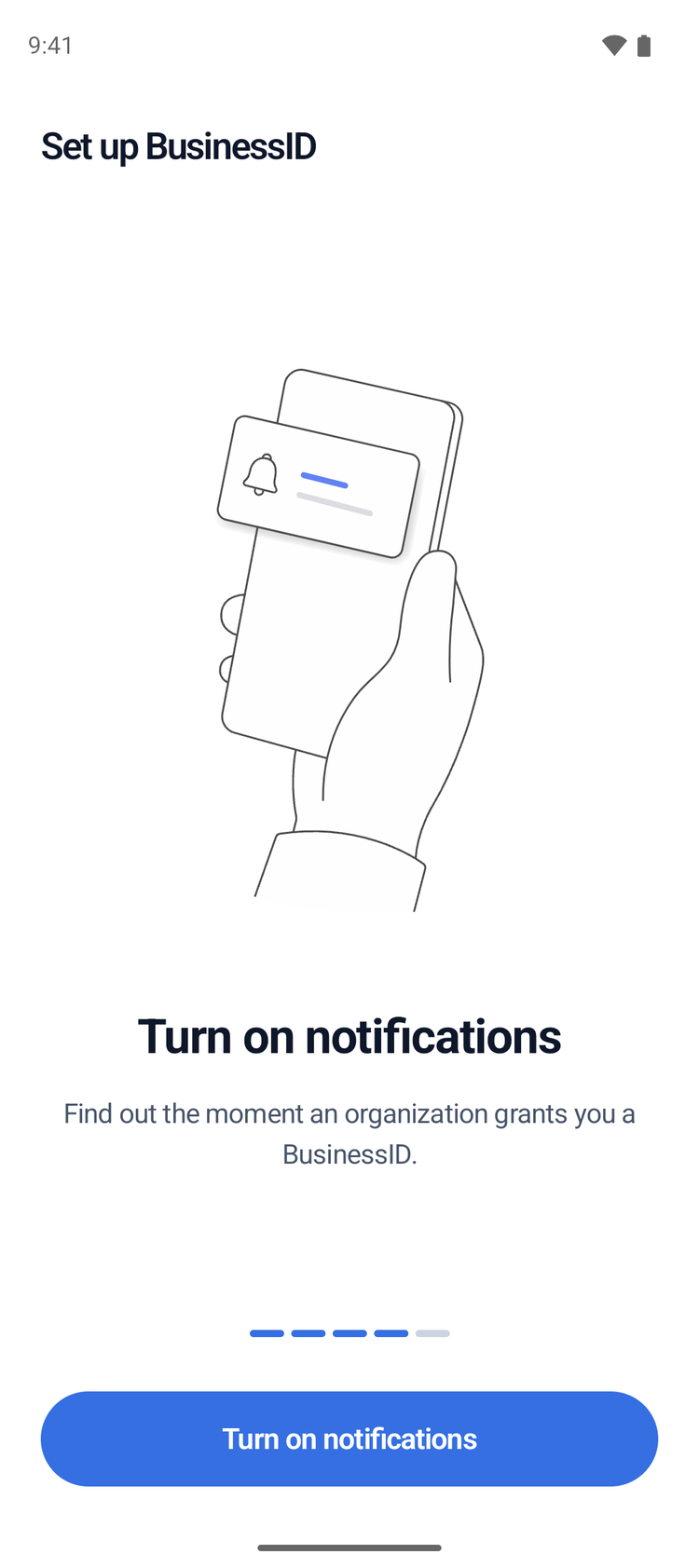
- If the app shows Turn on notifications:
- Tap Turn on notifications.
- Tap Allow.
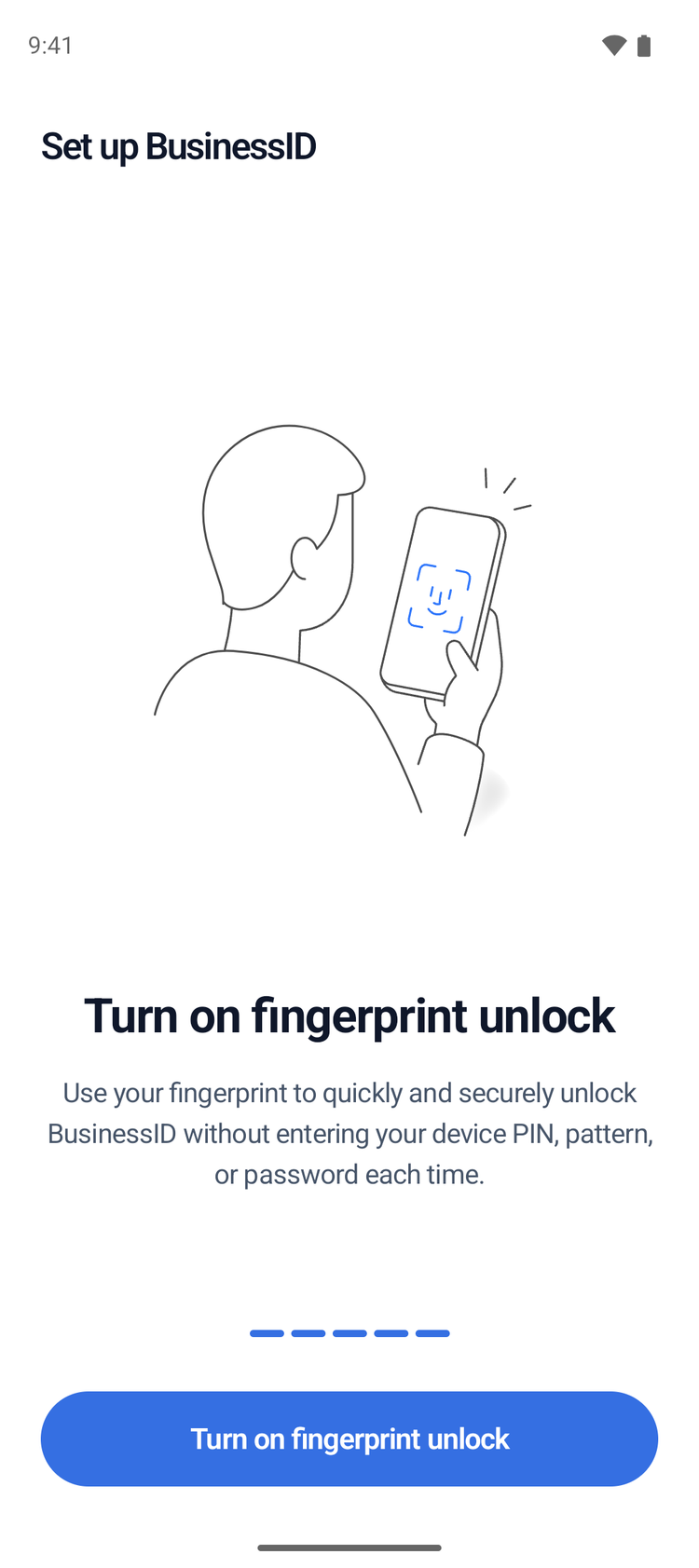
- Tap Turn on fingerprint unlock. On some phones, tap Turn on biometric unlock.
- Touch the fingerprint sensor. The app shows your name and Waiting for your first BusinessID.
4. Get your BusinessID
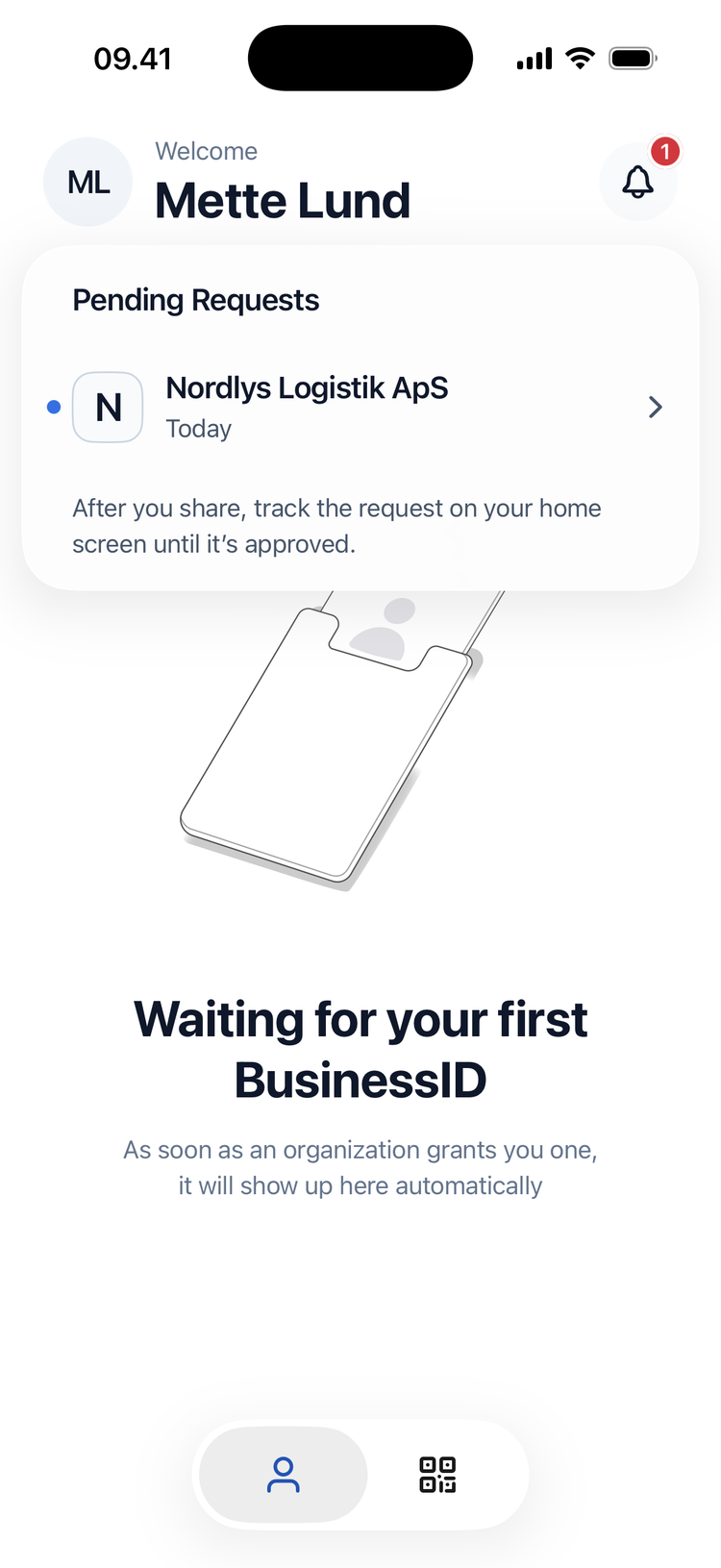
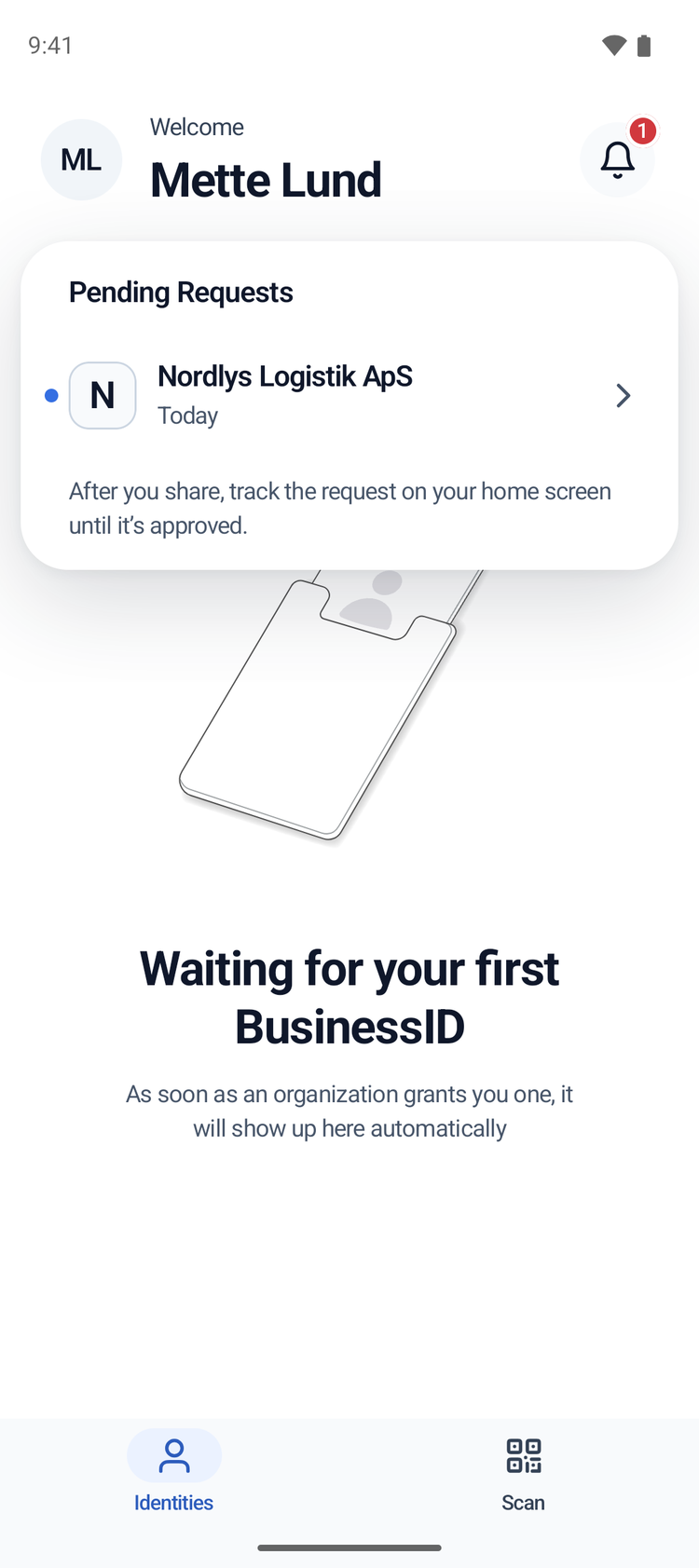
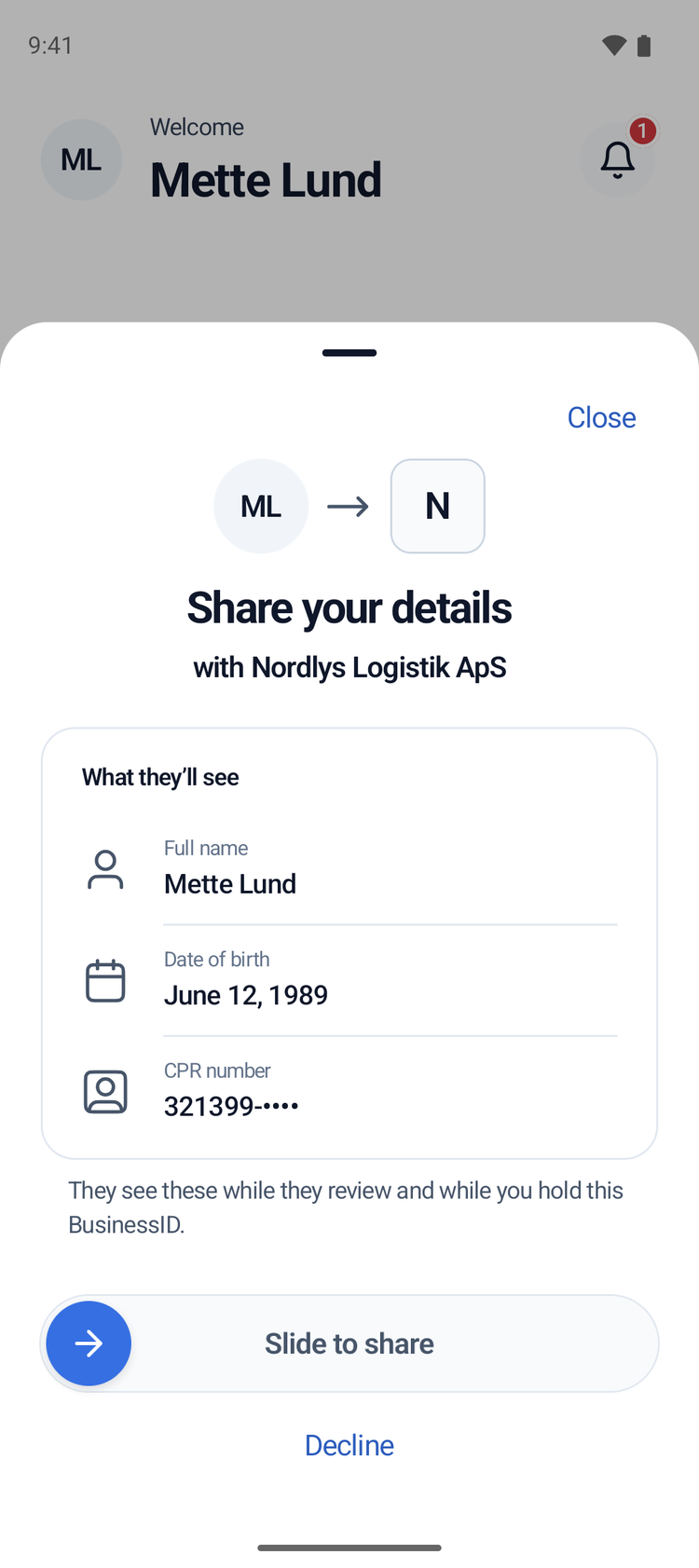
Your organization sends you a request for your details. When the request arrives, the bell shows a red number.
- Tap the bell at the top right.
- Tap the name of your organization.
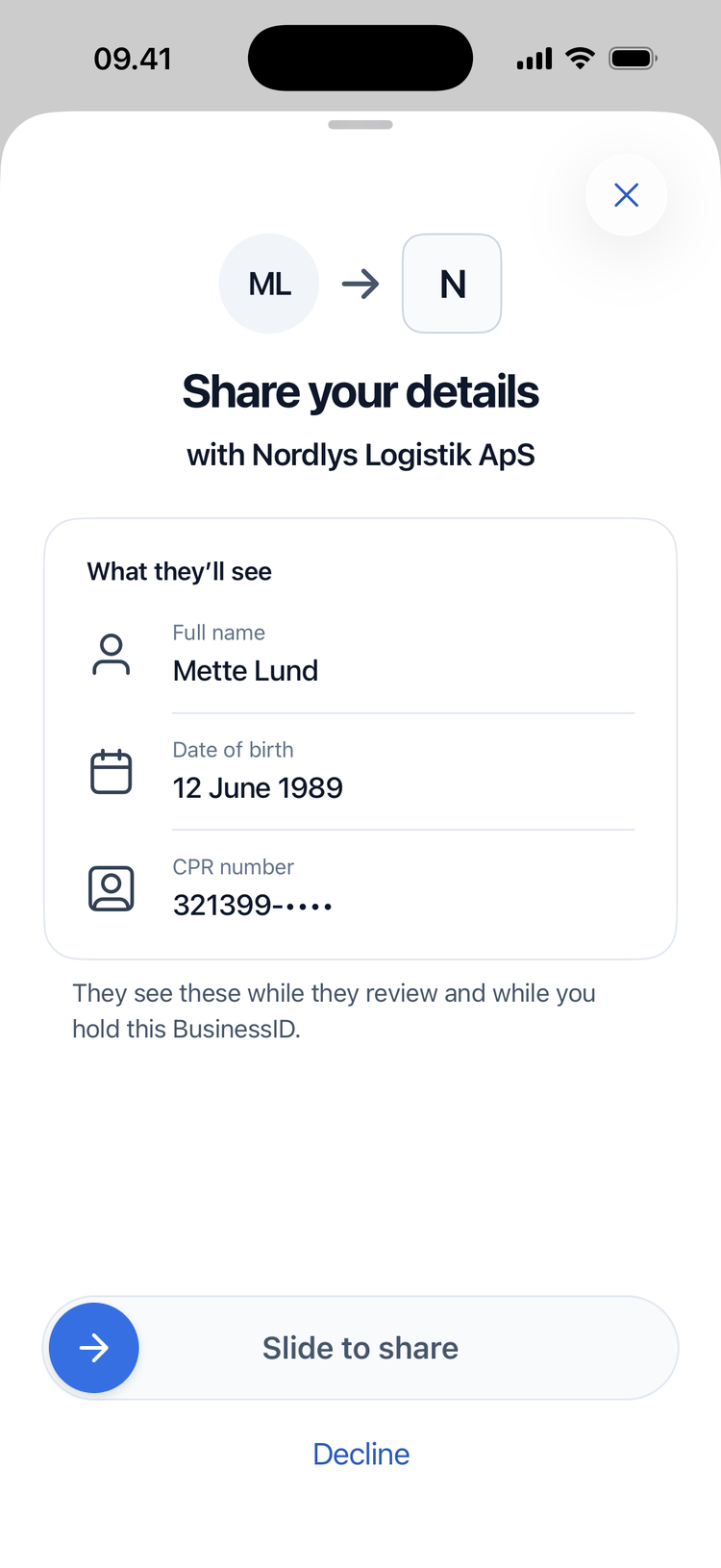
- Make sure that the name under Share your details is the name of your employer.
- If you do not know the organization:
- Tap Decline.
- Tap Decline again.
- Contact your IT department. Do not do steps 5 and 6.
- Read What they’ll see. Your organization uses your name, date of birth and CPR number to make sure that it is you.
- Slide the arrow on Slide to share all the way to the right.
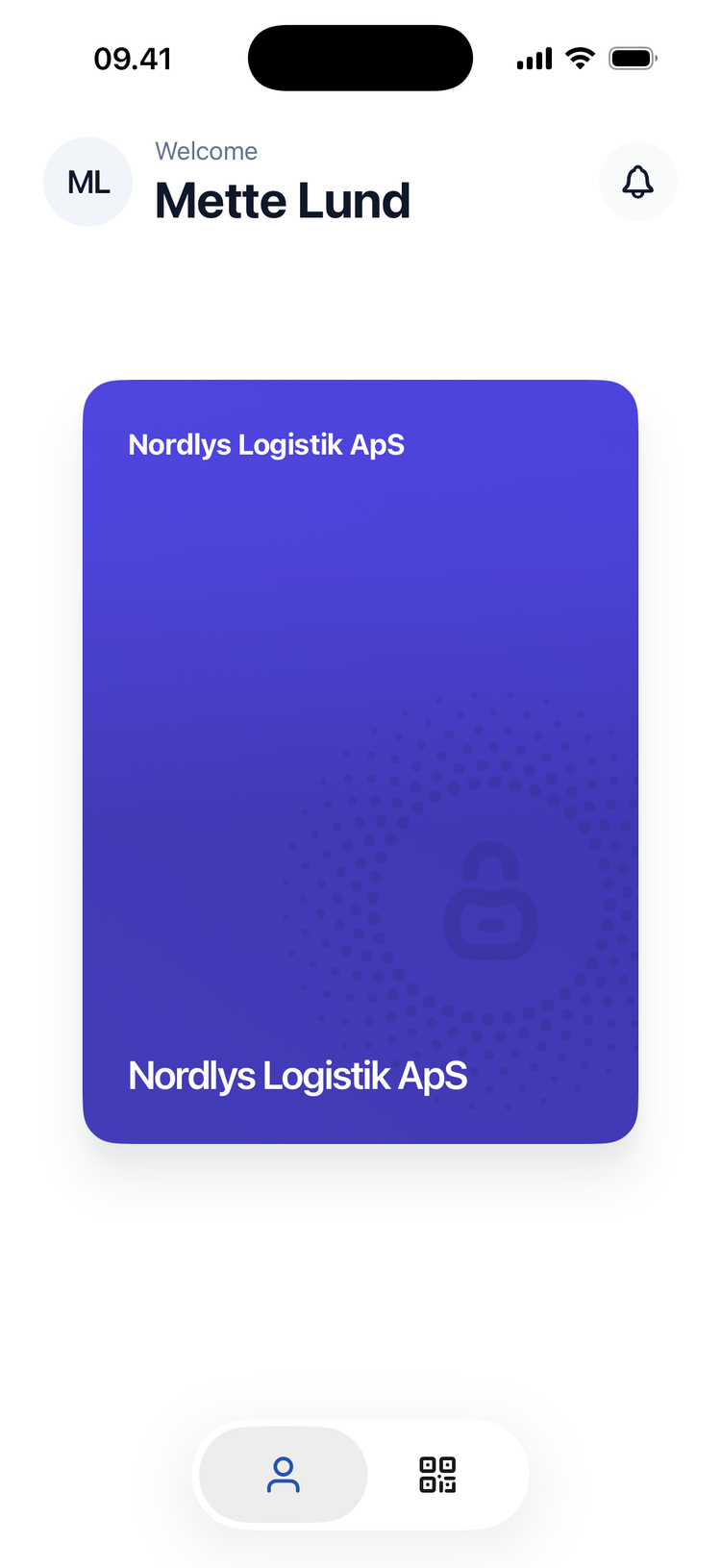
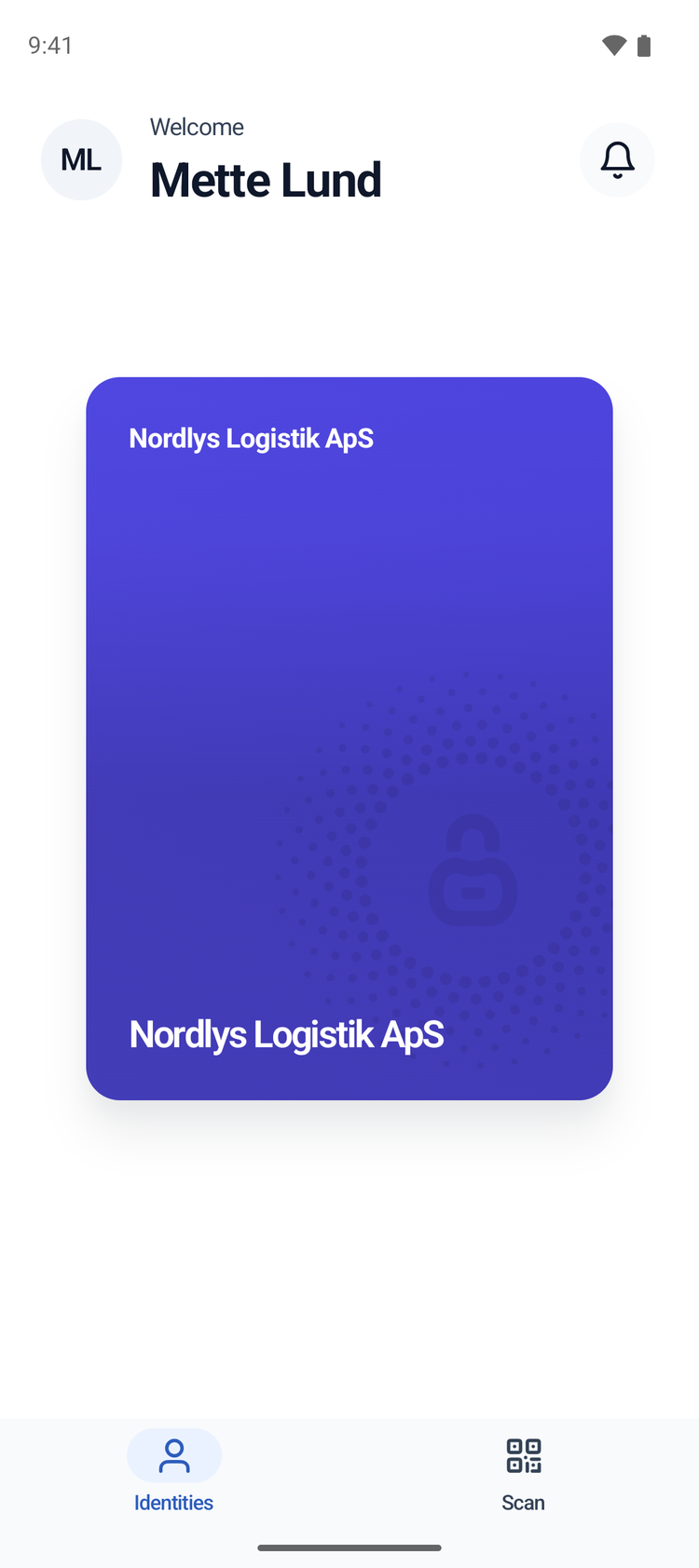
The app shows your BusinessID card. You can now sign in with the app.
When you open the app again later, tap Unlock.