Appearance
Setup phone (SMS)
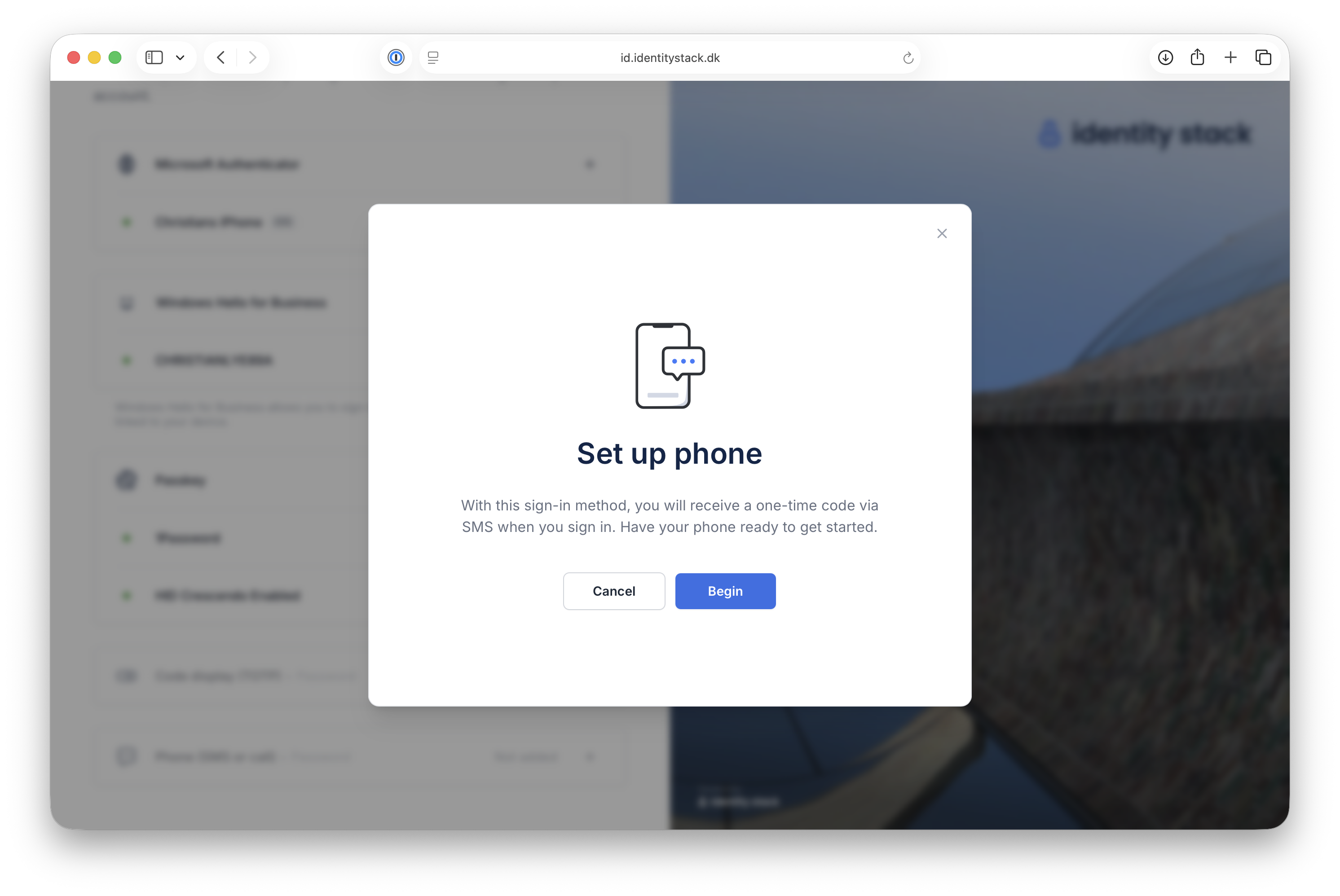
This guide walks you through registering your phone number as a sign-in method, using the guided setup in BusinessID. With this sign-in method, you receive a one-time code via SMS when you sign in.
Note: Microsoft retires SMS and voice call authentication on February 1, 2027. We recommend setting up another authentication device for multi-factor authentication.
Have your phone ready before you start.
1. Start the setup
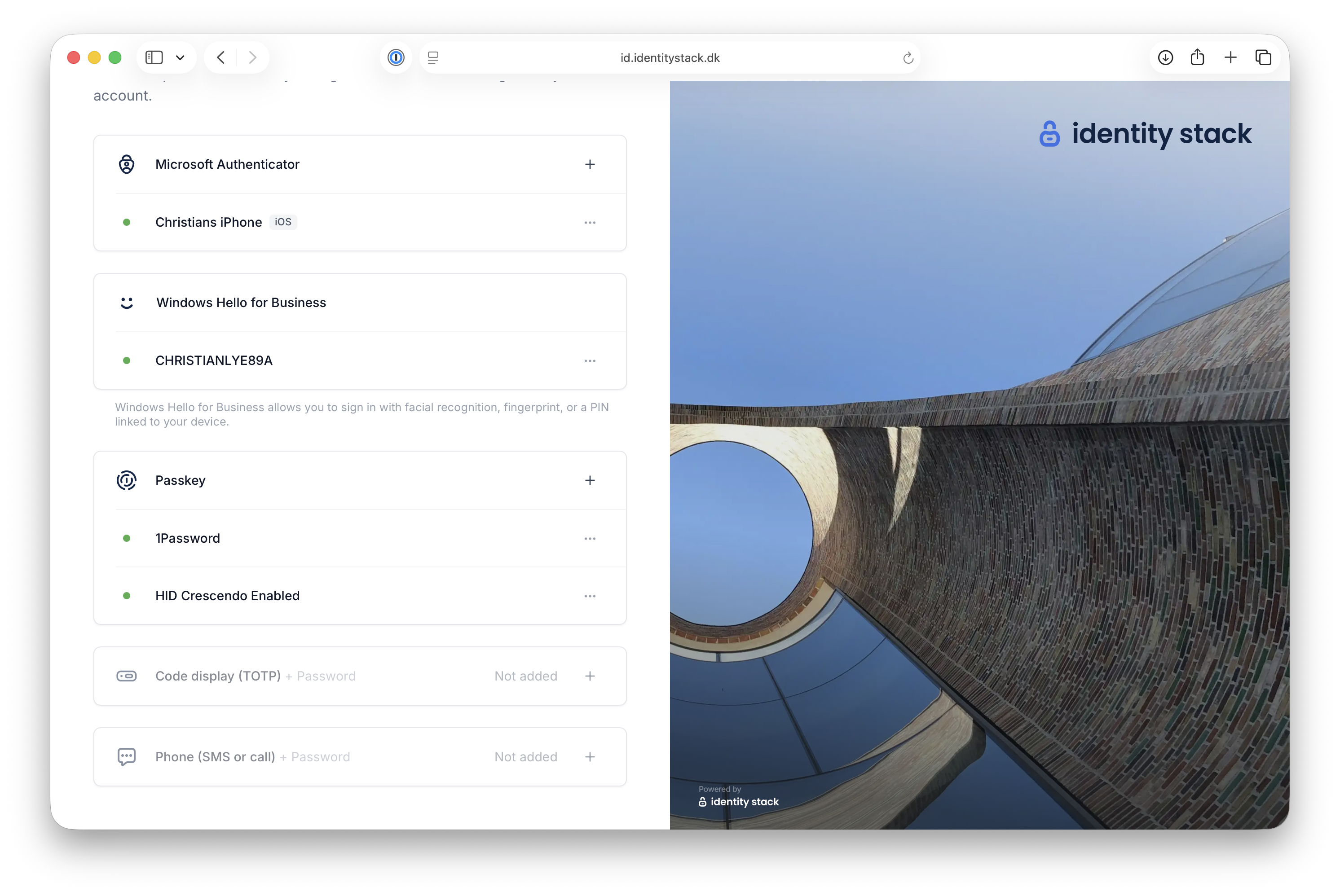
Log in to BusinessID and go to Sign-in methods. Phone (SMS or call) is shown as Not added — click + to start the setup.
Click Begin to start the guided setup.
2. Enter your phone number
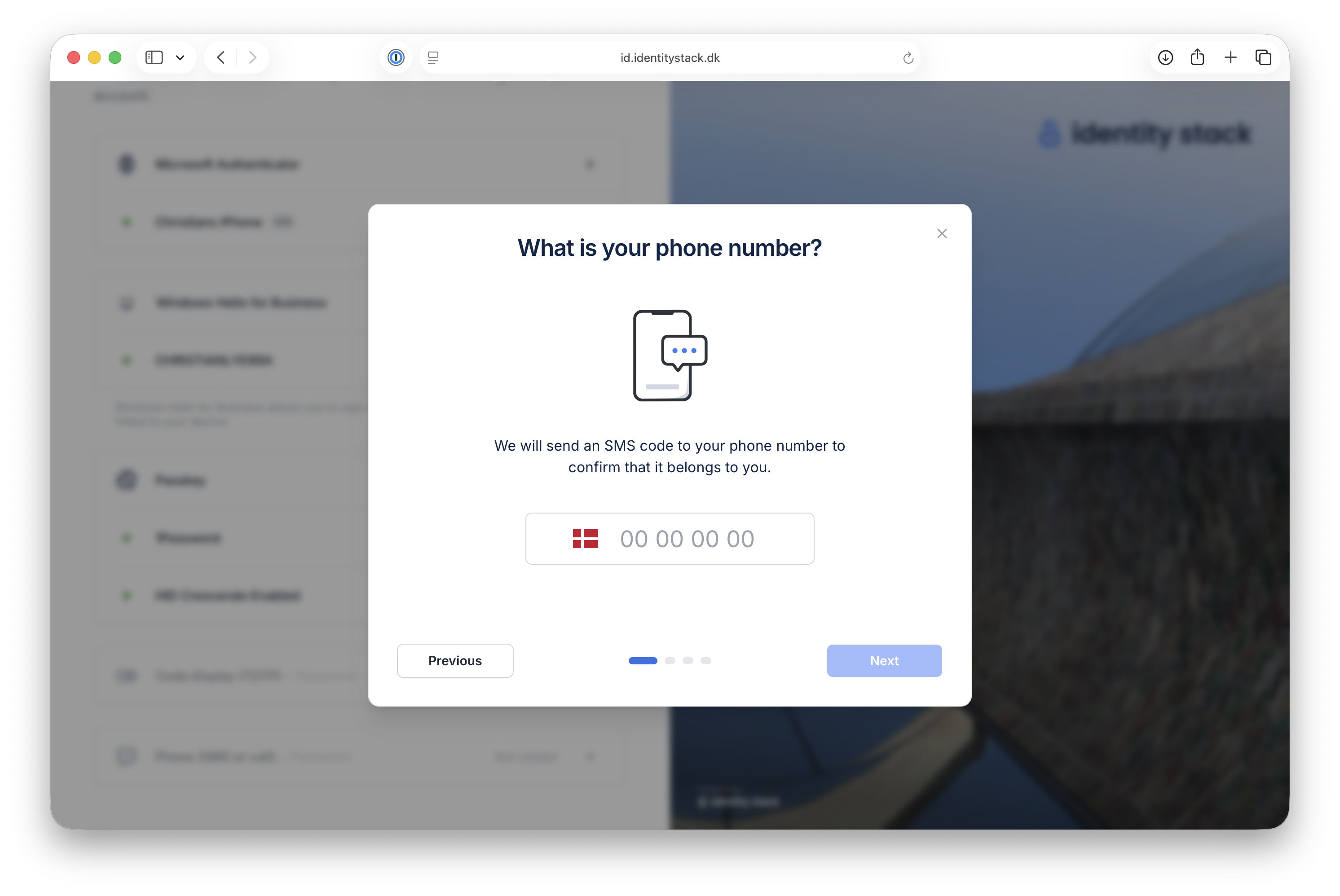
Enter your phone number and click Next. An SMS code is sent to the number to confirm that it belongs to you.
3. Enter your SMS code
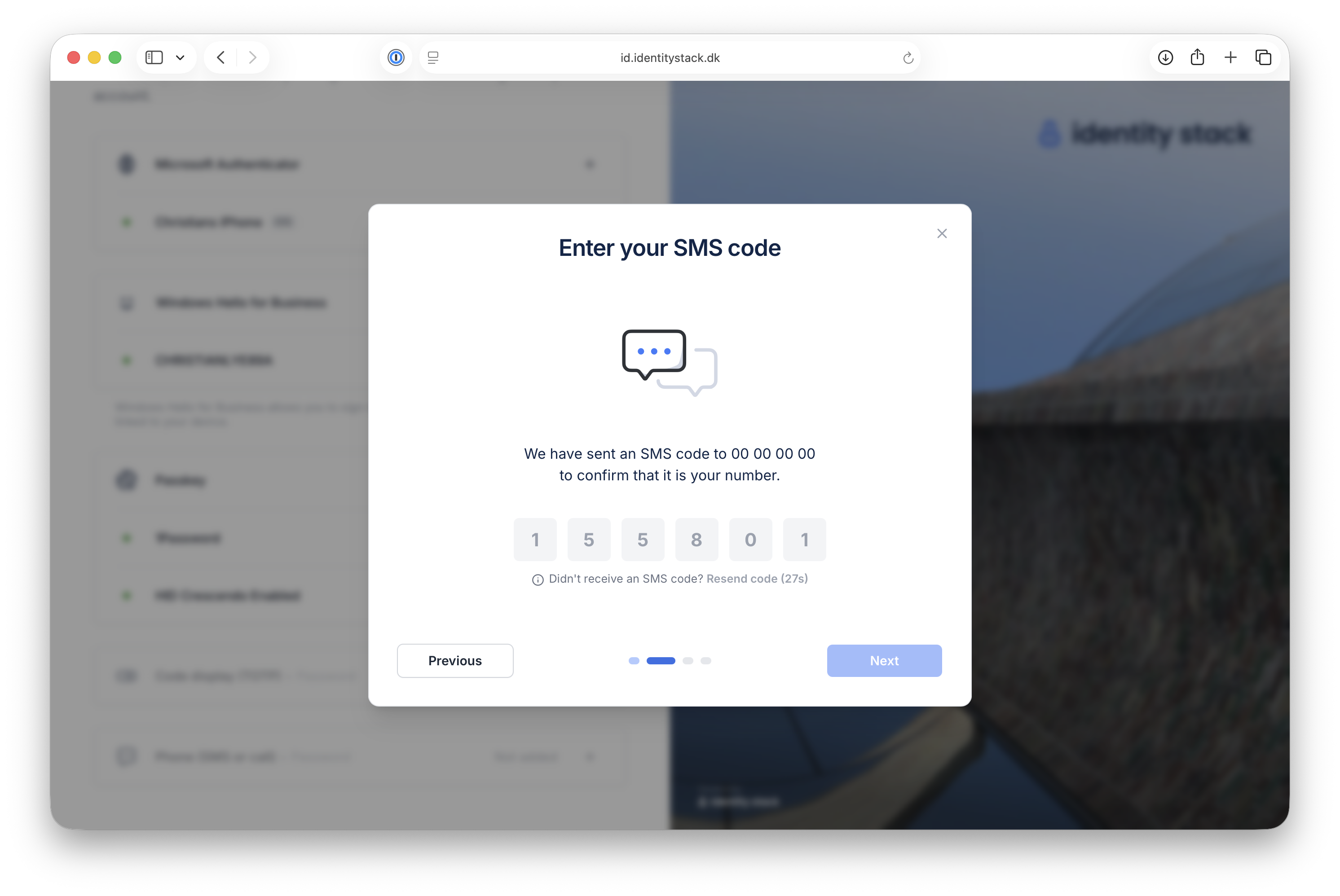
Enter the code you received via SMS. If you didn't receive a code, you can request a new one with Resend code.
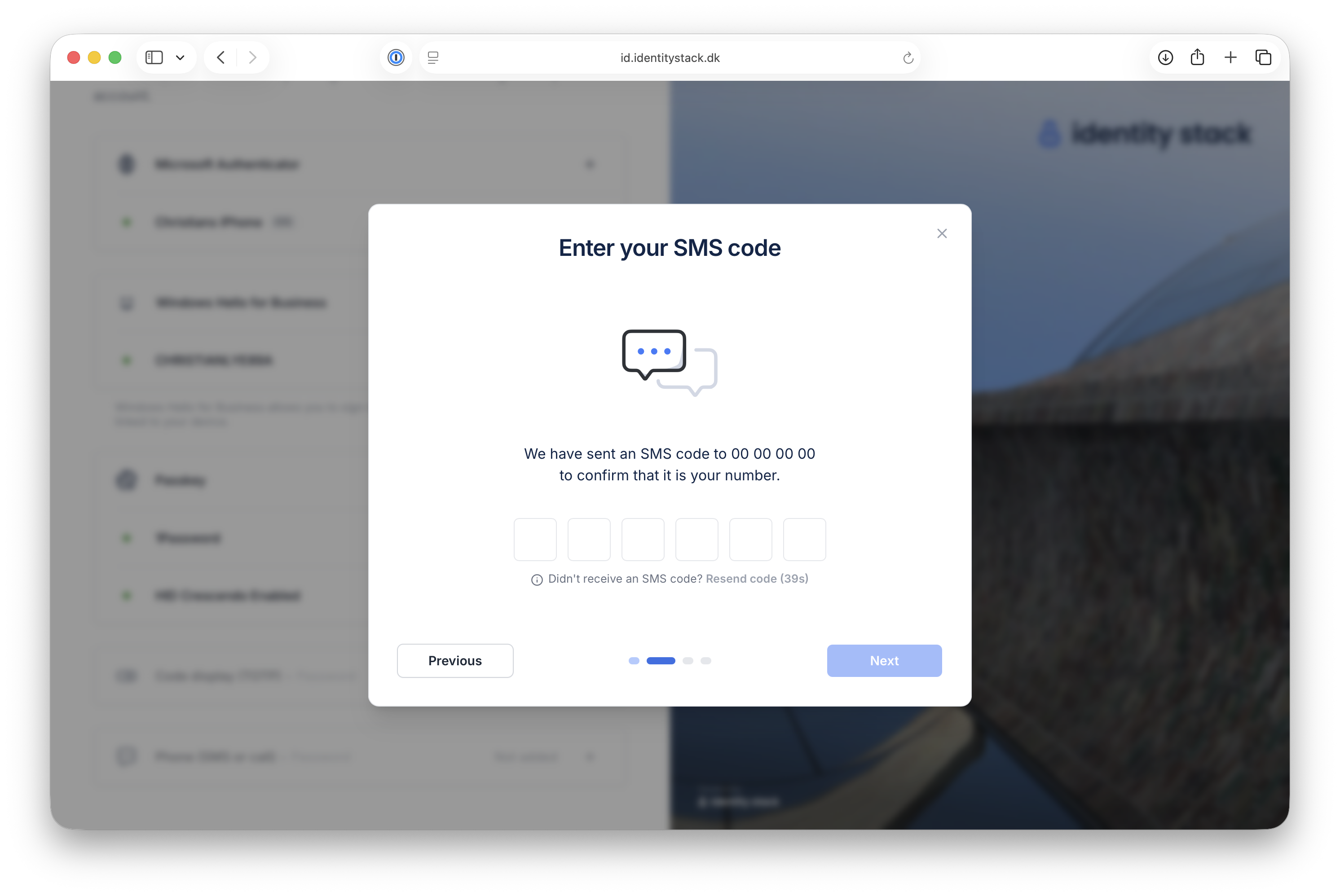
Once all digits are entered, click Next.
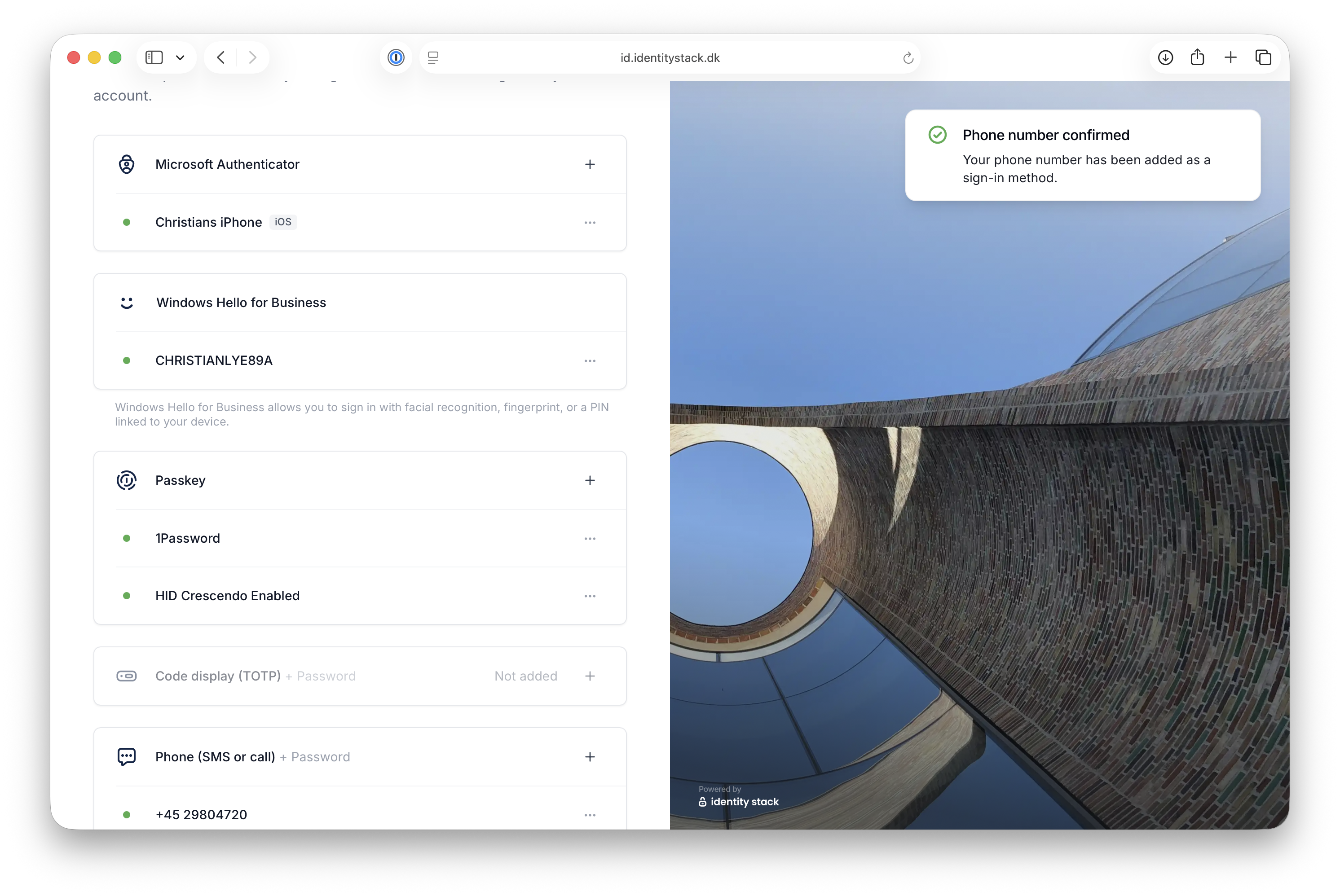
4. Your phone number is confirmed
Your phone number has been added as a sign-in method and is shown as active under Phone (SMS or voice call).