

Appearance
Reset password
This guide walks you through resetting your password in BusinessID. After verifying your identity with MitID, you can set or reset your password yourself — without contacting the service desk.
New passwords are validated against your organization's password policies, such as length, history, and complexity. In hybrid environments, the password is set in both Active Directory and the cloud at the same time, so the new password takes effect immediately with no synchronization delay.
Open the reset password dialog
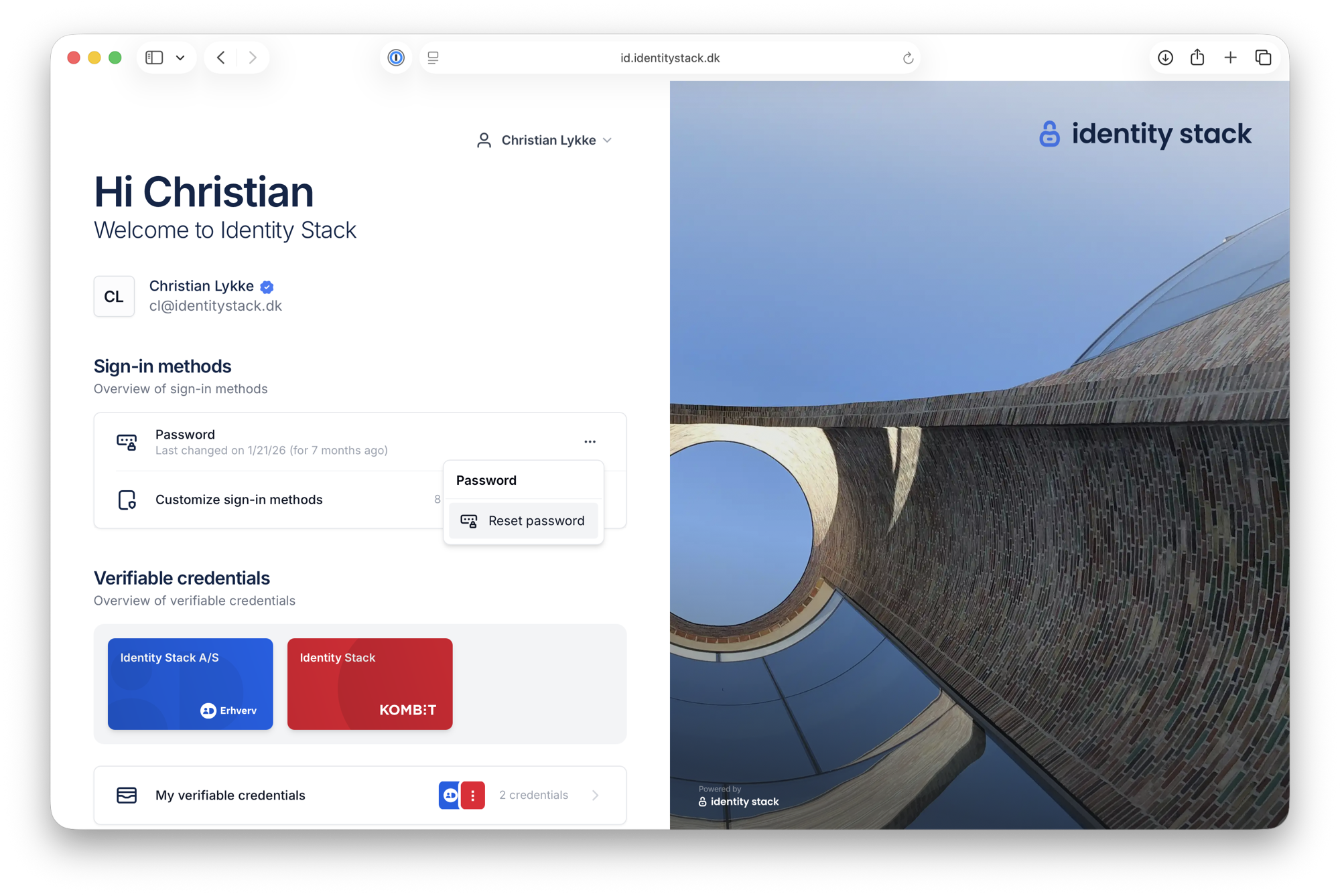
Log in to BusinessID. On the home page, click … next to Password and select Reset password. You can also find Reset password in the account menu in the top-right corner.
Choose a new password
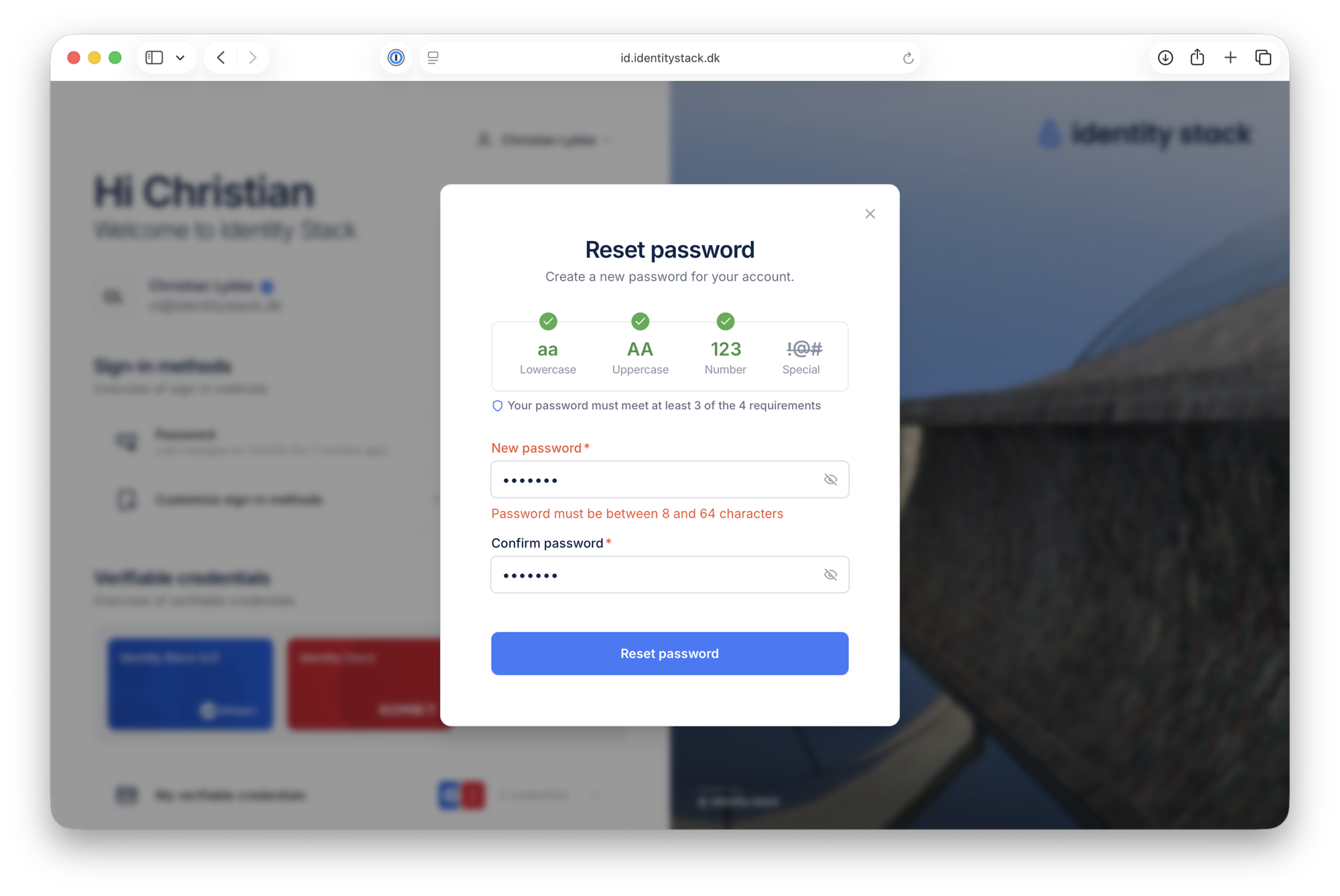
Enter and confirm your new password. The dialog shows your organization's password requirements and validates the password as you type — each requirement turns green when it is met.
If the password does not meet the policy, the dialog tells you what to fix:
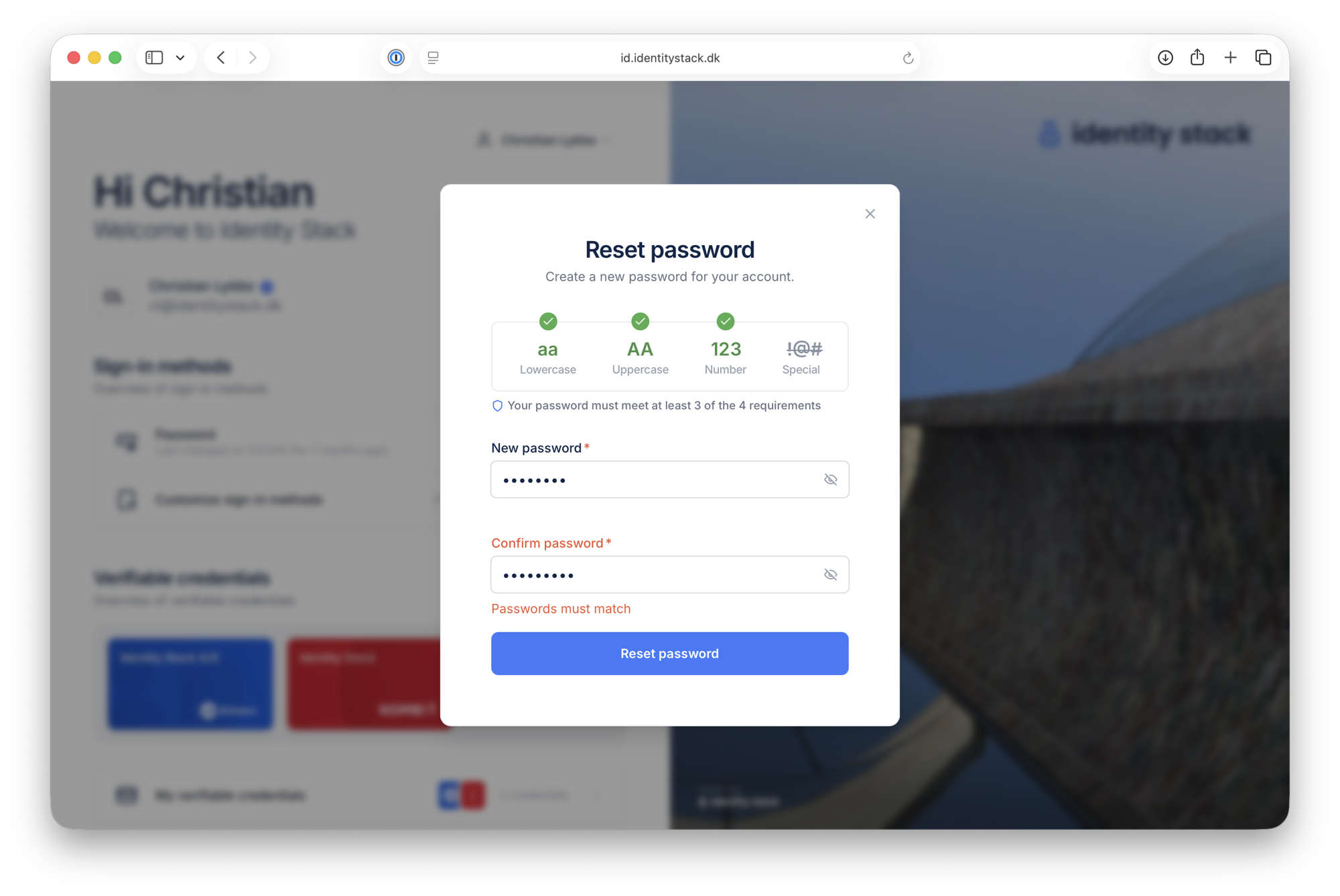
When the password meets the requirements and both fields match, click Reset password.
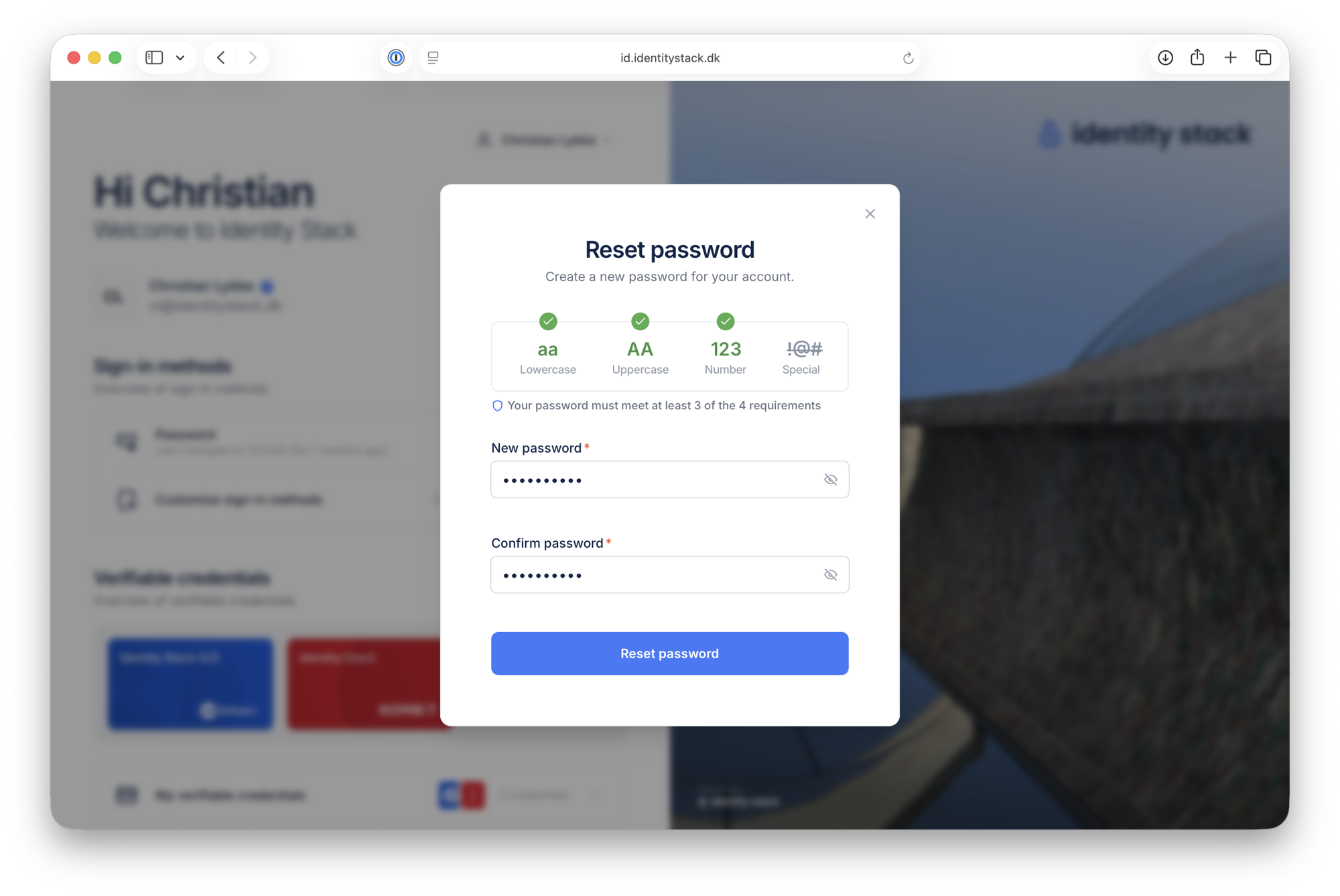
The new password takes effect immediately across all connected services.