Appearance
Setup physical TOTP token
This guide walks you through registering a physical TOTP token — a code display — as a sign-in method, using the guided setup in BusinessID. With this sign-in method, you enter the one-time code shown on the token's display when you sign in.
Have your token ready before you start. The serial number is printed on the back of the token.
1. Start the setup
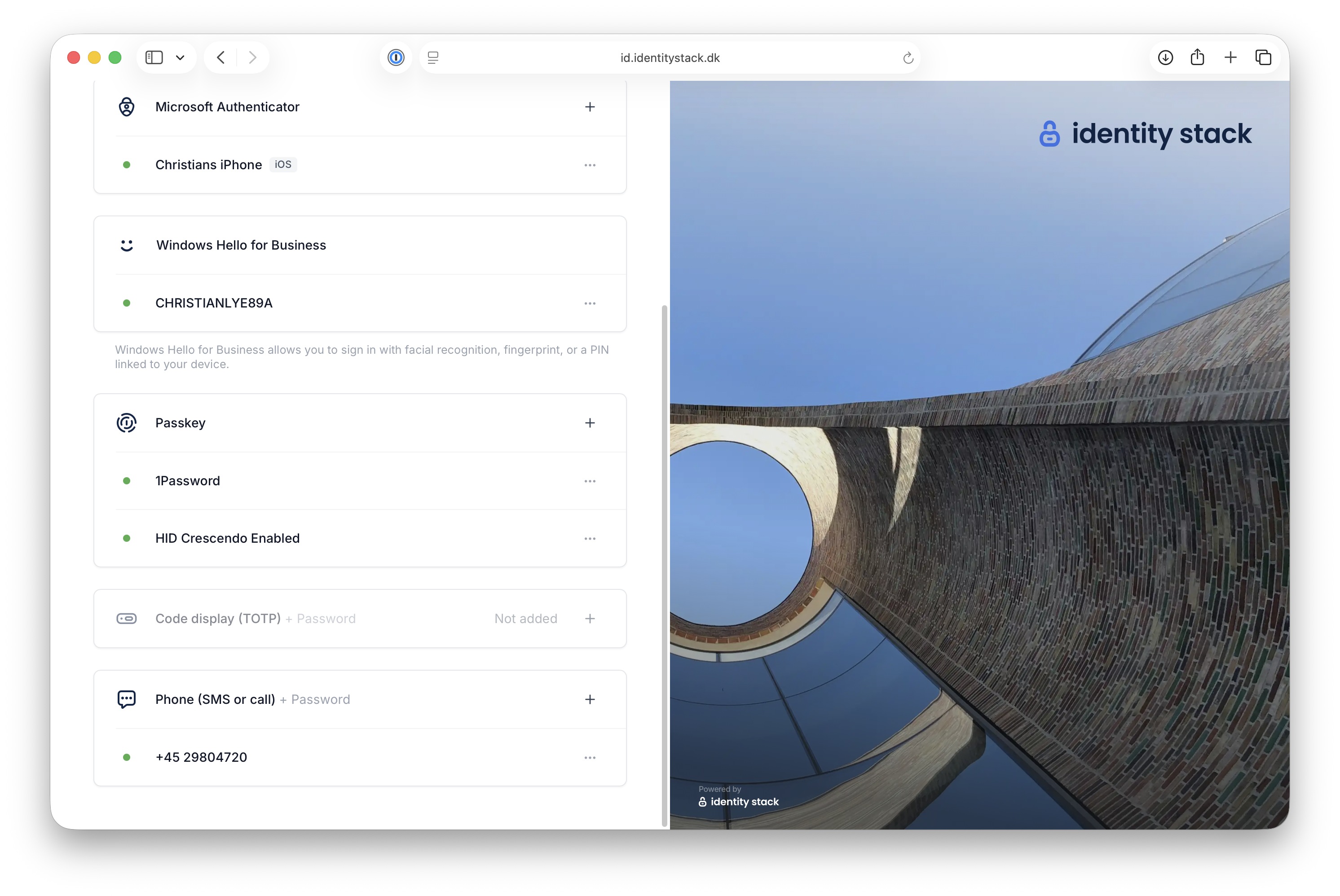
Log in to BusinessID and go to Sign-in methods. Code display (TOTP) is shown as Not added — click + to start the setup.
2. Enter the serial number
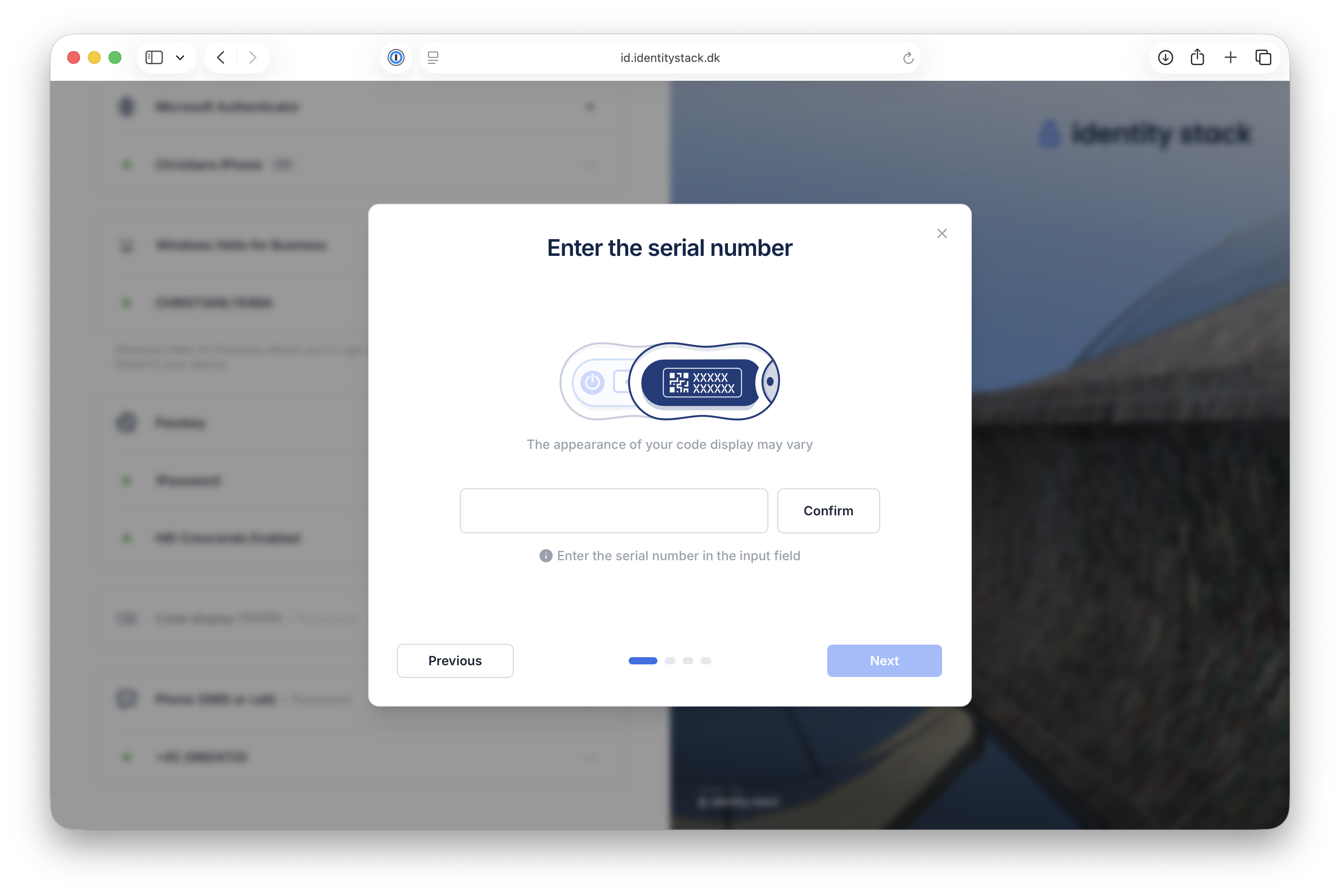
Enter the serial number printed on the back of your token and click Confirm.
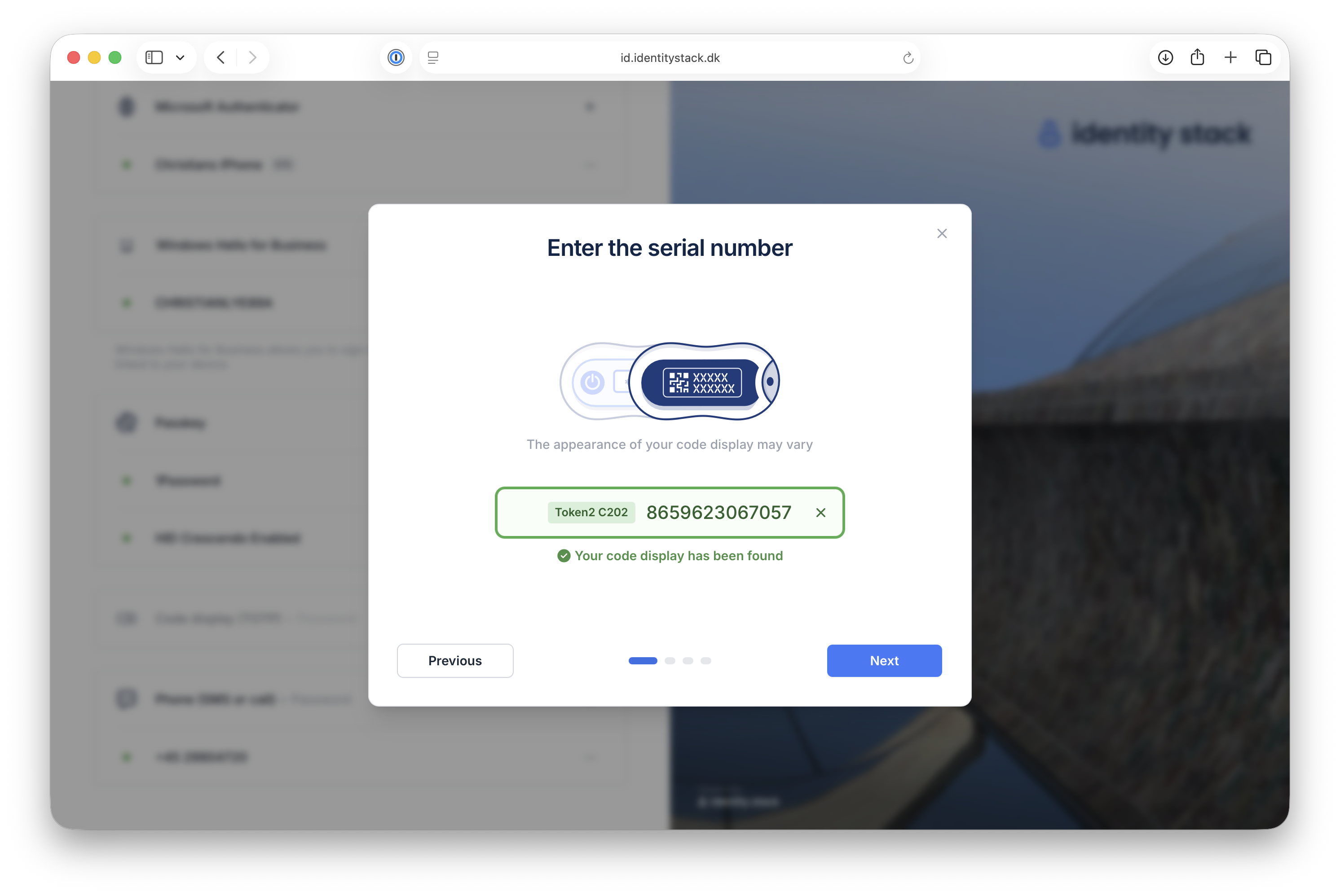
When the token is found, the model is shown next to the serial number — in this example a Token2 C202. Click Next.
3. Enter the code
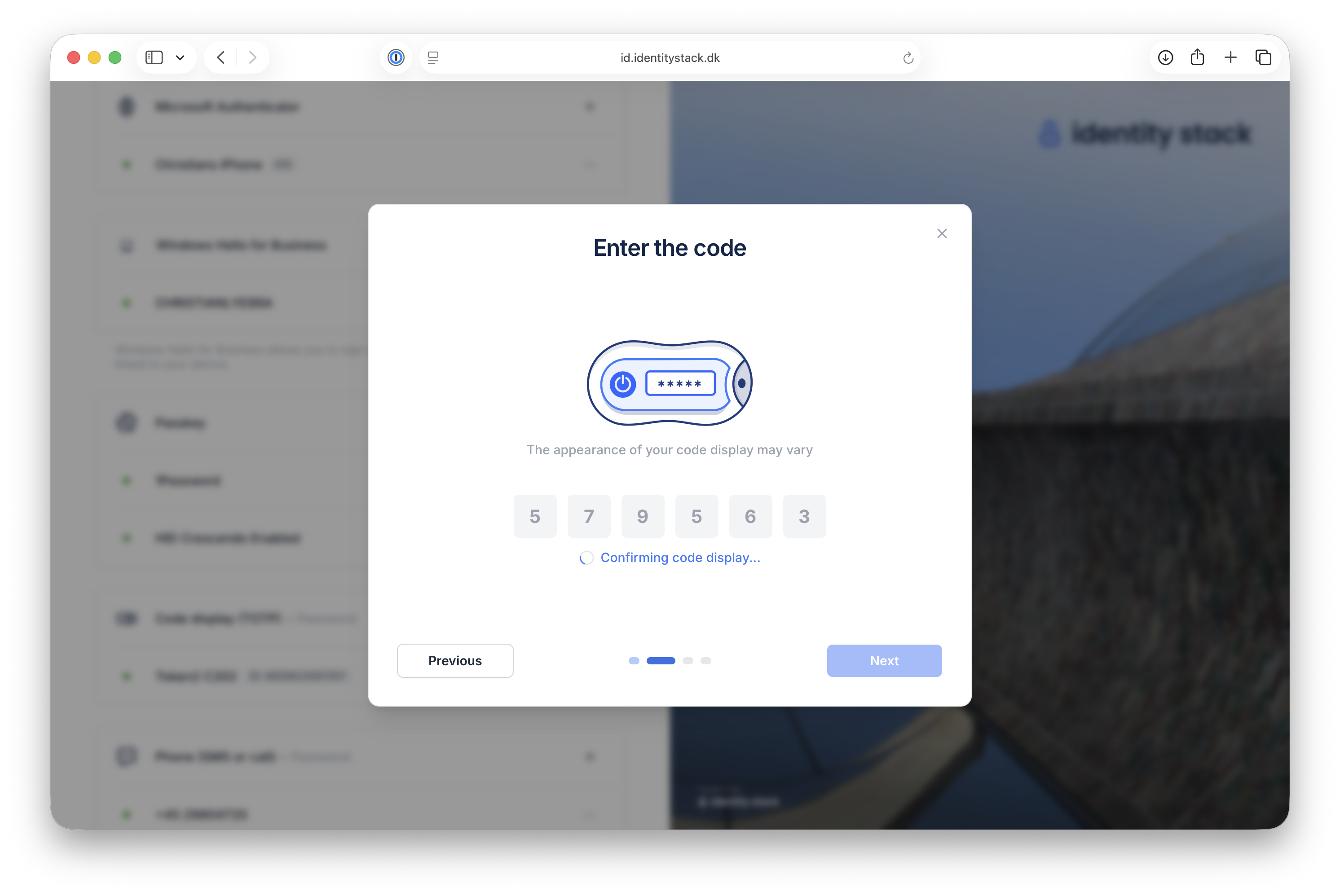
Turn on the token and enter the code shown on its display.
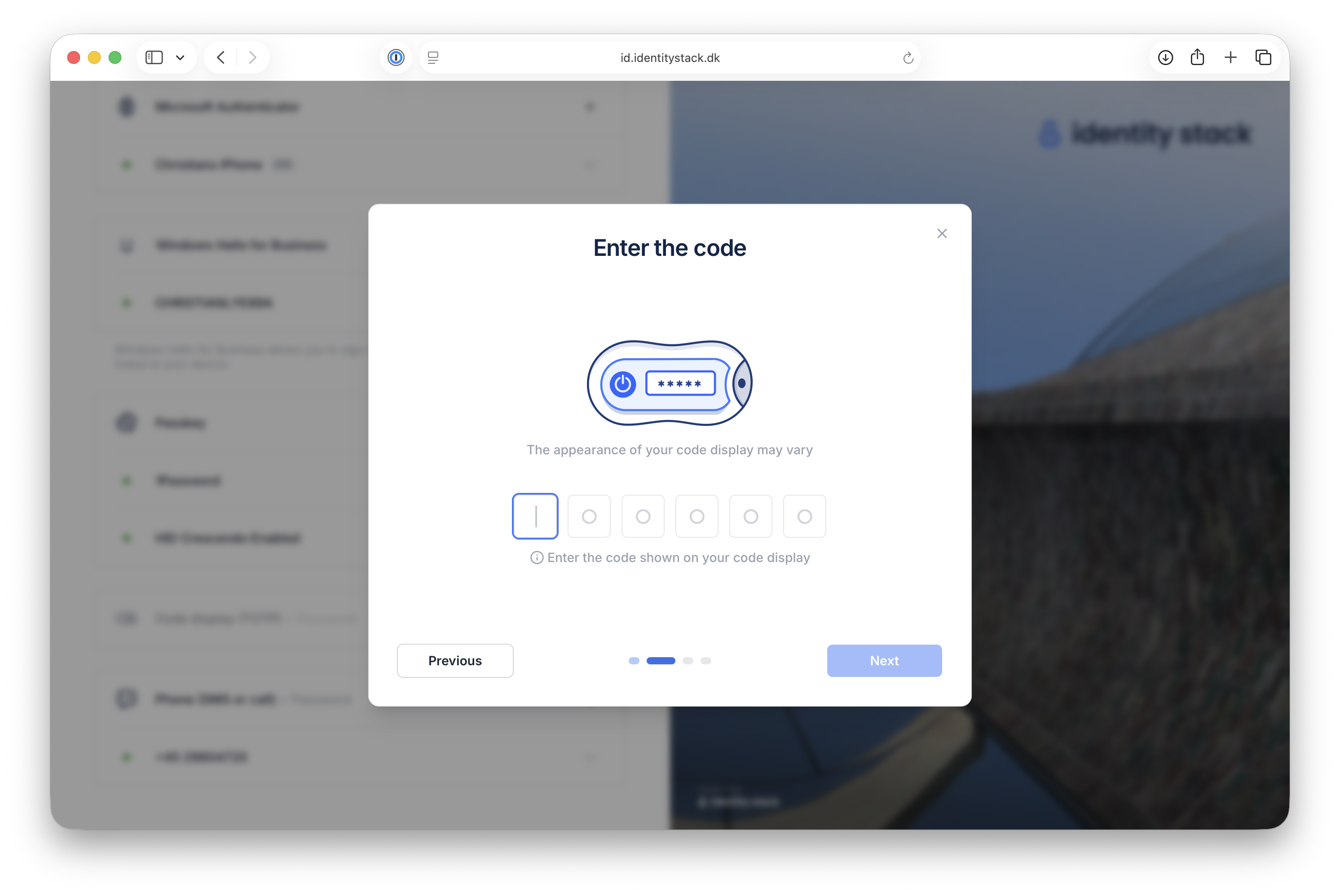
Once all digits are entered, the code is confirmed automatically.
4. Your TOTP token is linked
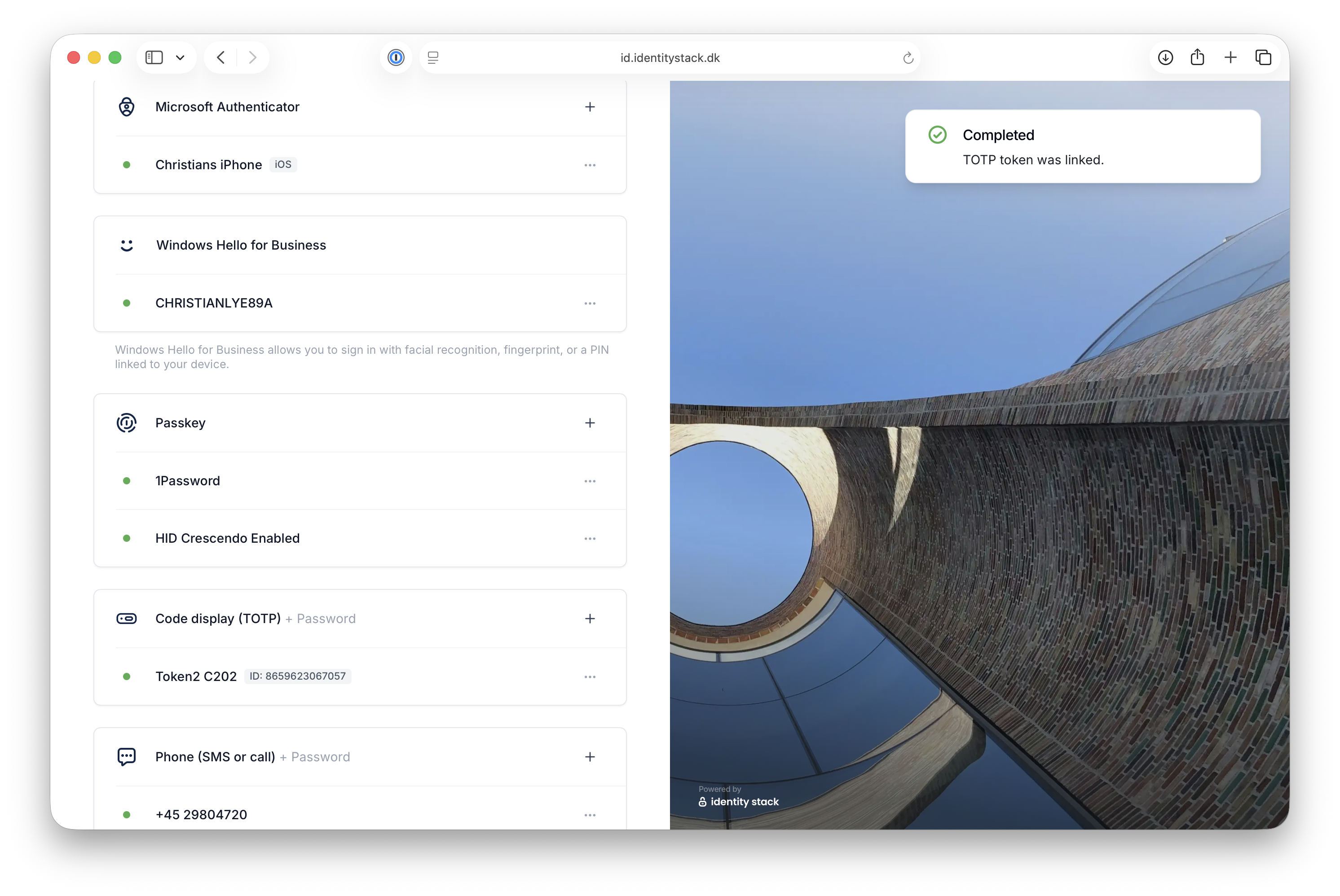
The token has been linked to your account and is shown as active under Code display (TOTP), together with its ID.