

Appearance
Configure MitID Erhverv integration
This guide tells you how to configure the MitID Erhverv integration after you have added it.
Prerequisites
Before you start, make sure that:
- You have completed the Setup MitID Erhverv integration guide.
- You have access to the Identity Stack admin portal. See Assign access to Identity Stack Admin.
1. Go to the integration
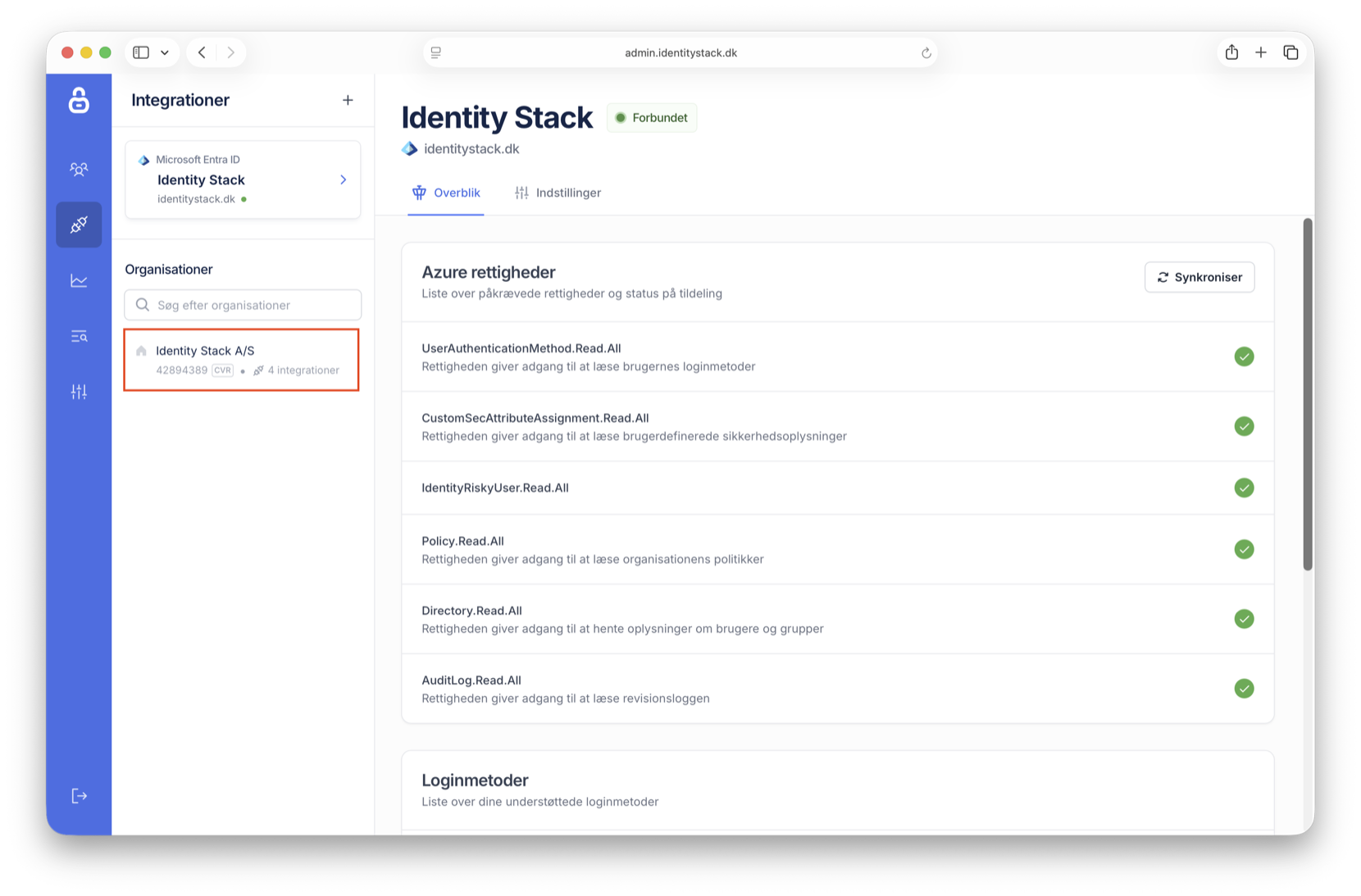
Go to the Identity Stack admin portal. Click Integrationer. Click the organisation that has the MitID Erhverv integration.
2. Open the settings
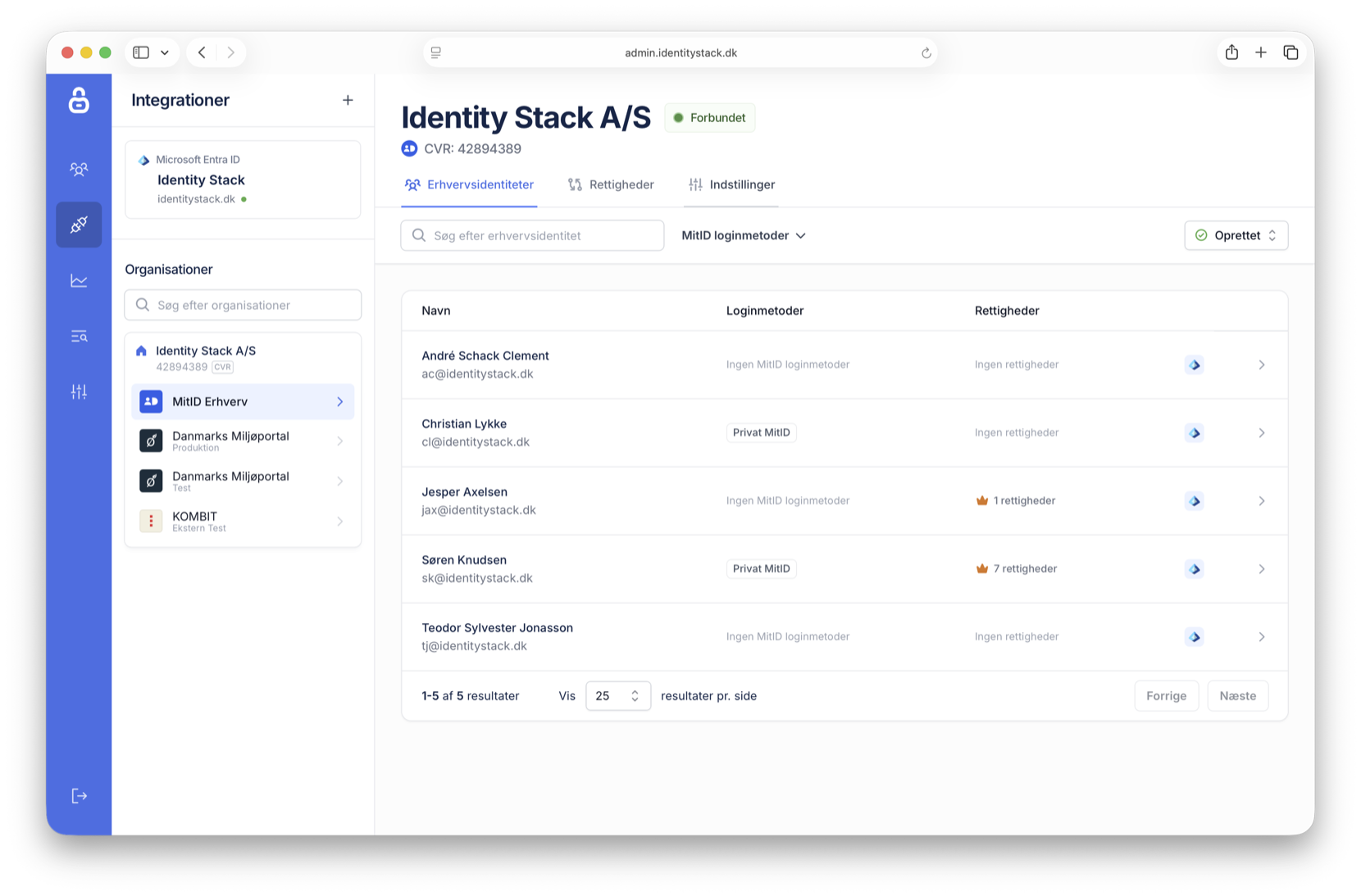
Click MitID Erhverv below the organisation. Then click Indstillinger. The page shows all the settings for the organisation.
3. Erhvervsidentiteter
The Erhvervsidentiteter pane controls how Identity Stack assigns business identities. It has two settings.
Adgangsstyring
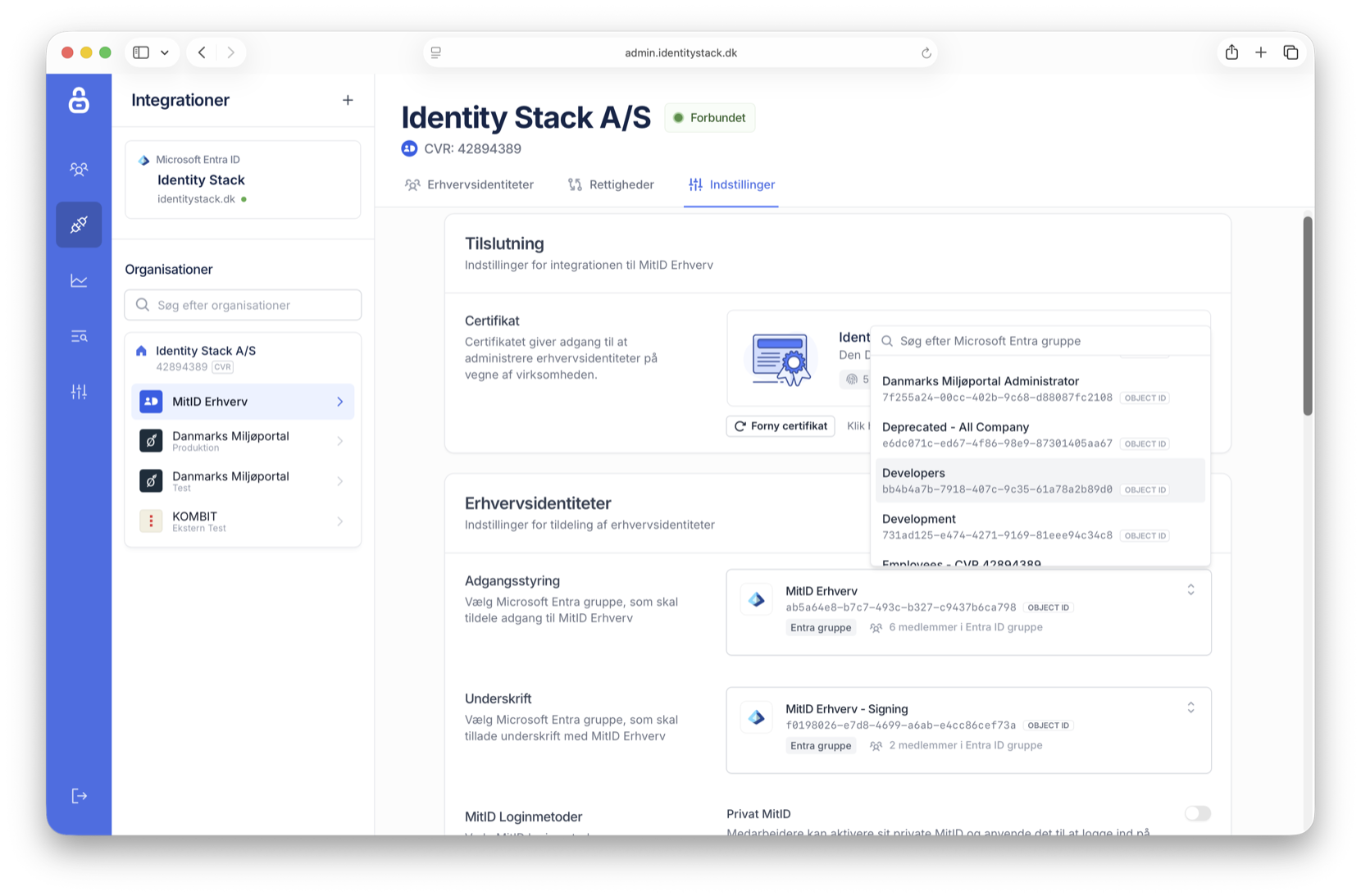
Identity Stack uses a Microsoft Entra group to control which employees can get a MitID Erhverv identity. If the organisation does not have a group for this, make a group in Microsoft Entra first.
Go to the Adgangsstyring setting. Click the group selector. Find the group in the list, or search for the group name or object ID. Select the group.
INFO
The members of the group do not get a business identity immediately. The group only controls who can get one. Identity Stack makes the business identity when the employee first signs in to a system that requires a MitID Erhverv business identity.
Underskrift
The Underskrift setting is optional. Use it if employees sign documents on behalf of the organisation. Select the group with the employees who may sign.
When the two settings are correct, click Gem at the bottom of the pane.
4. Onboarding
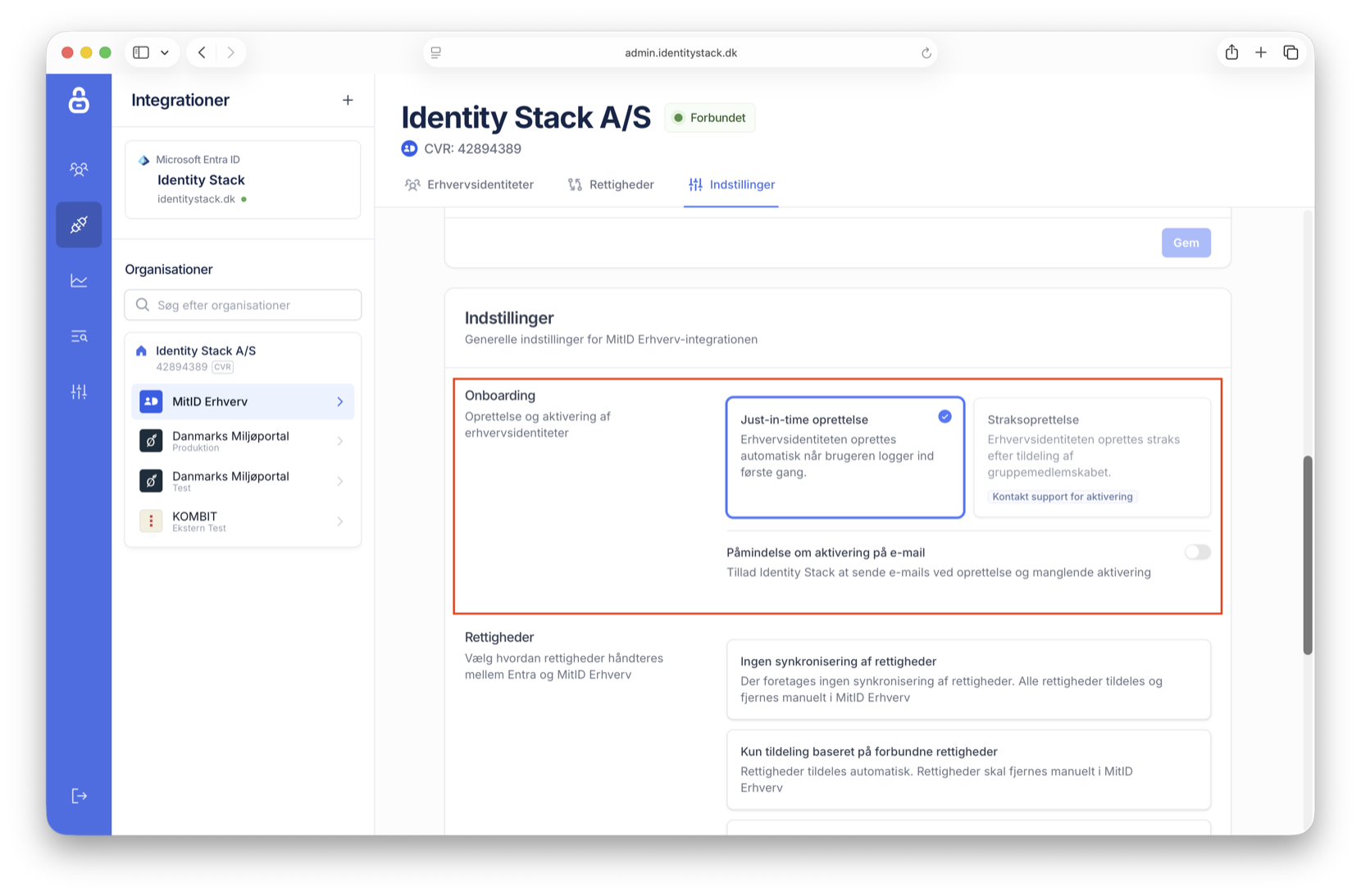
The Onboarding setting controls when Identity Stack makes and activates the business identities.
The default option is Just-in-time oprettelse. Identity Stack makes the business identity when the employee logs in for the first time.
If your organisation needs the business identities immediately, select Straksoprettelse. Identity Stack then makes the business identity as soon as the employee becomes a member of the Adgangsstyring group. Contact Identity Stack support to enable this option.
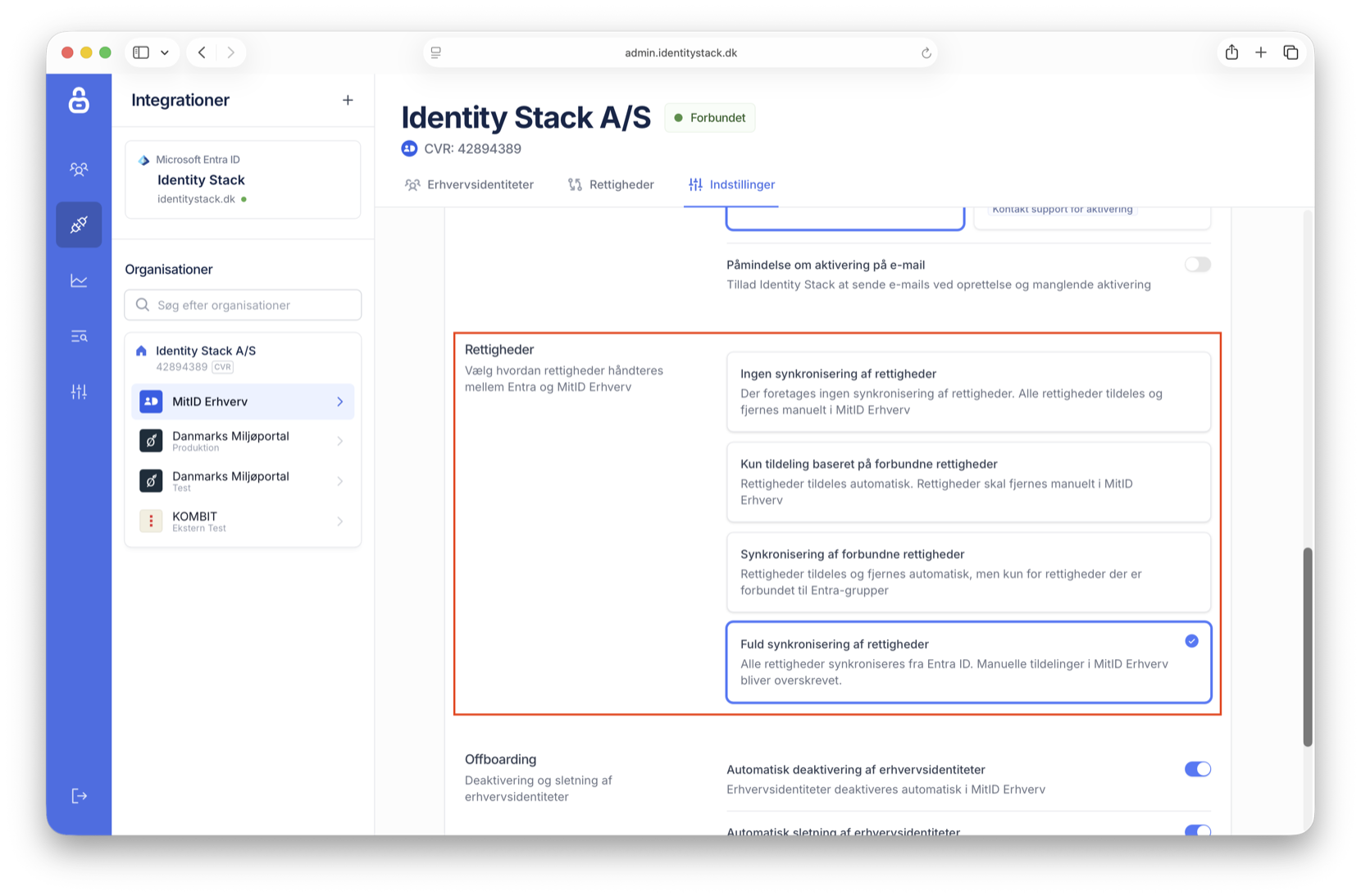
5. Rettigheder
You control the MitID Erhverv rights with Microsoft Entra groups. The Rettigheder setting controls how Identity Stack synchronises the rights. Select one of these four options:
- Ingen synkronisering af rettigheder: You assign and remove all rights manually in MitID Erhverv.
- Kun tildeling baseret på forbundne rettigheder: Identity Stack assigns the rights, but does not remove them. You remove the rights manually in MitID Erhverv.
- Synkronisering af forbundne rettigheder: Identity Stack assigns and removes only the rights that you connect to Microsoft Entra groups. Use this option to control the other rights manually.
- Fuld synkronisering af rettigheder: Microsoft Entra is the single source of truth. Identity Stack overwrites manual assignments in MitID Erhverv.
6. Offboarding
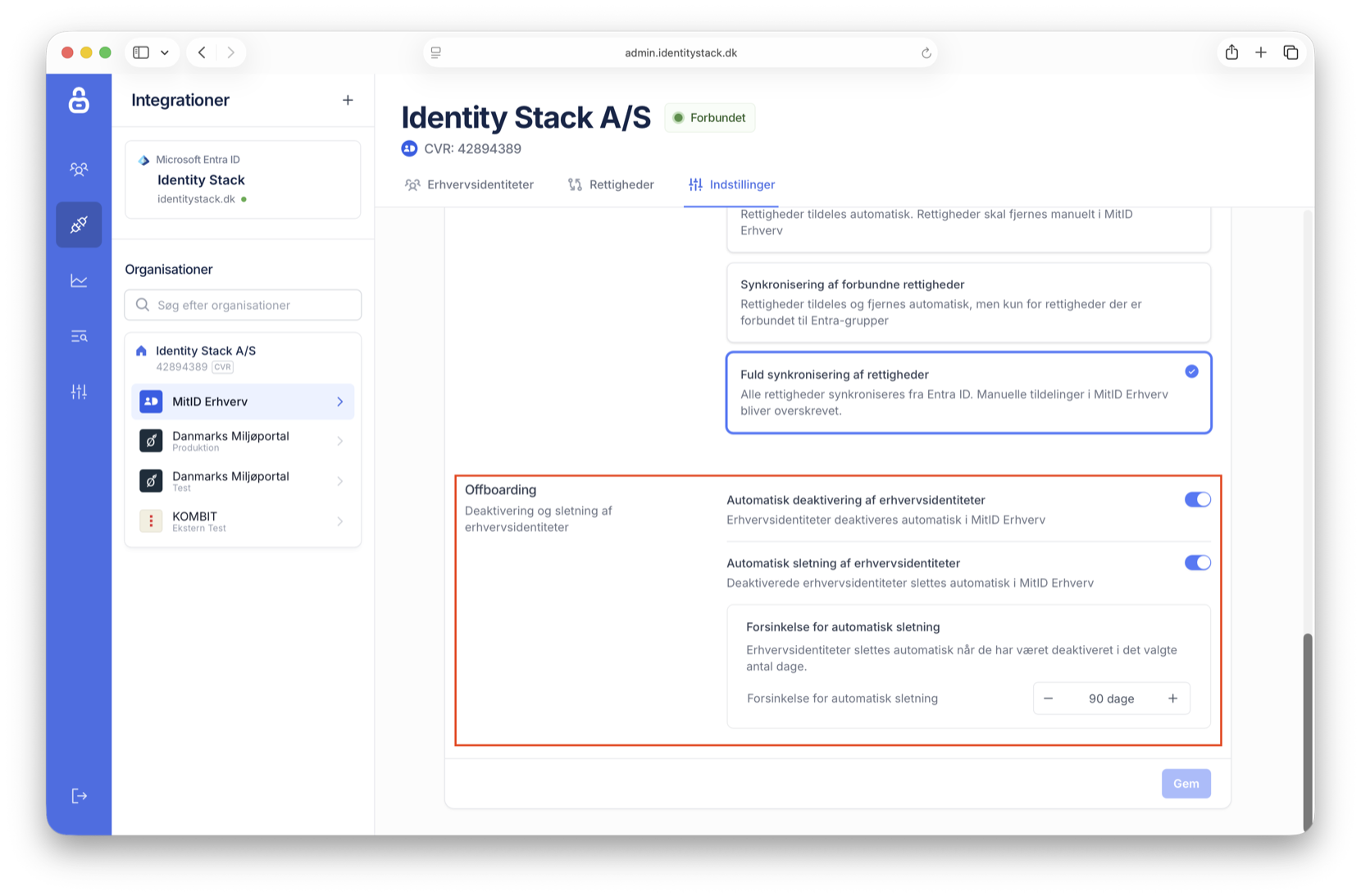
The Offboarding setting controls what Identity Stack does when you deactivate a user, or when you remove a user from the Microsoft Entra group. Enable one or both of these options:
- Automatisk deaktivering af erhvervsidentiteter: Identity Stack deactivates the business identity. The employee cannot sign in with it. You can restore it again.
- Automatisk sletning af erhvervsidentiteter: Identity Stack deletes the deactivated business identity. Set Forsinkelse for automatisk sletning to the number of days that Identity Stack waits first.
Onboarding, Rettigheder and Offboarding are in the same pane. When the three settings are correct, click Gem at the bottom of the pane.
TIP
The delay gives you time to correct an error. If you remove a user from the Microsoft Entra group by accident, Identity Stack does not delete the business identity immediately.