

Appearance
Assign Entra ID roles
This guide walks you through assigning Microsoft Entra roles to the Identity Stack enterprise application. The roles enable BusinessID features for users, such as password reset and MFA management.
Only assign the roles required for the services in your agreement:
| Role | Purpose |
|---|---|
| Authentication Administrator | Password reset Issuing a Temporary Access Pass (TAP) |
| Authentication Policy Administrator | Managing hardware OATH tokens (TOTP) |
Prerequisites
The Identity Stack enterprise application must be installed in your tenant. See Setup Identity Stack.
1. Open Roles and administrators
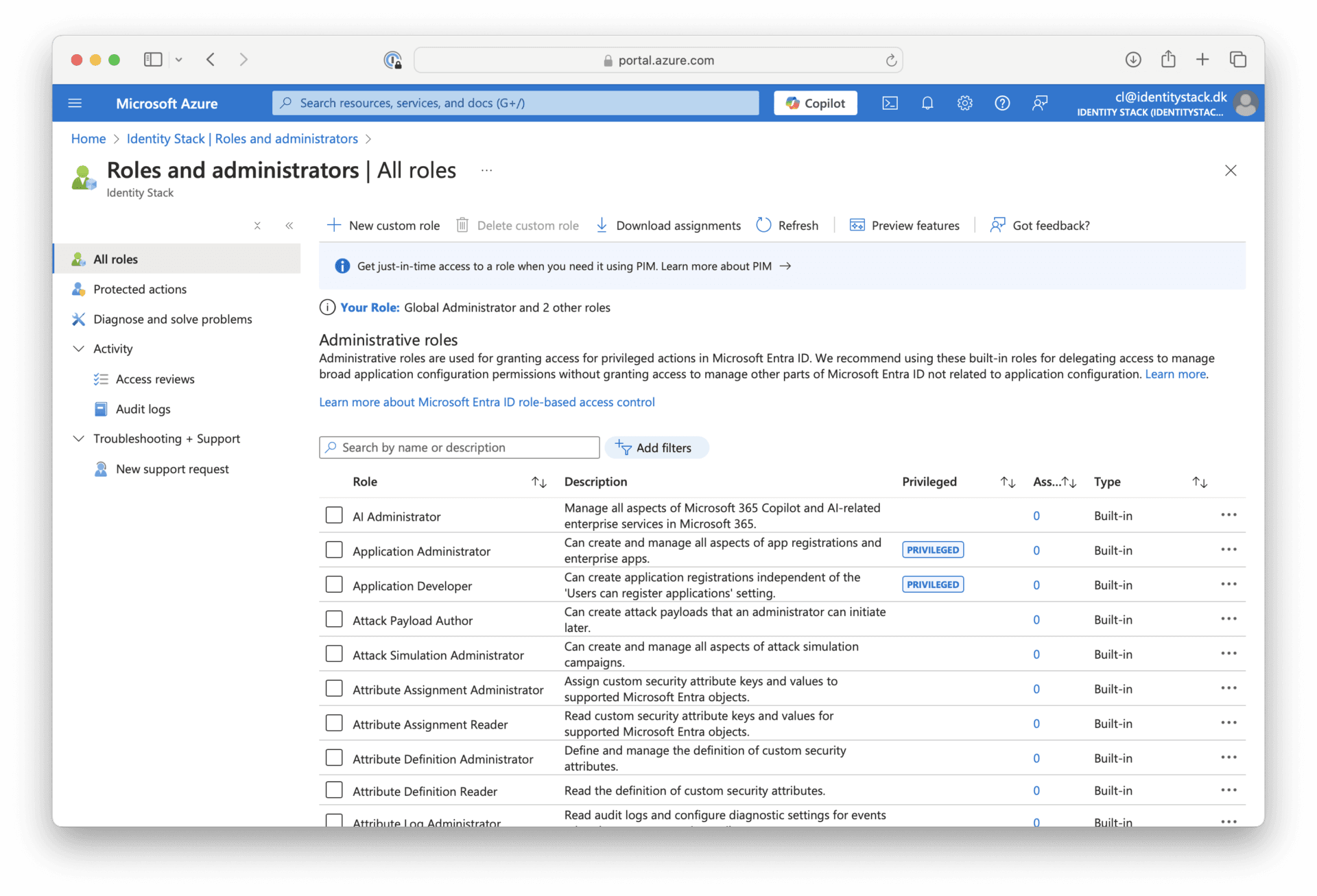
Go to Roles and administrators in Microsoft Entra ID.
2. Add an assignment for the role
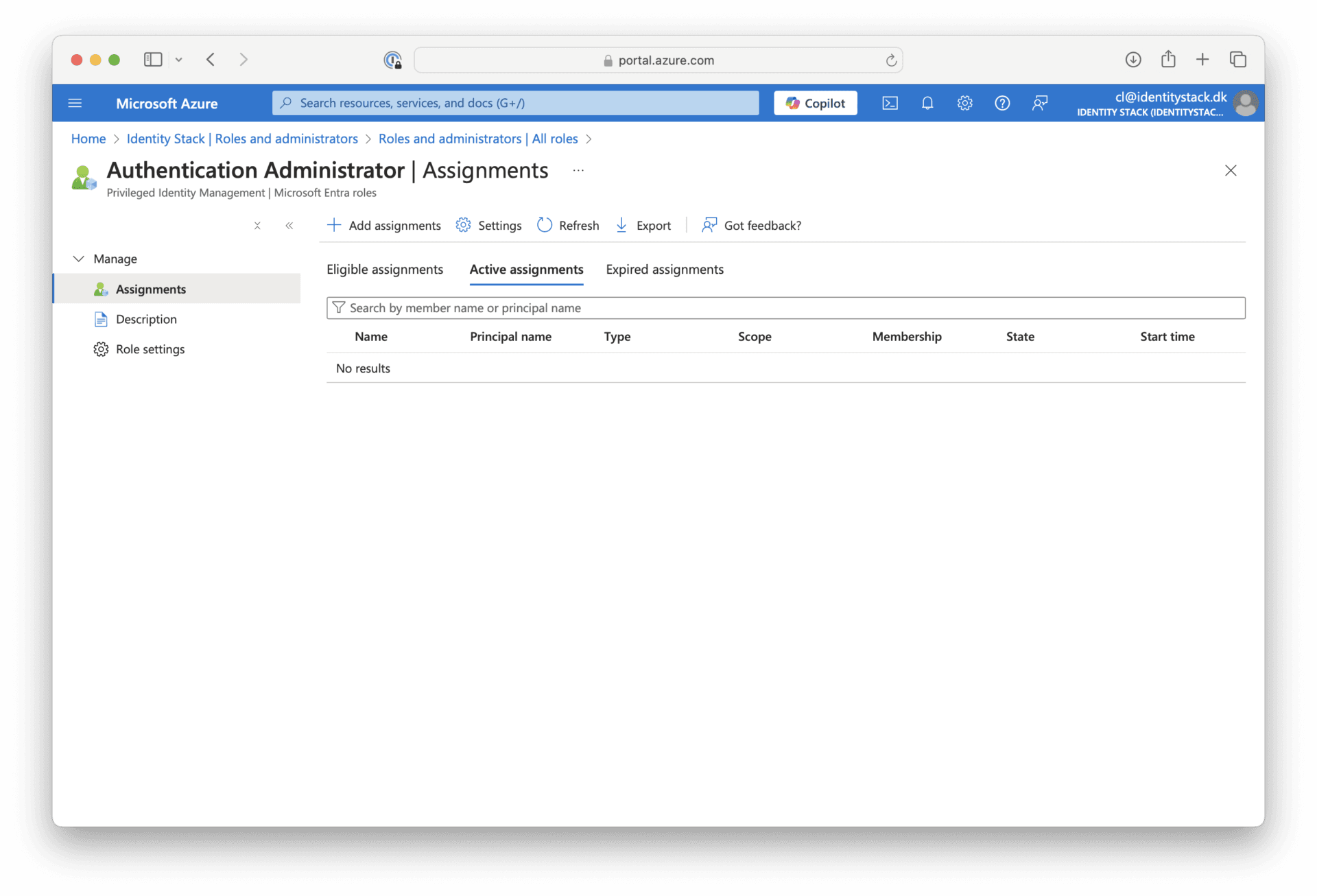
Select the relevant role and click Add assignment. If both roles are needed, repeat steps 2–4 for each role.
3. Select the Identity Stack application
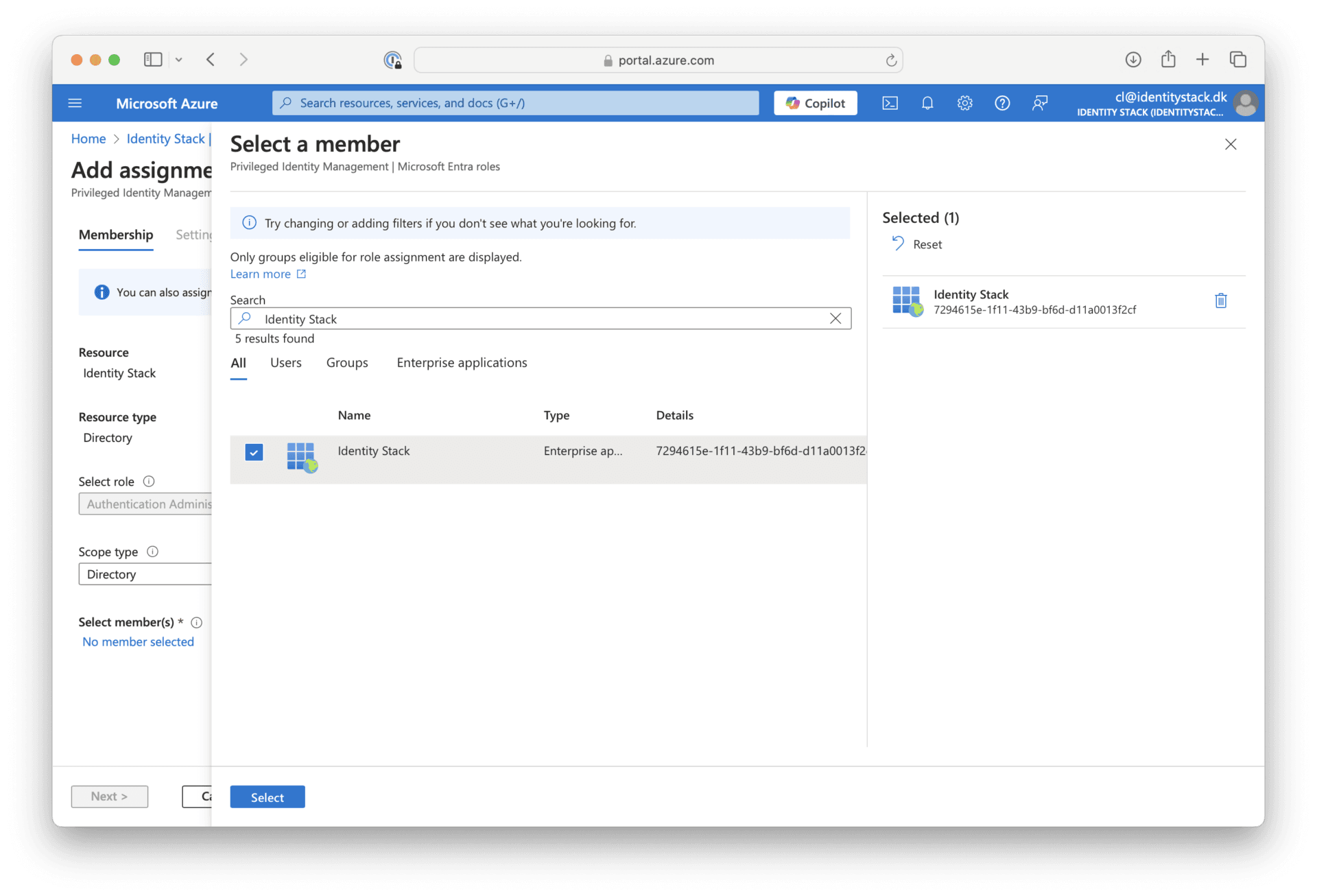
Search for the application Identity Stack (Enterprise application) and click Select.
4. Configure and assign
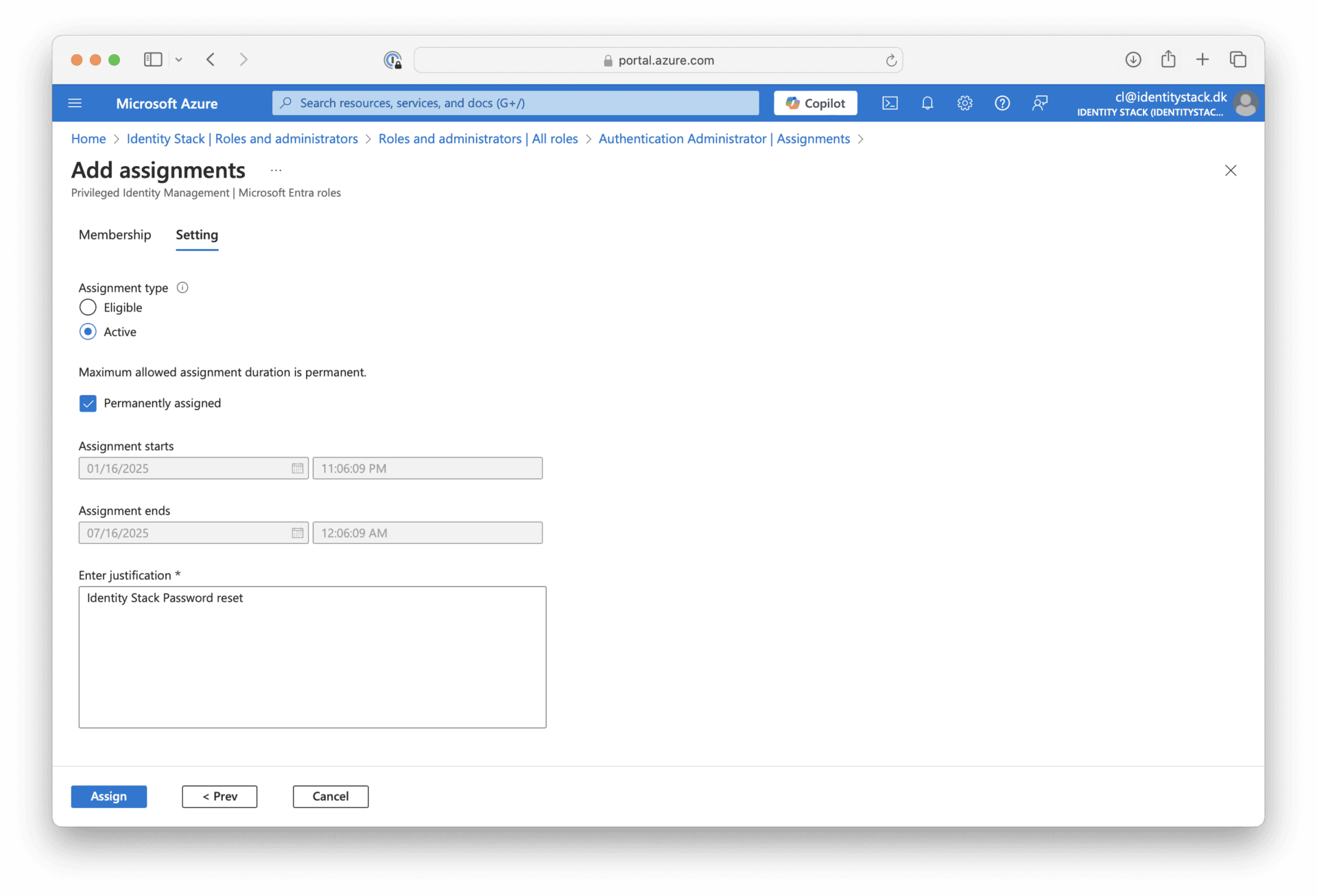
Click Next and select Active assignment and Permanently assigned. Enter a justification for the role assignment and click Assign.
Note: The assignment type and duration settings are only shown in tenants that use Microsoft Entra Privileged Identity Management (PIM). Without PIM, the role is assigned directly.
The application can now perform the BusinessID actions covered by the assigned roles on behalf of users.