

Appearance
Grant permissions to the gMSA
This guide walks you through granting the required permissions to Identity Stack Agent's Group Managed Service Account (gMSA) in Active Directory.
The permissions are granted on the organizational unit (OU) that contains the relevant users. The following permissions must be granted:
| Permission | Purpose |
|---|---|
| Reset user passwords and force password change at next logon | Resetting user passwords |
Read/write lockoutTime | Unlocking locked user accounts |
A third permission, Replicating Directory Changes, is optional. Grant it only if attribute change detection is enabled for your organization. See section 4.
The permissions are granted with the Delegation of Control Wizard in Active Directory Users and Computers. The wizard is run twice: first for password reset, then for lockoutTime.
Note: Permissions cannot be assigned directly to a gMSA — the Delegation of Control Wizard cannot select service accounts. Instead, the permissions are assigned indirectly: create a security group, add the gMSA as a member, and delegate the permissions to the group.
1. Create a security group for the gMSA
Open Active Directory Users and Computers, right-click the OU where you want to create the group, and select New > Group.
Enter a group name (e.g. is-agent-permissions), select group scope Global and group type Security, and click OK.
Open the new group, go to the Members tab, and click Add…. In the search dialog, click Object Types… and check Service Accounts — otherwise the gMSA cannot be found. Then enter the gMSA name (e.g. is-agent$) and click OK.
Note: Group membership only takes effect when the gMSA gets a new Kerberos ticket. If Identity Stack Agent is already running, restart the Windows service (or reboot the server) after adding the gMSA to the group.
2. Delegate password reset
Open Active Directory Users and Computers, right-click the OU that contains the users, and select Delegate Control….
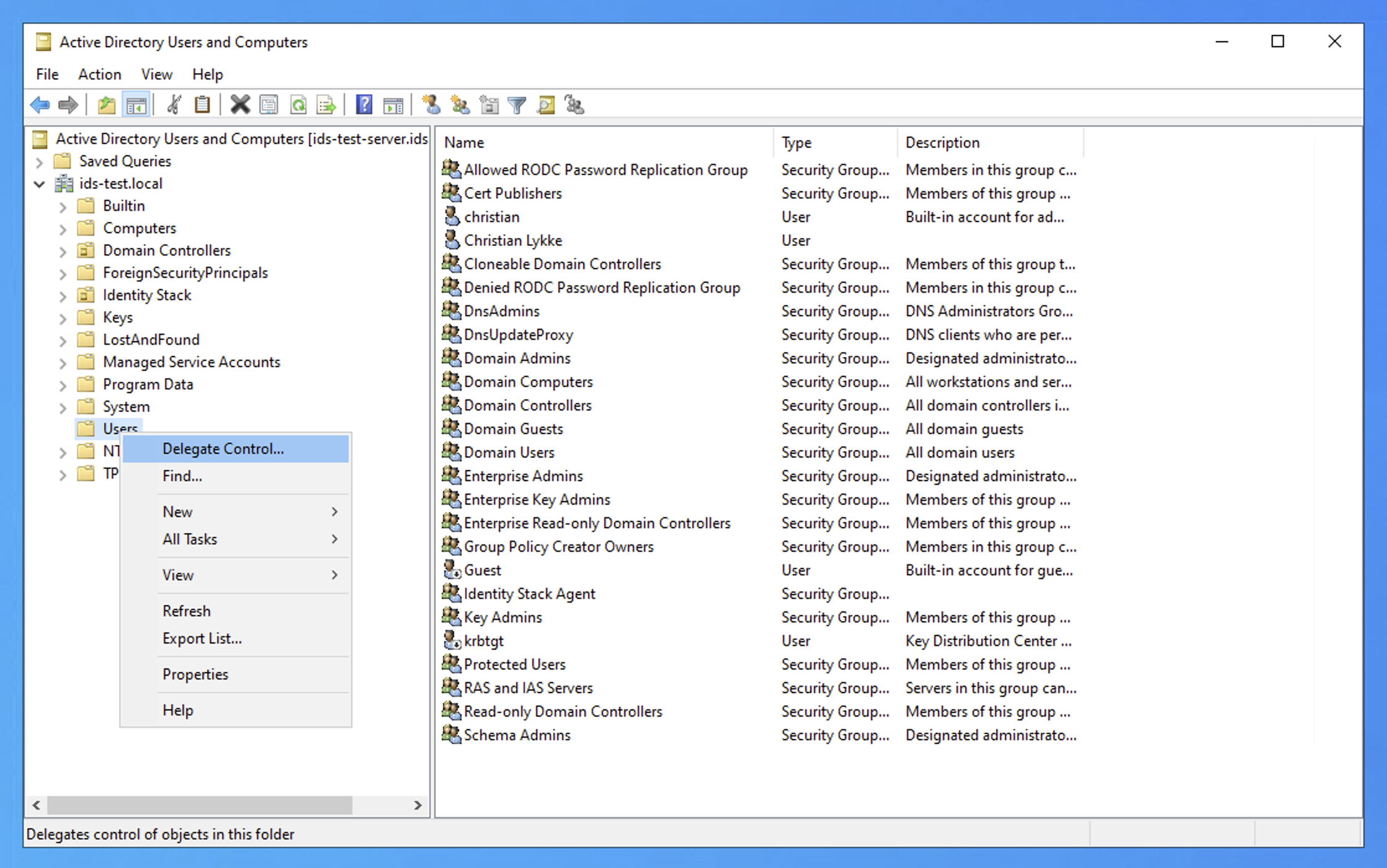
Click Next on the welcome page.
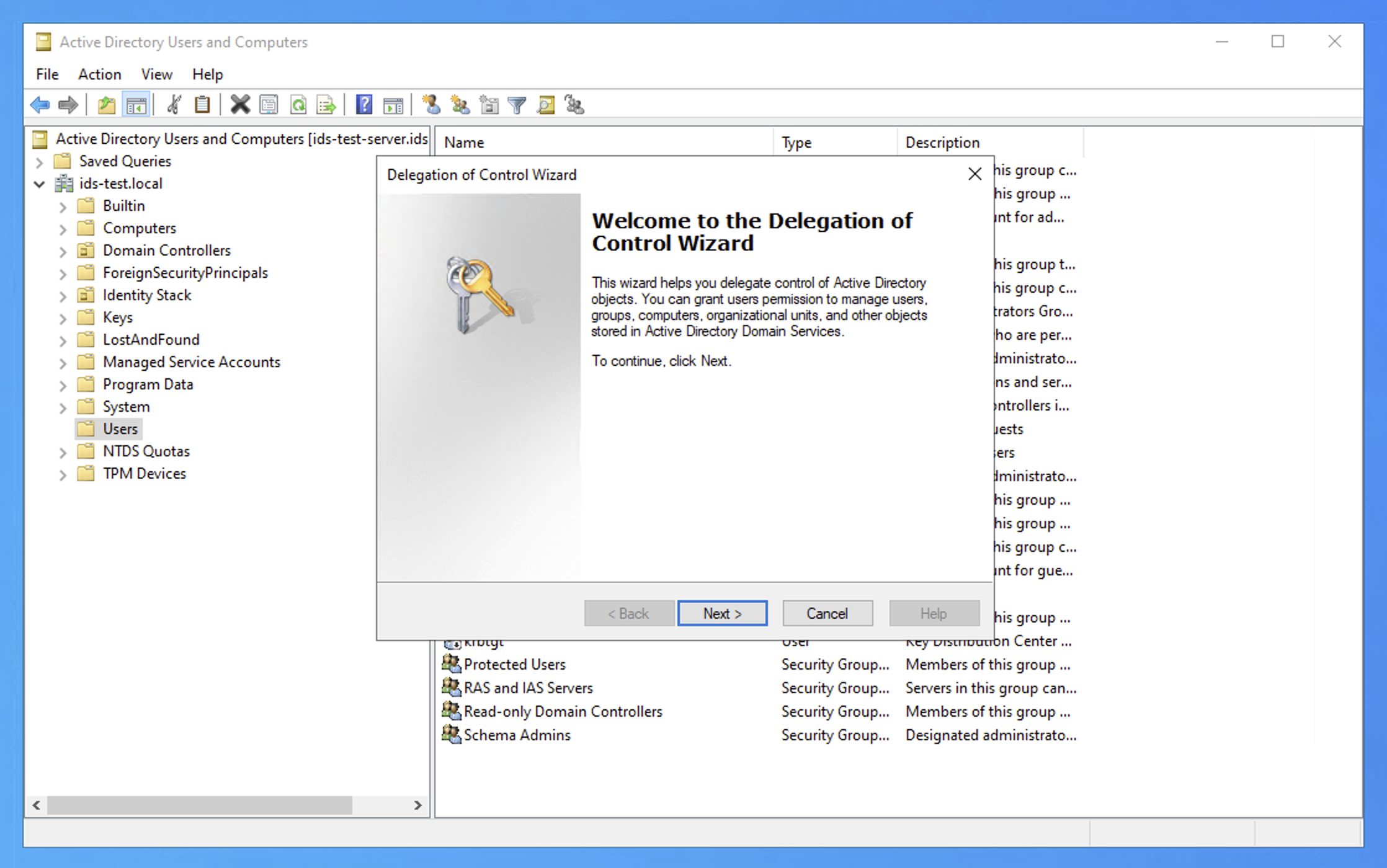
On the Users or Groups page, click Add… and add the security group (e.g. is-agent-permissions). Click Next.
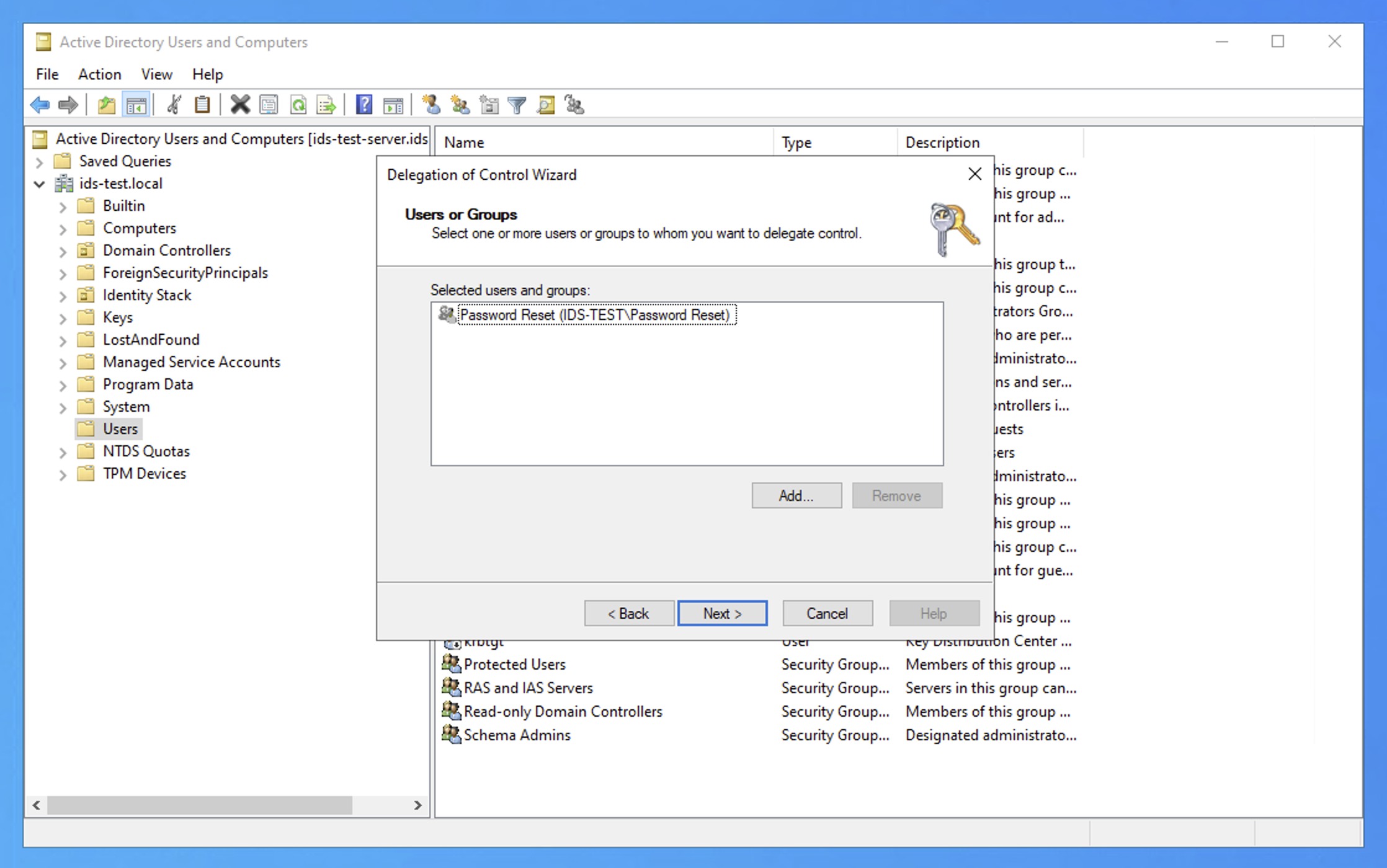
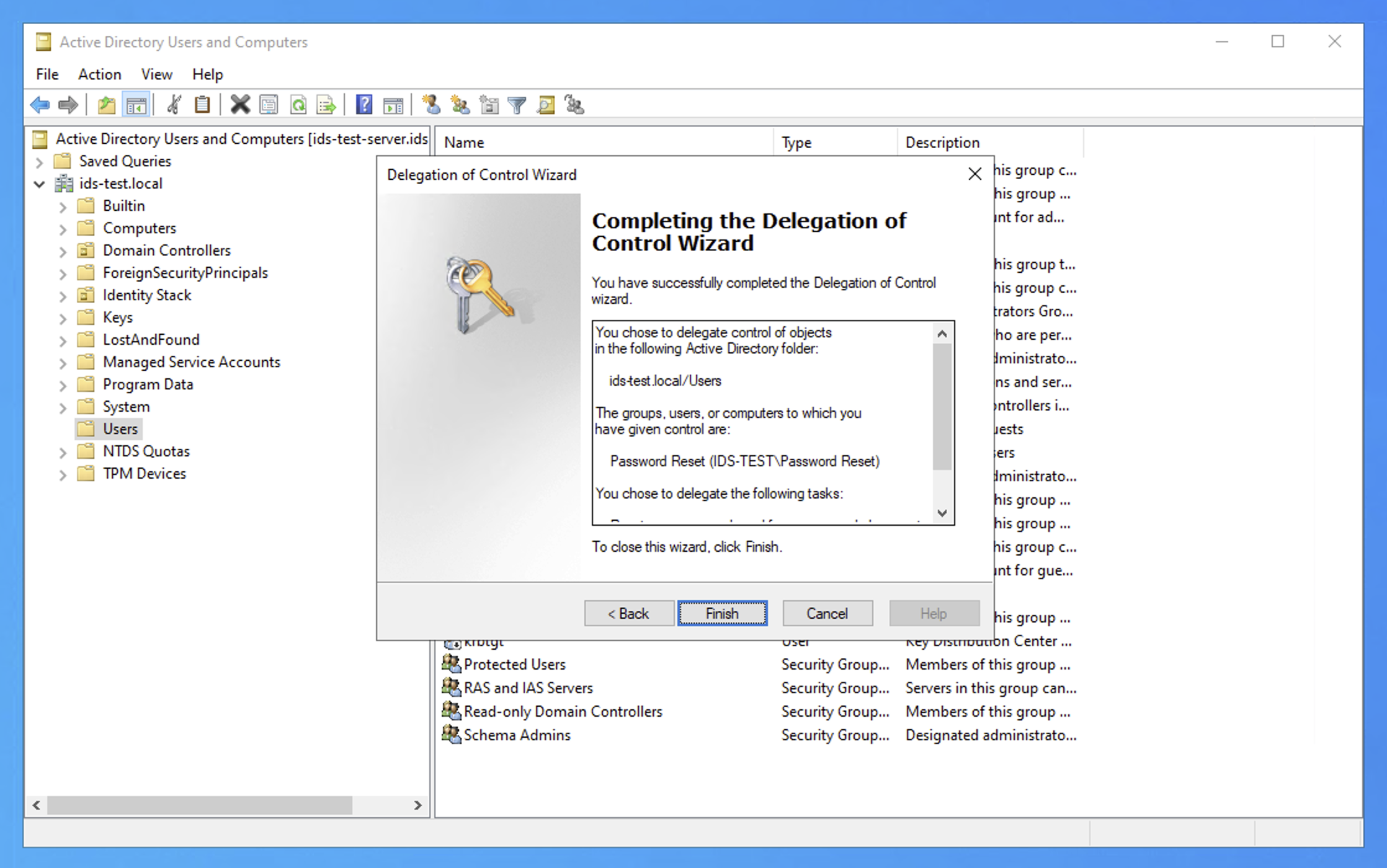
On the Tasks to Delegate page, select Delegate the following common tasks and check Reset user passwords and force password change at next logon. Click Next.
Click Finish to complete.
3. Delegate read/write access to lockoutTime
Right-click the same OU again, select Delegate Control…, and add the security group as before.
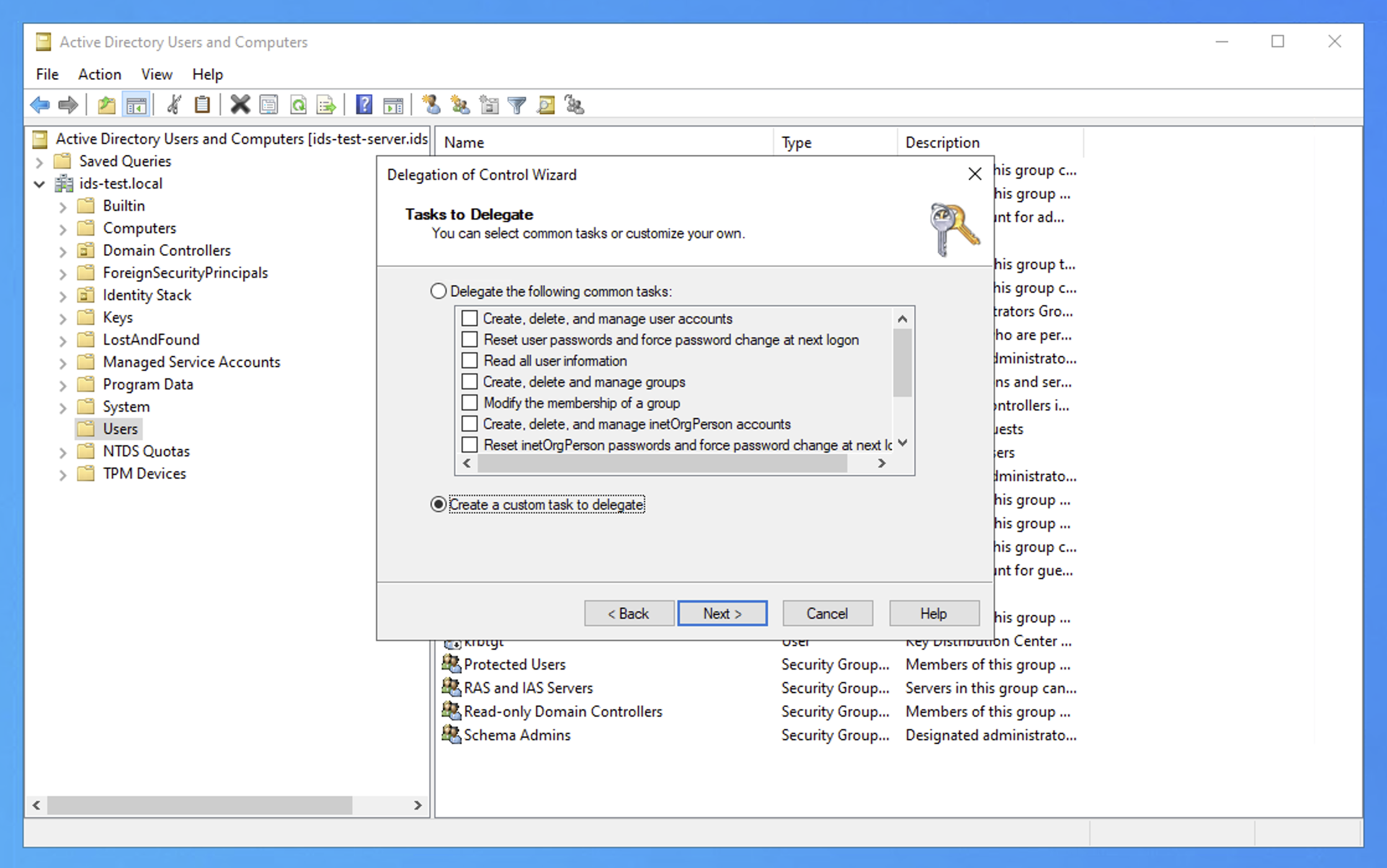
On the Tasks to Delegate page, this time select Create a custom task to delegate. Click Next.
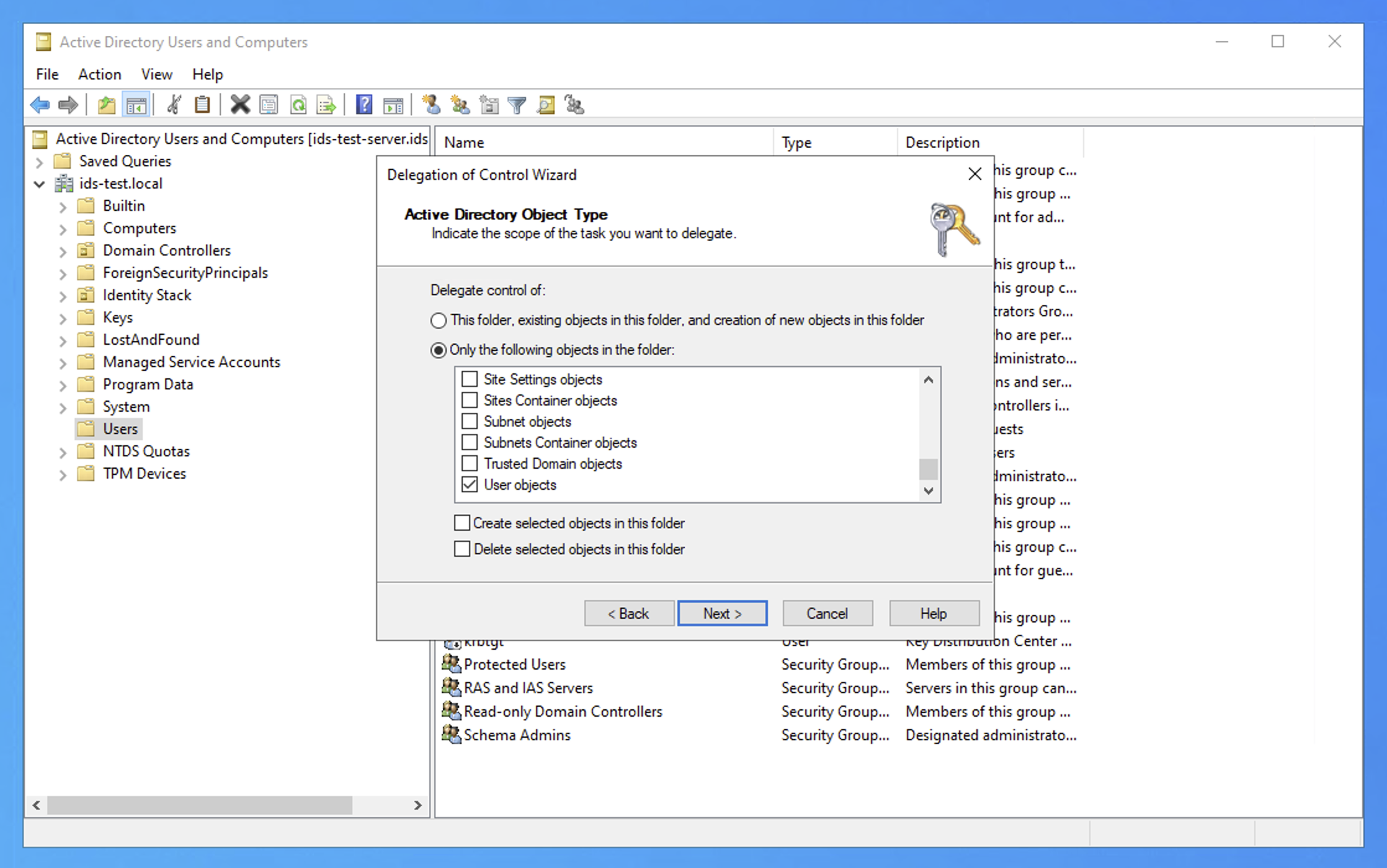
On the Active Directory Object Type page, select Only the following objects in the folder and check User objects. Click Next.
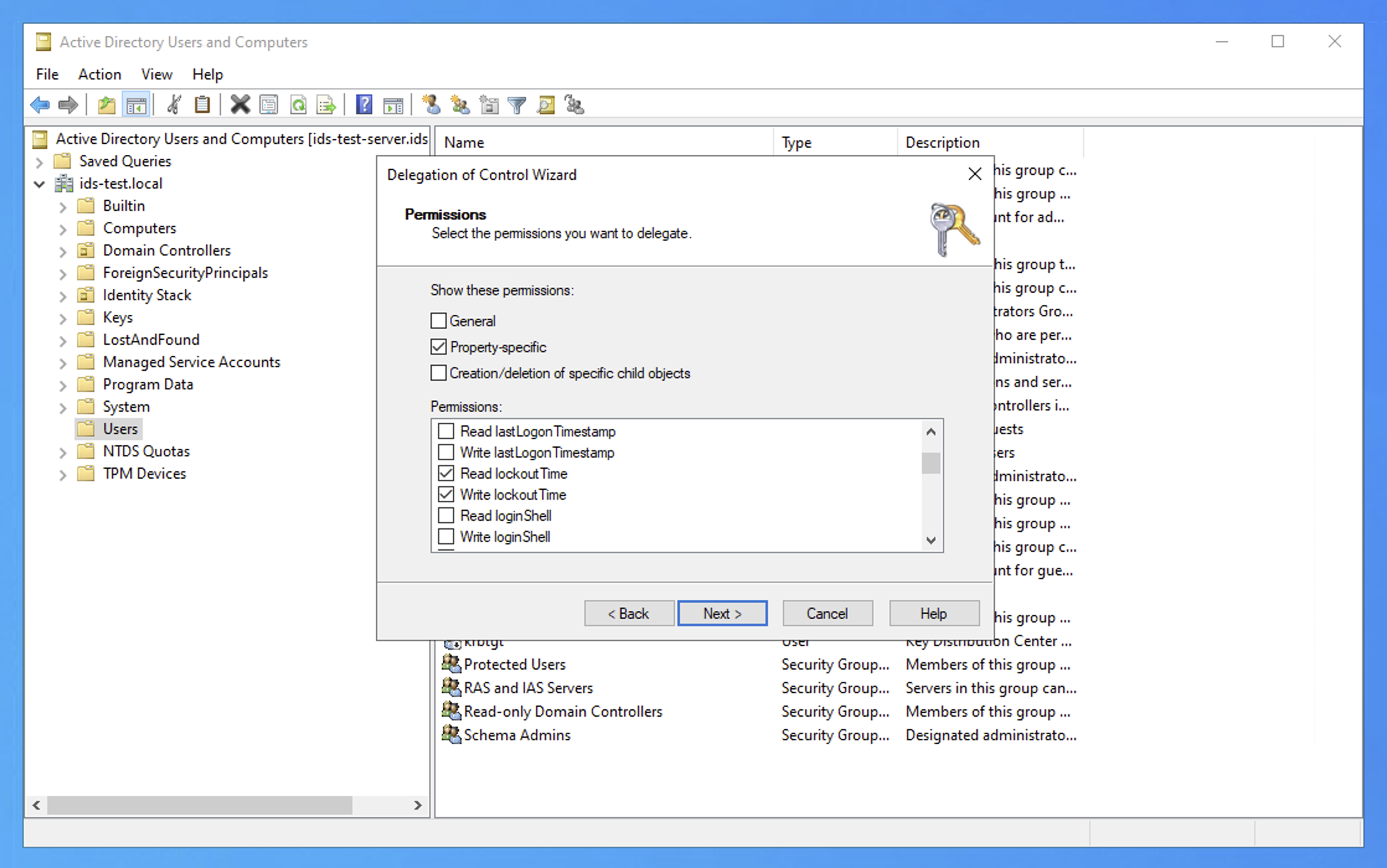
On the Permissions page, check Property-specific, then check Read lockoutTime and Write lockoutTime in the list. Click Next.
Click Finish to complete.
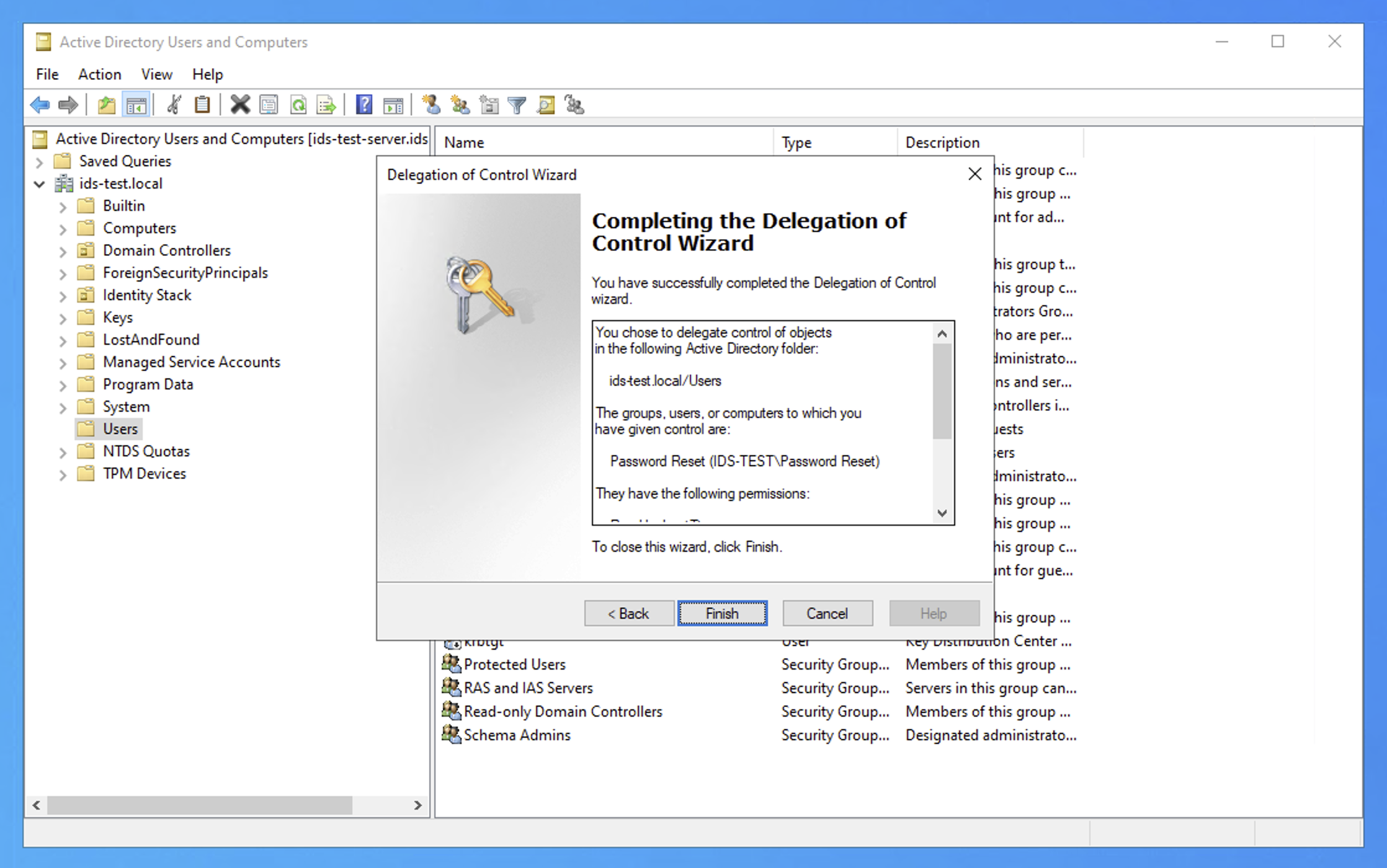
4. Optional: Grant Replicating Directory Changes
Optional permission
Grant this permission only if attribute change detection is enabled for your organization. If attribute change detection is not enabled, skip this section.
This permission lets Identity Stack Agent read the directory change log. The change log is read-only. Identity Stack detects attribute changes within minutes.
Unlike the permissions above, this permission cannot be granted on an OU. Grant it on the domain root (e.g. DC=contoso,DC=dk). Grant it to the same security group as before (e.g. is-agent-permissions), not directly to the gMSA.
Grant with Active Directory Users and Computers
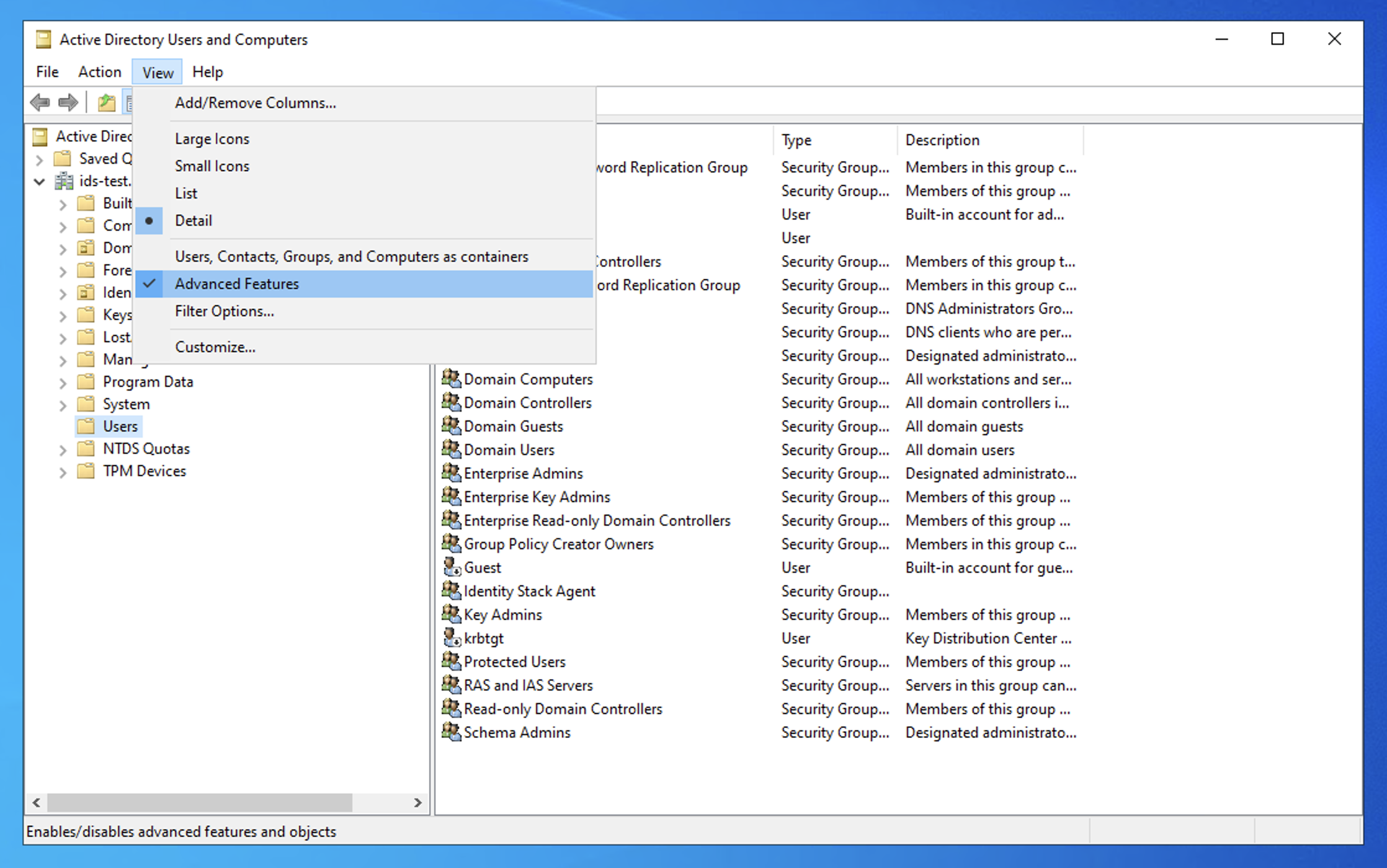
Open Active Directory Users and Computers. On the View menu, select Advanced Features. Without this setting, the Security tab is not shown.
Right-click the domain root at the top of the tree and select Properties. Go to the Security tab.
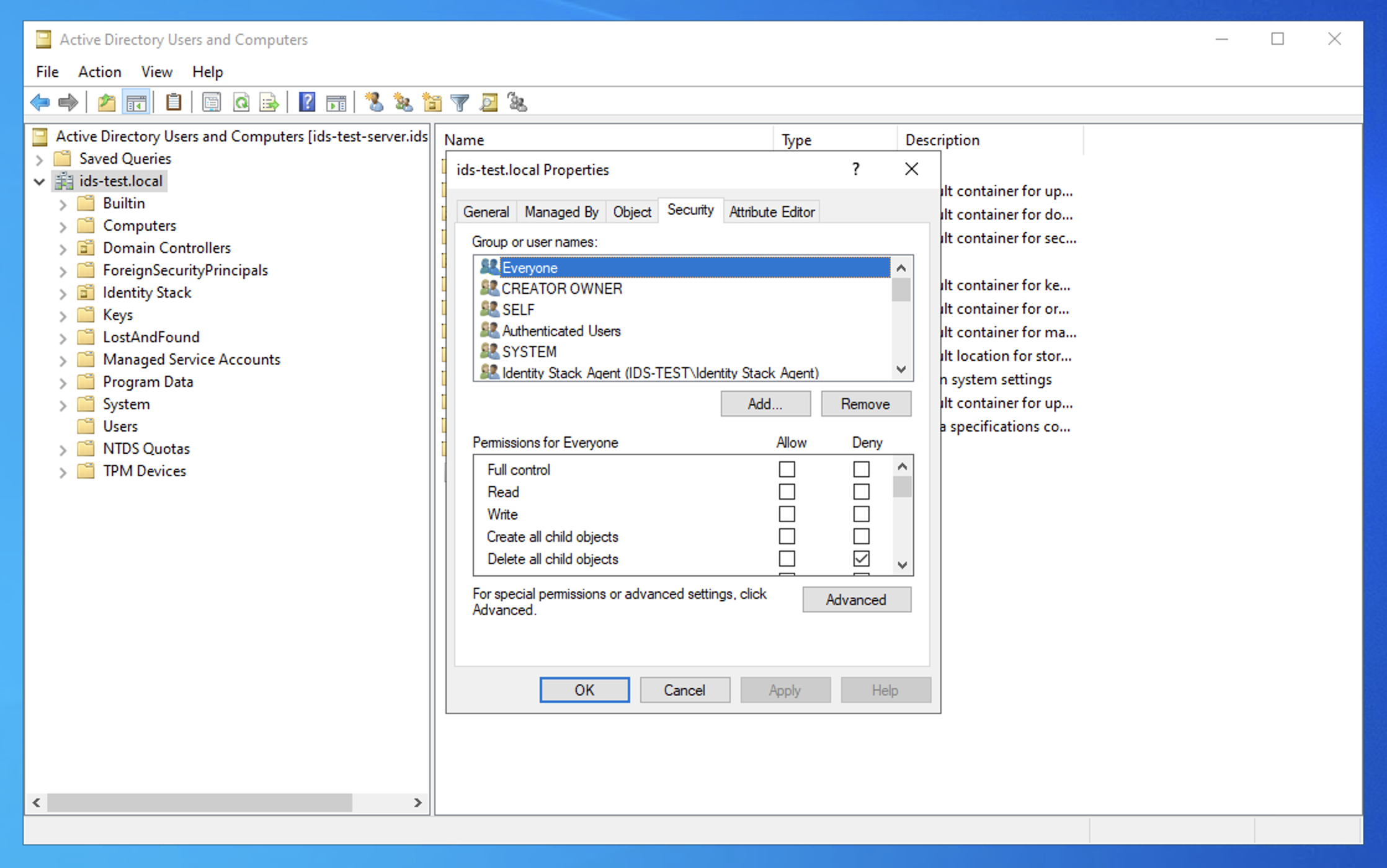
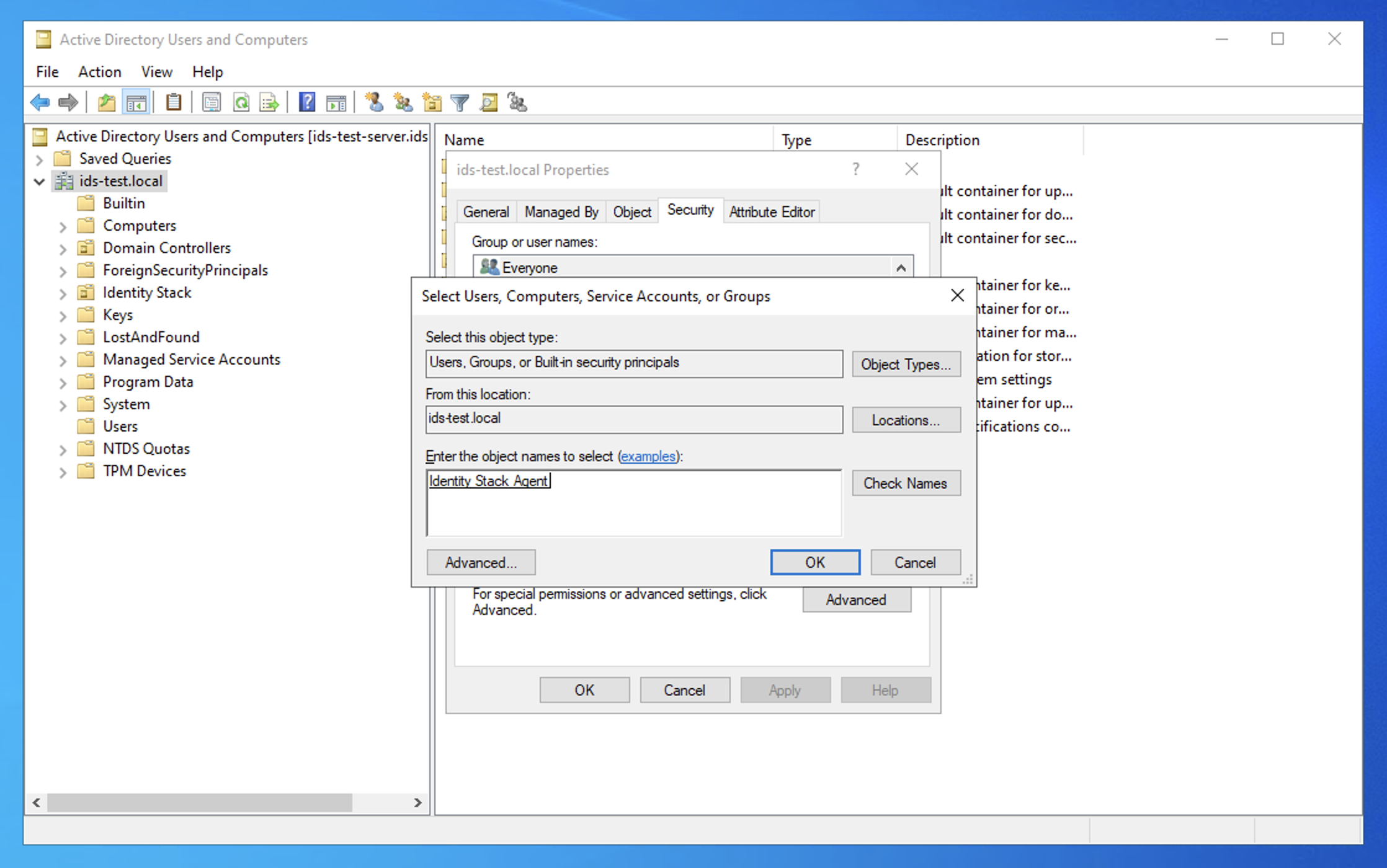
Click Add… and add the security group (e.g. is-agent-permissions).
Select the group in the list. In the permission list, check Allow for Replicating Directory Changes. Click OK.
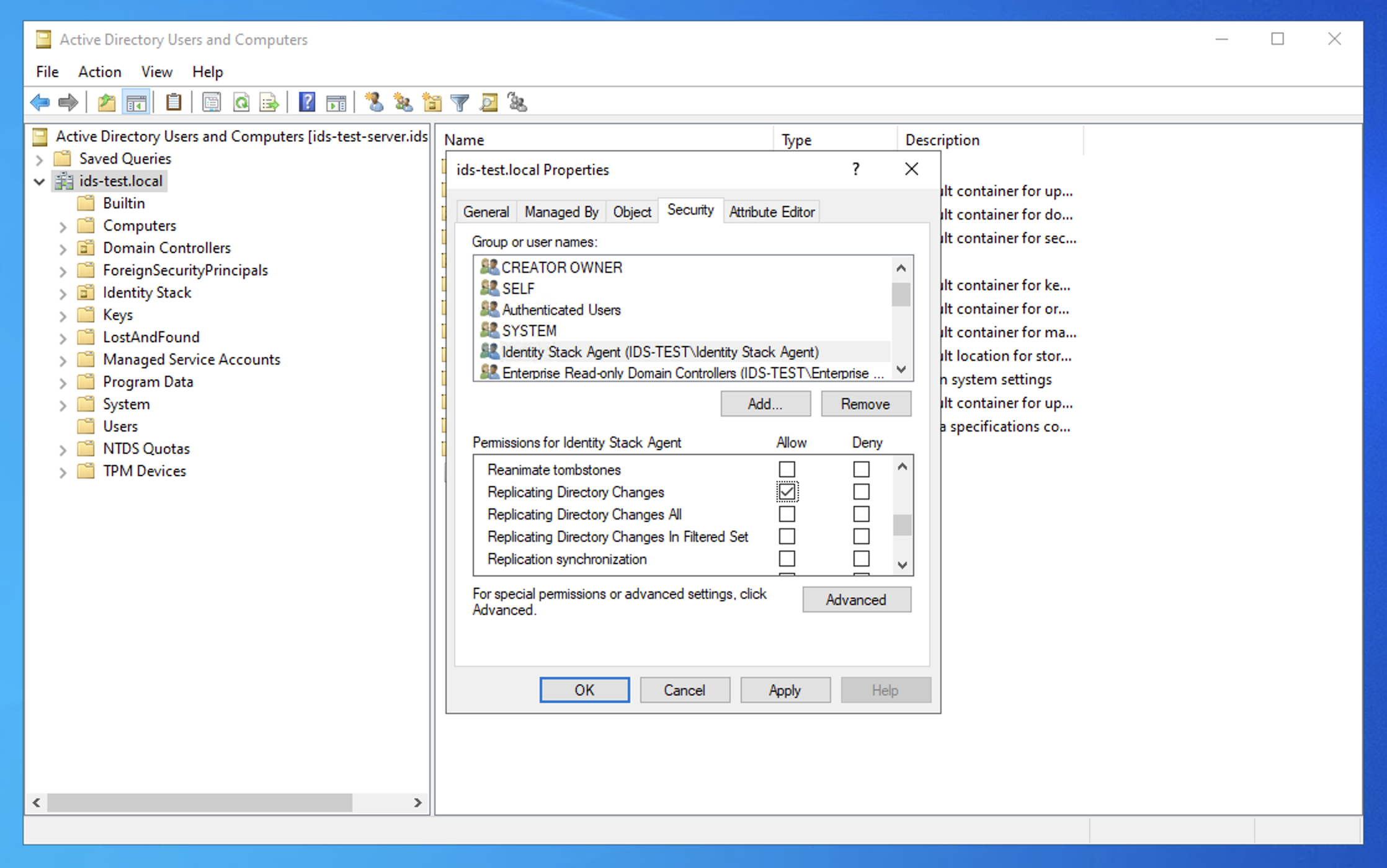
Grant only the base permission
Do not check Replicating Directory Changes All. Do not check Replicating Directory Changes In Filtered Set. Replicating Directory Changes All gives access to password hashes, and security auditors flag it. Identity Stack only needs Replicating Directory Changes.
Grant with the command line
As an alternative, run this command in an elevated command prompt on a domain controller. Replace DC=contoso,DC=dk and CONTOSO with the values for your domain.
dsacls "DC=contoso,DC=dk" /G "CONTOSO\is-agent-permissions:CA;Replicating Directory Changes"5. Send the username to Identity Stack
When the gMSA is created and the permissions are granted, send the username in Down-Level Logon Name format, e.g. CONTOSO\is-agent$, to Identity Stack support at support@identitystack.dk.